
Version 1.0.254
November 14, 2026 · iOS
On this page
This version is available in the App Store. It covers everything since 1.0.253. The screenshots are from the Ukrainian app.
A few terms
- AI assistant: a chat program built on artificial intelligence, such as Claude or ChatGPT, that you can connect to your Svitgrid account.
- Request: a list of changes an assistant proposes for your station. Nothing changes until you approve it.
- Banner: a short card at the top of the home screen that tells you what is happening at your station right now.
- Bell: the bell icon on the home screen, which opens Сповіщення, the list of your notifications.
- Calendar event: a scheduled change to your inverter, such as a night charge from the grid.
- TOU: the inverter's schedule by hour of the day (Time of Use). It tells the inverter when to charge the battery and when to use its charge.
- Signing key: a secret your phone keeps to sign the commands it sends, so your equipment can tell they came from you.
- ED-1 board: our small device that collects data from your inverter. The app calls it a hub when it also controls Zigbee devices.
- Operator: a member of an organisation, such as an installer, that looks after your station with your consent.
Requests from AI assistants
You can now ask your AI assistant to set up your station for you, and nothing changes until you say yes. Before, a connected assistant could only read your data. Now you can write "charge the battery overnight on the night tariff this winter", and the assistant sends a request: it lists every change, and you approve or reject it on your phone. Your phone then makes the changes, as if you had made them in the app yourself.
How a request reaches you
- A push arrives. A tap opens Запит на зміни.
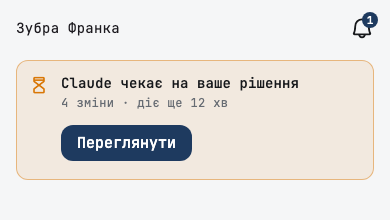
- While a request waits, the home screen of that station shows «… чекає на ваше рішення» with Переглянути, and the bell shows the number of waiting requests.
- In the bell, waiting requests sit at the top under Чекає на вашу відповідь, soonest to expire first, with Відхилити and Переглянути.
- A request from your own assistant waits 15 minutes for an answer. After that it closes, and nothing changes.
What you see before you answer
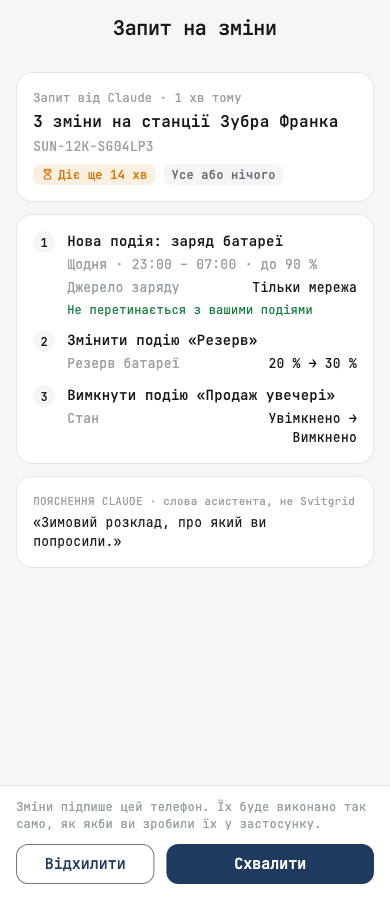
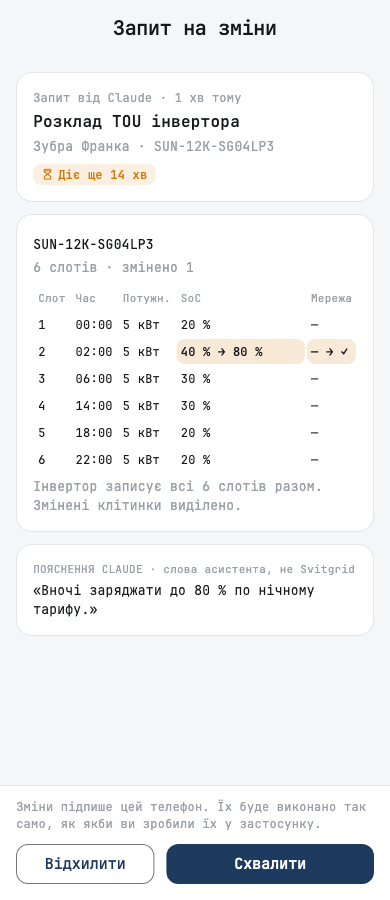
Запит на зміни shows each change as it is now and as it would be, with the arrow between them: an event's time and target charge, a reserve from 20 % to 30 %, an event switched off. A TOU change shows the whole six-slot schedule with the changed cells marked. The assistant's explanation is labelled as the assistant's words, not Svitgrid's.
You approve or reject the whole request: Усе або нічого. Either way, you can add a note of up to 500 characters, and the assistant sees it, so a rejection with "not this week, we are at home" gets you a better proposal.
What an assistant can ask for
- Calendar events: create, change, pause, switch off, delete or reorder them, and apply a rule template.
- The day plan: approve it, dismiss it, or make a new one now. The day planner itself: switch it on, change its goals, or renew its 30-day permission.
- Inverter settings: the work mode, solar sell, the grid charge current, the TOU schedule and more. The settings screens of Anenji, Edecoa, Daxtromn, Axioma, MUST, LuxPower SNA and Solis inverters are covered too, with the same checks as on those screens.
- The board: restart it, pause or resume monitoring, look for the inverter's logger, or update its firmware.
- Smart sockets, the EV charger, battery packs, the station's settings and tariff, your notifications and Telegram.
Your station stays yours
- The assistant cannot change anything by itself. Every change goes through your phone, and only after you approve it.
- A change that needs a signature is signed by your phone. If this phone cannot sign yet, Схвалити is unavailable, and Попросити схвалення asks your other phone to trust this one.
- An assistant that we have not verified is named by its web address with «(неперевірений)», so a program cannot pass itself off as an assistant you trust.
- Your phone checks each change against the station as it is when you approve: a value outside your inverter's limits, or an order of changes the inverter would refuse, is not sent, and the request says why.
While the changes run
The screen shows each change's result as it lands, in plain words. You can close the app: the rest runs when you open it again. If the app closed in the middle of a change, that change is not repeated. It is reported as unknown, with a request to check the station, because a second hub restart or firmware update is worse than a question.
Where you see it afterwards
- Запити in the bell lists the last 30 days of requests, each with its outcome: done, partly done, rejected with your note, or expired.
- An event made through a request shows ЗВІДКИ ЦЯ ПОДІЯ with Відкрити запит.
- The inverter's and the board's command history mark a change made this way as «🤖 Запит … · схвалили ви».
- Підключені асистенти shows whether each assistant may send requests and how many it sent in the last 30 days. To allow requests for an assistant connected earlier, connect it again.
- Запити від асистентів in the notification settings cannot be switched off, because without it you could not approve a request. To stop the requests, disconnect the assistant.
For organisations
An installer or another organisation that looks after your station can send a request through its assistant too. The request names the operator and the organisation, says that the operator cannot change your station without your approval, and waits up to 24 hours. Every owner and admin of the station gets it, and the first answer decides.
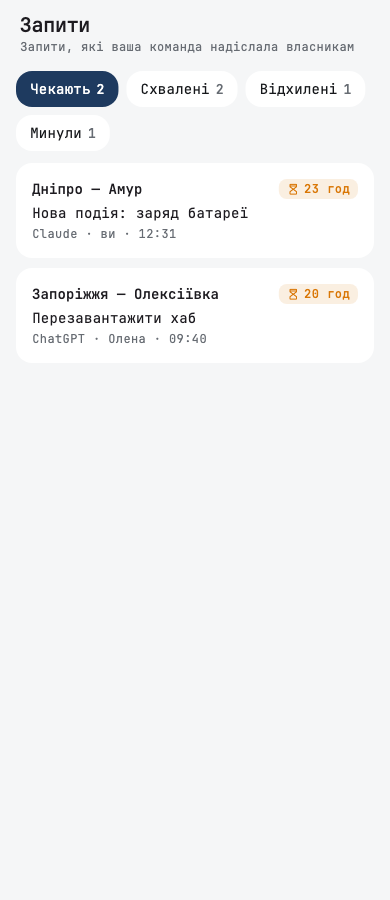
Operators get a Запити tab in the fleet, with Чекають, Схвалені, Відхилені and Минули. The overview shows how many requests wait, and a station with a waiting request is marked in the stations list. An operator sees a read-only timeline of each request: who sent it, how many people received it, who answered and what each change did. An organisation member who only reads sees how many people were asked, not who they are.
Banners on the home screen
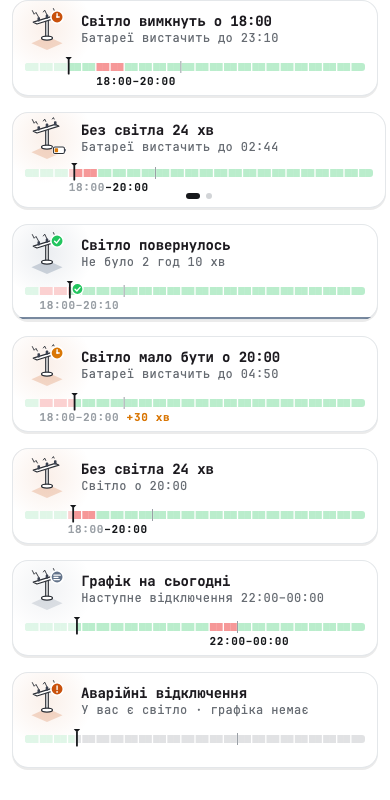
Banners no longer squeeze the energy diagram. Before, up to ten messages stacked above the diagram, each taking its height, and once the outage message shrank the diagram until it could not be read. Now every message is a card in one slot that floats over the top of the diagram, and the diagram keeps its full size.
- One card shows at a time. Swipe left or right for the next, and the dots under the card say how many there are.
- Each card starts with a small picture of what it is about: the battery, the inverter, the grid, the board, a calendar. It moves while something is changing and stays still otherwise, and it stops when your phone asks for reduced motion.
- The diagram moves down to centre in the space under a banner, and never shrinks for it.
- The cards come in a fixed order: your own changes first, then anything that makes the diagram untrue, then requests waiting for you, then the grid, then station settings, then what is worth knowing.
- A long message keeps its important part: the title is short, and the time or the age goes on the second line, for example «Дані можуть бути застарілими» over «Оновлено 1 год 10 хв тому · Усунення несправностей».
Hide a banner, and bring it back
- Swipe a card up, and it goes to the bell, under Сховано з головної, with a few seconds to undo.
- Banners about stale or missing data cannot be hidden, because without them the diagram would show old numbers as if they were current. They go away on their own when fresh data arrives.
- In the bell, swipe a hidden banner right, and it is back on the home screen at once.
- Swipe it left to stop showing its whole group on the home screen. The push and the entry in the bell stay.
- Банери на головній, at the end of Сповіщення in the settings, has one switch per group. Офлайн і збір даних always stays on. Switching a group back on also returns its hidden banners.

An outage, from before to after
The outage card now follows one outage from start to finish, so you can prepare for it instead of only watching it. The day's outage schedule moved inside the card, as a 24-hour strip.
- Before: «Світло вимкнуть о 18:00», with how long the battery lasts from that moment at your current load. A tap shows the battery now, how long it lasts as it is and when full, and Зарядити до відключення: a quick charge from the grid that stops by itself when the outage starts.
- During: how long the power has been off, and until when the battery lasts.
- Late: «Світло мало бути о 20:00» when the power should be back by the schedule and is not, with how late it is on the strip.
- After: «Світло повернулось» and how long it was off, for a few seconds.
- With no outage soon, a calm «Графік на сьогодні» card names the next one, and emergency outages have their own card.
Показувати графік відключень in the appearance settings hides the strip, the «Графік на сьогодні» card and the emergency card.
The battery time before an outage assumes your home keeps using what it uses now. If you expect a heavier load in the evening, the battery may run out sooner.
A calendar event, from start to finish
You can now see that your night charge started, did what it should, and gave your settings back. Before, the home screen said nothing about a running event. The banner now follows a calendar event through five stages:
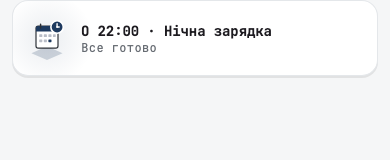
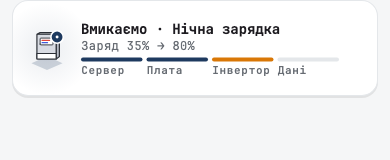
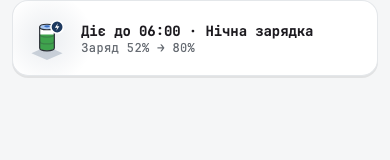
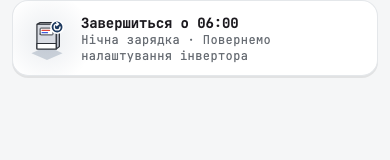
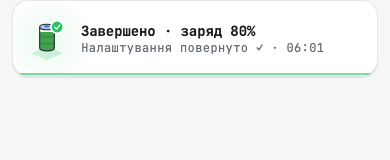
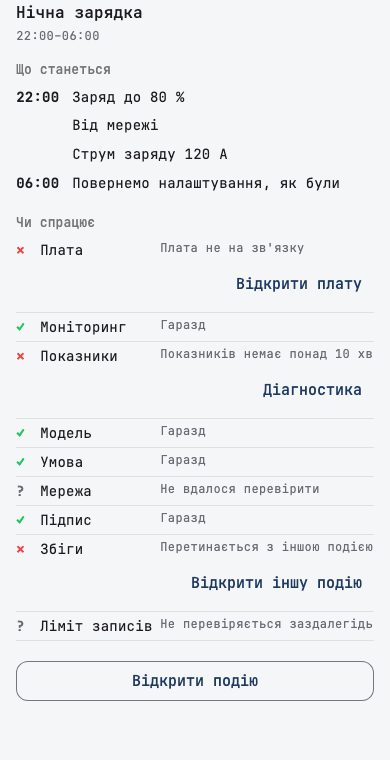
Before the start, a tap opens Що станеться: what the event changes, line by line, when your settings come back, and nine checks, such as whether the board is online, monitoring is on, the readings are fresh and the event overlaps no other. A failed check has a button under it that leads to the fix. If a check fails, the banner says so in amber before the event starts, not after. If a change fails, the banner turns red and says why in words. A quick charge shows only once, on its own banner.
Other banner changes
- A board you paused has its own banner, «Моніторинг призупинено», and a tap opens the board, where you can resume it. Before, after six minutes the app said the data may be outdated and offered troubleshooting for a board that was fine.
- A tap on the quick charge banner opens its event, where you can stop it. During an outage, the banner says that only the sun can charge the battery.
- A screen reader reads each card's group, title, text and position, and offers hiding as an action instead of a swipe.
The dashboard
- The battery runtime, such as «Вистачить на» and the clock time it lasts until, moved into the card the battery icon opens, right under the charge. Before, it sat above the diagram, where a banner covered it. While charging, the card says Повна через, and in an outage Без світла вистачить на. When the inverter's lowest discharge level is known, a bar marks where the inverter stops discharging.
- Each panel string's voltage and current is now one compact line, as large as the string's name. Before, the two lines were small and ran into each other.
- On a station with one inverter, the inverter no longer carries an «Офлайн» label over the diagram. The banner already says how old the data is, and the inverter icon still dims. With several inverters, the label stays, because it names the one that went silent.
Signing keys
Your phone now gets its signing key by itself. Before, a key was made only during setup, so a phone you signed in on later had no key until you set one up yourself. Now the app makes one when you sign in, for the stations where you are the owner or an admin, and asks the station to trust it.
- A key your phone already has is never replaced. Before, opening the signing setup could replace a working key, and the phone then had to be trusted again on every board.
- If the phone cannot read its key for a moment, the app tries again on the next launch instead of making a new one.
- If a station's owner declines your phone, the app stops asking at every launch. You can still ask again from Ваші пристрої.
- A viewer of a station gets no key and sends no trust request.
Smaller fixes
- When two-factor sign-in cannot be set up for a reason on our side, the app says «Двофакторна автентифікація зараз недоступна. Спробуйте пізніше.», instead of asking you to try again at once.
- A rule that stayed where it was after a move between the cloud and Home Assistant, because the app could not read its actions, now says exactly that.
- A phone that collects data keeps its own log for about a week, so when you ask for help, support can see what happened on the phone without asking you to reproduce it.