
Rules and Professional events
On this page
- The idea in one minute
- Event, Professional event, or rule?
- What you need first
- Your first rule: tell me when the battery is low
- Your first Professional event: use spare sun in the daytime
- How to set when a rule applies
- Conditions: the "when" part
- Settings: the "do" part
- What happens when a rule ends
- Read what a rule is doing
- When two automations want the same thing
- Faster ways to build
- Examples to copy
- If a rule does not work
A rule is a sentence: "when this happens, do that". Svitgrid watches your station, makes the change for you, and undoes it when the condition ends. A Professional event does the same thing, but only during the hours you choose.
This page assumes you have never set up an automation. Read it from the top, and make the first rule with your phone in your hand. It takes about two minutes and cannot change anything on your inverter.
The idea in one minute
Imagine you leave a note for a helper who watches your station all day:
When the battery drops to 30%, tell me.
That note is a rule. Every rule has two parts:
- The condition is the "when" part: when the battery drops to 30%.
- The setting is the "do" part: tell me.
There is a third part that you do not write. A rule undoes itself. Think of a light with a motion sensor. It turns on when you walk in, and it turns off when you leave. You never tell it to turn off. A rule works the same way: when the condition stops being true, Svitgrid puts the old setting back.
A word you will see
The app calls rules and events together automations. An automation is anything that acts without you pressing a button.
Event, Professional event, or rule?
These three names confuse people, so here is the difference.
| What it is | Example | |
|---|---|---|
| Event | A ready-made job for hours you choose | Charge the battery from 23:00 to 07:00 |
| Professional event | An event where you choose the conditions and the settings yourself | From 08:00 to 18:00 on weekdays, if solar is above 3 kW, turn on the boiler |
| Rule | The same builder as a Professional event, and it stays on until you turn it off | Whenever the power goes out, turn off the boiler |
Use this to choose:
- You know the exact hours, and no condition is needed: make an ordinary event.
- You know the hours, and something else must also be true: make a Professional event.
- You do not know when it will happen: make a rule.
Rules and events are the same thing inside the app, so they overlap in two ways:
- A rule that you give hours also appears on the Calendar tab.
- An event that repeats also appears on the Rules tab.
What you need first
- A paid plan. Rules and Professional events work from the Basic plan. Conditions that use the solar forecast need Plus or Pro. See Subscription.
- A collector that is running. Rules work from fresh readings. If nothing has sent a reading for 15 minutes, a rule that depends on readings waits. It does not guess.
- A phone that can sign commands. If the app says this phone cannot sign, open Your devices.
- A Home Assistant station or a cloud station. A phone station with the cloud copy off has no Rules tab. Home Assistant runs rules by itself, with some limits. See Local mode.
Your first rule: tell me when the battery is low
This rule only sends a notification. It changes nothing on the inverter, so it is the safest way to learn.
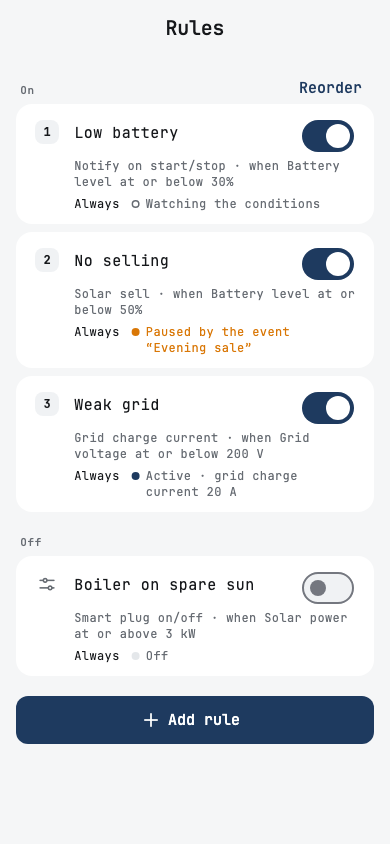
- Open the Calendar tab.
- At the top, tap Rules.
- Tap Add rule. The app asks What do you want to add?
- Tap Rule.
- Under Name, type
Low battery. - Leave When it applies on Always, while it is on.
- Under Trigger when…, tap Add condition, then tap Battery level.
- Choose at or below, move the slider to 30%, and tap Save.
- Under Settings to change, tap Add setting, then tap Notify on start/stop.
- Tap Turn on rule.
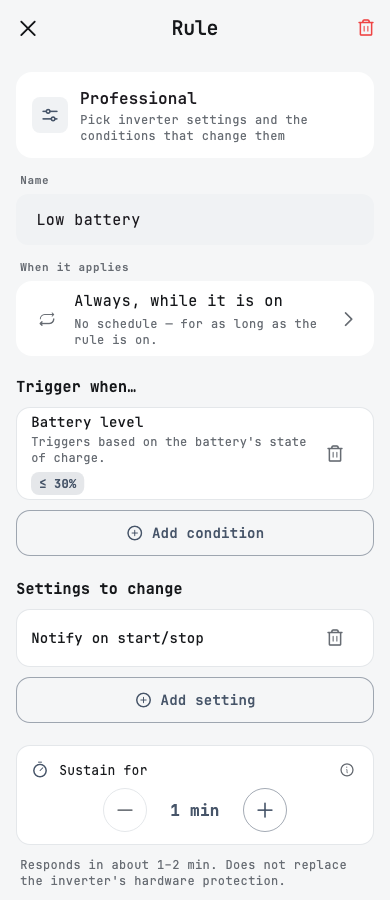
You are done. The rule appears in the list with the words Watching the conditions.
When the battery reaches 30%, your phone gets a notification that the rule started. When the battery climbs above 30% again, you get a second notification that it stopped.
When a rule changes a setting, a box named This rule: shows the whole rule as one sentence. Read it aloud. If the sentence is what you want, the rule is what you want.
Your first Professional event: use spare sun in the daytime
This example needs a Zigbee smart plug on a boiler. Use it to learn the steps, even if you do not have one.
The sentence is: on weekdays from 08:00 to 18:00, when solar is at or above 3 kW, turn on the boiler.
- Open the Calendar tab, and tap +.
- Choose Professional.
- Set the start time to 08:00 and the end time to 18:00.
- Choose the days Monday to Friday.
- Under Trigger when…, tap Add condition, then Solar power. Choose at or above, set 3 kW, and tap Save.
- Under Settings to change, tap Add setting, then Smart plug on/off. Choose the boiler plug and Turn ON.
- Save the event.
From then on, the app does this:
- Before 08:00, nothing happens.
- At 08:00, Svitgrid starts watching the solar power.
- When the panels reach 3 kW, the boiler turns on.
- If a cloud drops solar power below 3 kW, the boiler turns off, and it turns on again when the sun returns.
- At 18:00, the boiler turns off, whatever the sun is doing.
An event with no conditions
Conditions are optional. A Professional event with no conditions applies its settings for the whole time window.
How to set when a rule applies
Tap When it applies on the rule screen.
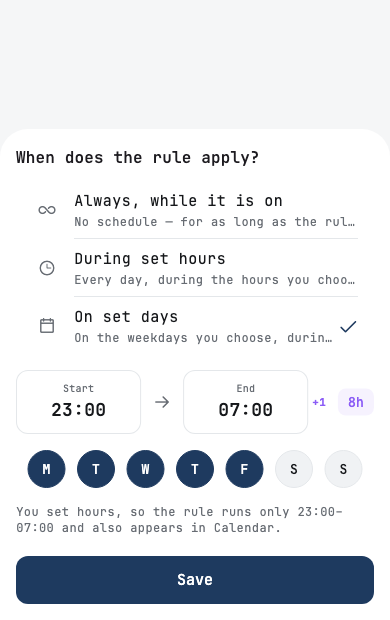
- Always, while it is on means the rule watches day and night.
- During set hours means every day, between the two times you choose.
- On set days means only on the weekdays you choose, between the two times.
A rule with hours also appears on the Calendar tab. A rule on Always with no conditions acts the moment you turn it on, and stays active until you turn it off.
Conditions: the "when" part
"At or below 30" means 30, 29, 28, and every lower number. "At or above 30" means 30, 31, 32, and every higher number.
| Condition | What it watches | Example |
|---|---|---|
| Battery level | The battery's charge, in percent | At or below 30% |
| Solar power | What the panels make right now | At or above 3 kW |
| Home load | What the house uses right now | At or above 4 kW |
| Grid | Whether city power is on | No power |
| Scheduled outage | Your group's outage timetable | 2 hours before the outage |
| Hours without power | Outage hours over the last 30 days | At or above 20 hours |
| Today's solar forecast | Energy expected today | At or above 20 kWh |
| Tomorrow's solar forecast | Energy expected tomorrow | At or below 8 kWh |
| Market price | The hourly market price, in Ukraine | At or above 5 ₴/kWh |
| Grid voltage | The voltage at your input | At or below 200 V |
| Inverter temperature | The inverter's own sensor | At or above 60 °C |
| Average battery temperature | The average of your battery packs' sensors | At or below 10 °C |
| Sensor | A Zigbee sensor's temperature or humidity | At or above 25 °C |
| Socket | A Zigbee socket's power, or whether it is on | At or above 100 W |
| Car on the cable | Whether a car is plugged into an Eveus charger | Connected |
You see only what your station can use. Sensor and Socket appear when a Zigbee device is sending data. Inverter temperature and Average battery temperature appear when your equipment reports them. The forecast conditions need solar panels.
On a three-phase station, Grid voltage looks at the worst phase. At or below checks the lowest phase, and at or above checks the highest.
Several conditions mean "all of them"
If you add more than one condition, every one must be true at the same time. "Battery at or below 30%" plus "No power" means both together.
There is no "or". To say "this or that", make two rules. A rule can hold up to 8 conditions and 8 settings.
Stop a rule from flickering
Suppose a rule turns a heater on at 3 kW of solar. On a cloudy day, solar goes 3.1, 2.9, 3.0, 2.8. The heater turns on and off again and again. Two tools fix this, and you can use both.
Sustain for is a waiting time, from 1 to 20 minutes. All the conditions must stay true for that long before the rule starts, and they must stay false for that long before it stops. It is like waiting a few minutes to be sure that the rain has really stopped.
Release threshold is a second number. Tap a condition, turn on Add release threshold, and set Release at. A home thermostat works this way: the heating starts at 19 °C and stops at 21 °C, so it does not click on and off at 20 °C.
For example, with solar at or above 3 kW and Release at 2 kW:
| Solar power | What the rule does |
|---|---|
| Reaches 3 kW | Starts |
| Falls to 2.5 kW | Stays on |
| Falls below 2 kW | Stops |
Settings: the "do" part
Tap Add setting to see this list. It depends on your inverter. An item that yours cannot do shows Not available on this inverter.
| Setting | What it does |
|---|---|
| Notify on start/stop | Sends a notification. Works on every inverter. |
| Smart plug on/off | Turns Zigbee plugs on or off, and back again afterwards |
| EV charger | Pauses a charger, sets its current, or charges it from spare sun |
| Work mode | Chooses how the inverter balances selling and powering the home |
| Energy priority | Chooses whether solar covers the house first or charges the battery first |
| Solar sell | Allows or stops selling spare solar to the grid |
| Max sell power | Limits how much the inverter may sell |
| TOU timer | Turns the inverter's own time table on or off |
| Grid charge current | Limits the current used to charge the battery from the grid |
| Force generator | Forces the generator on or off |
| Generator port mode | Chooses what the generator port is for |
| Inverter priority | Chooses what charges the battery and what powers the house, on inverters with no time table |
| Switching thresholds | Sets the voltages at which the inverter moves between battery and grid |
| Battery limits | Sets the voltages at which the inverter stops discharging and charging the battery |
| Grid peak shaving | Limits how much power the inverter takes from the grid. Events only. |
| Charge window (TOU) | Sets a time window for charging the battery. Events only. |
Each setting can appear once in a rule. Two values for one setting would fight each other.
Charge window (TOU) is the risky one
This setting edits your inverter's real time-of-use table. On some stations it can leave a slot boundary moved after the event ends. To charge at set hours, use the ordinary Battery Charge event instead.
What happens when a rule ends
When the condition stops being true, or you turn the rule off, Svitgrid puts back the value that was there before the rule started. Deleting a rule does the same.
If you change that same setting by hand while the rule is active, your change does not last. Svitgrid writes back the older value when the rule ends.
Read what a rule is doing
The line at the bottom of each rule tells you what is happening now.
| You see | What it means |
|---|---|
| Watching the conditions | Everything is fine. The condition is not true yet. |
| Watching · now 228 V | The same, for a voltage rule, with the live voltage |
| Active | The condition is true, and the rule has made its change |
| Waiting for its hours | The rule has hours, and they have not started |
| Paused by the event | A calendar event controls this setting for now. The rule returns afterwards. |
| Not acting: … | The rule wants to act, but something stops it. The line says what. |
| Doesn't run without a cloud copy | The rule needs cloud data, and your station has the cloud copy off |
| Off | You turned the rule off |
Open a rule and scroll down to Activity History. It lists every time the rule ran, and for how long.
When two automations want the same thing
Sometimes two automations try to change the same setting at the same moment. Only one can win. The order in your list decides.
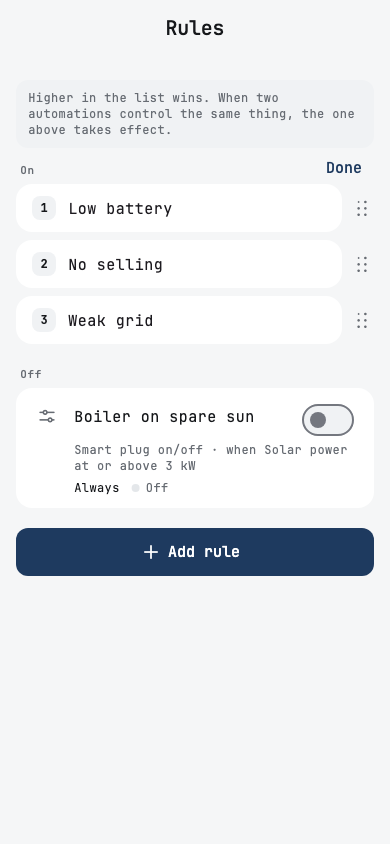
- On the Rules tab, tap Reorder.
- Drag the rules by the dots on the right.
- Tap Done.
Higher in the list wins. The order belongs to one inverter, so each inverter has its own list.
Here is what happens in each case:
- Different settings. Nothing is contested. Both automations run.
- A calendar event and an Always rule, and you never reordered them. The event wins for its hours. The rule pauses, then comes back.
- You dragged a rule above the event. The rule wins, and the event stands down.
- Two Always rules, both with conditions. The app lets you save both. The higher one wins if both are true at once.
- Two Always rules on one setting, and one has no condition. The app refuses to save. A rule with no condition holds the setting forever, so the other would never run. EV chargers are the exception: two rules on one charger can always be saved.
- Two events, or two rules with hours, on one setting at the same time. The app refuses to save, and tells you there is a conflict. Move one to other hours.
- You reordered nothing, and two equal automations meet. The one that started first keeps the setting.
A rule with hours counts as an event in this list.
Faster ways to build
Templates. On the Rules tab, tap Add rule, then Template. A template adds a ready-made set in one tap. The Нічний тариф (night tariff) template charges the battery from the grid to 95% overnight. Some inverters cannot run every part of a template, and the app says which.
Presets. In a Professional event, Save as preset stores your conditions and settings. Start from a preset brings them back in the next event.
Groups. Press and hold a rule, select others, and tap Group. Name the group, for example Night mode. The rules work as before, but you can switch them on together and move them together.
Several inverters. With two or more inverters, a new rule can go on one of them or on all. Each copy reads its own inverter.
Rules made on the Critical devices screen are locked. Change them on that screen.
A station that runs on Home Assistant with the cloud copy off has no manual order and no groups.
Examples to copy
| You want | Trigger when… | Settings to change |
|---|---|---|
| A message when the power goes out | Grid: No power | Notify on start/stop |
| The boiler off during an outage | Grid: No power | Smart plug on/off: Turn OFF |
| A heater on when there is spare sun | Solar power at or above 3 kW, Release at 2 kW | Smart plug on/off: Turn ON |
| Gentler charging on a weak grid | Grid voltage at or below 200 V, Release at 210 V | Grid charge current: 20 A |
| The car paused when the power goes out | Grid: No power | EV charger: pause |
| A warning about a hot inverter | Inverter temperature at or above 60 °C, Release at 55 °C | Notify on start/stop |
| A warning about a cold battery | Average battery temperature at or below 10 °C, Release at 12 °C | Notify on start/stop |
| No selling while the battery is low | Battery level at or below 50% | Solar sell: off |
More ready-made rules: Rule recipes.
A rule is not a safety device
A rule responds in about 1–2 minutes. It does not replace the inverter's hardware protection, a fuse, or a breaker. Never use a rule as the only protection for equipment or people.
What happens when data goes missing
A condition needs a value to check. When the value is missing, Svitgrid does the safest thing for that kind of condition.
| Condition | With no data |
|---|---|
| Battery level, Grid | Counts as not true |
| Sensor, Socket | After 30 minutes of silence, counts as not true, so the rule lets go |
| Inverter temperature, Average battery temperature | Counts as not true, so the rule lets go |
| Hours without power | Counts as not true |
| Grid voltage | Keeps its last state. Silence is not a voltage drop. |
| Car on the cable | A running rule keeps running. A waiting rule does not start. |
| Today's solar forecast, Tomorrow's solar forecast, Market price | Counts as true, so your rule still runs |
If a rule does not work
The button stays grey, and the app says Add at least one setting. A rule needs something to do. Add a setting, or add Notify on start/stop.
A condition or a setting is missing from the list. Your equipment does not offer it. See the notes under the conditions and settings tables.
The rule says Watching, but the condition looks true. Wait for the Sustain for time, plus 1–2 minutes. Then check that readings still arrive on the dashboard.
The rule says Not acting. Read the rest of the line.
- the inverter has not reported its charge current yet: Svitgrid will not change a value that it cannot put back. Wait for the next settings sync.
- no device can run the command: check that your Gateway or harvesting phone is online.
- another event controls this setting: see When two automations want the same thing above.
The rule never ends. Its condition is still true. A rule on Always with no condition never ends by itself. Turn it off with its switch.
The rule flickers on and off. Raise Sustain for, and add a Release at value.
The app says the rule conflicts with another rule. Two rules want the same setting. Give both of them a condition, or turn one off.
The app does not let you edit. A view-only phone can see rules, but cannot change them.