Welcome to Svitgrid
Your complete guide to monitoring solar energy with Svitgrid.
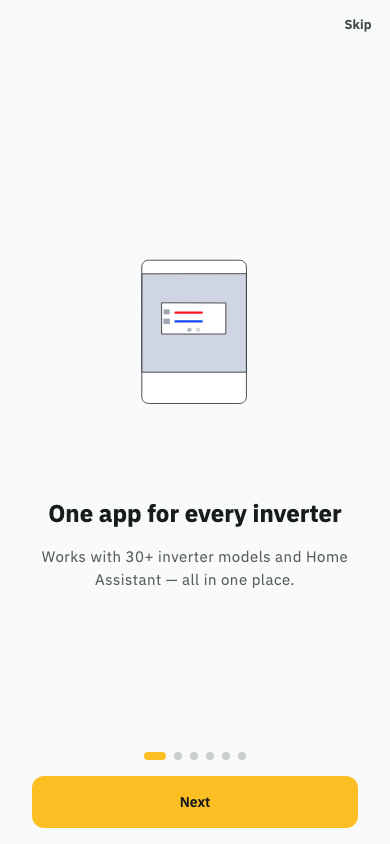
Svitgrid is a free solar energy monitoring app that connects to your home inverter and shows real-time data about your solar production, battery storage, grid usage, and home consumption.
Welcome screen — add your first household to get started
What can Svitgrid do?
- Real-time monitoring - See live production, battery SOC, grid import/export, and load
- Energy charts - Daily, weekly, and monthly energy visualizations
- Solar forecast - Predicted solar production based on your panel configuration and weather
- Multi-property - Manage multiple households from one account
- Smart alerts - Get notified about production drops, low battery, and system issues
- Outage schedule - View planned power outages for your region (Ukraine)
- Data export - Download your energy data as CSV
- Works offline - Data syncs automatically when you reconnect
How it works
Svitgrid connects to your solar inverter through its data logger (Wi-Fi stick). The data logger communicates using the Solarman V5 protocol (or Modbus TCP for Victron). The app reads register values from the inverter to display real-time metrics.
There are two connection modes:
- Direct mode - Your phone connects directly to the inverter over your local network
- Edge device mode - A Raspberry Pi gateway collects data 24/7 and sends it to the cloud, so you can monitor from anywhere
Download & Install
Get Svitgrid on your device.
iOS (iPhone / iPad)
- Open the App Store on your device
- Search for "Svitgrid"
- Tap Get to download (free)
- Open the app once installed
Requires iOS 15.0 or later.
Android
- Open Google Play Store
- Search for "Svitgrid"
- Tap Install (free)
- Open the app once installed
Requires Android 8.0 (API 26) or later.
Permissions
Svitgrid may request the following permissions:
| Permission | Why |
|---|---|
| Local Network | To communicate with your inverter on your Wi-Fi network |
| Bluetooth | To configure the edge device via BLE |
| Location | For solar forecast accuracy (panel location) and BLE scanning (Android requirement) |
| Notifications | For energy alerts and system status updates |
| Camera | To scan QR codes during edge device setup |
Create Your Account
Sign up in seconds.
Registration
- Open Svitgrid and tap "Create Account"
- Enter your name, email, and password
- Tap "Sign Up"
- Check your email for a verification code and enter it in the app
- You're in!
Password Requirements
- Minimum 8 characters
- At least one uppercase letter
- At least one number
Multi-Factor Authentication (MFA)
After creating your account, you can enable MFA for extra security in Settings > Security. Svitgrid supports authenticator apps (Google Authenticator, Authy, etc.).
Forgot Password
On the login screen, tap "Forgot Password?" to receive a reset code via email. Enter the code and set a new password.
Onboarding Wizard
Set up your first household step by step.
After creating your account, the onboarding wizard guides you through setting up your solar system. Here's what each step does:
Step 1: Household Name
Give your property a name (e.g., "Home", "Country House", "Office"). This helps you identify it if you have multiple properties.
Step 2: Location
Set your property's location on the map. This is used for:
- Solar forecast calculations (sun position depends on latitude/longitude)
- Weather data for forecast accuracy
- Timezone detection
Step 3: Connection Mode
Choose between Mobile Mode (direct) and Edge Mode (24/7 monitoring)
Choose how Svitgrid connects to your inverter:
| Mode | How it works | Best for |
|---|---|---|
| Direct | Phone connects directly to inverter via Wi-Fi | Quick checks, single user |
| Edge Device | Raspberry Pi gateway collects data 24/7 | Continuous monitoring, multiple users, remote access |
Step 4: Inverter Brand & Model
Select your inverter brand (Deye, Sunsynk, Sol-Ark, Victron) and specific model. This tells Svitgrid which register map to use for reading data.
Step 5: Inverter Configuration
Enter your inverter's connection details:
- IP Address - The local IP of your inverter's data logger (e.g., 192.168.1.100)
- Port - Usually 8899 for Solarman, 502 for Victron Modbus TCP
- Logger Serial - The serial number of your data logger (printed on the stick or available in the SolarmanSmart app)
Scan your network automatically or enter inverter details manually
Battery & Solar Configuration
Configure your battery capacity and solar panel string layout
Step 6: Device Discovery (Edge Device mode)
If you chose Edge Device mode, this step scans for your Svitgrid Edge Connector via Bluetooth and configures its Wi-Fi connection.
Scan for nearby devices, connect via Bluetooth, and send WiFi credentials
Step 7: Location
Set your location for weather data and sunrise/sunset calculations
Step 8: Review & Finish
Review your settings and tap "Create Inverter". The app validates your configuration, registers the device in the cloud, sends WiFi credentials, and waits for the device to come online.
Review your configuration, then watch the automated setup process complete
Dashboard Overview
Understanding your solar dashboard.
The dashboard is your home screen. It shows a real-time snapshot of your solar system with four key metrics:
Live power flow with energy sources chart and grid voltage monitoring
| Metric | Color | What it shows |
|---|---|---|
| Solar Production | Yellow/Amber | Current power output from your solar panels (kW) |
| Battery | Green | State of charge (%) and charge/discharge power (kW) |
| Grid | Blue | Power imported from or exported to the grid (kW) |
| Home Load | Purple | Current power consumption of your home (kW) |
Energy Summary
Below the live metrics, the energy summary shows daily totals:
- Daily Production - Total solar energy generated today (kWh)
- Daily Import - Energy bought from the grid today (kWh)
- Daily Export - Energy sold/fed to the grid today (kWh)
- Daily Load - Total home consumption today (kWh)
Auto-refresh
In Direct mode, the dashboard refreshes every 5 seconds while the app is open. In Edge Device mode, data arrives as new readings are collected (typically every 5-60 seconds depending on configuration).
Fullscreen Mode
Tap the expand icon to view the dashboard in fullscreen landscape mode - useful for wall-mounted tablets or presentations.
Power Flow
Visualize how energy flows through your system.
The Power Flow card shows an animated diagram of energy movement between four nodes:
Nodes
- Solar (top) - Your PV panels. Shows current combined output from all strings.
- Battery (left) - Your battery bank. Arrow direction shows charging (in) or discharging (out).
- Grid (right) - The utility grid. Arrow direction shows importing (in) or exporting (out).
- Home (bottom) - Your home load. Always receiving power from one or more sources.
Reading the flow
Animated dots flow between nodes to show where energy is going. The thickness of the flow line indicates the relative power level. Common scenarios:
- Sunny day, low usage: Solar feeds home + charges battery + exports to grid
- Sunny day, high usage: Solar feeds home, battery supplements
- Night time: Battery and/or grid feeds home
- Grid outage: Battery feeds home (if battery has charge)
Energy Charts
Visualize your energy data over time.
Chart Types
Stream Graph
Shows stacked energy sources over the course of a day. Each color band represents a source (solar, battery, grid). The width of each band shows the relative contribution at any moment.
Production Chart
A line/area chart showing solar production power (kW) over time. The curve typically follows a bell shape peaking around solar noon.
Consumption Chart
Shows home load power over time. Spikes indicate high-consumption appliances turning on (ovens, EV chargers, air conditioning).
Grid Chart
Shows grid import (positive) and export (negative) over time. Ideally, you want more export than import.
Time Ranges
Swipe between charts in the carousel, or tap the time range selector to switch between:
- Today - Hourly data points
- Week - Daily totals
- Month - Daily totals
Calendar View
The Calendar tab shows hourly energy breakdown for any selected day. Each bar shows the energy mix (solar, battery, grid, export) per hour, making it easy to spot patterns.
Hourly energy breakdown by source for the selected day
Battery Status
Understanding your battery metrics.
State of Charge (SOC)
Shown as a percentage (0-100%). This is the main indicator of how much energy is stored in your battery.
| SOC Range | Status | Color |
|---|---|---|
| 80-100% | Full / Nearly full | Green |
| 40-79% | Normal | Yellow/Amber |
| 20-39% | Low | Orange |
| 0-19% | Critical | Red |
Battery Power
Shows how fast the battery is charging or discharging:
- Positive value = Charging (energy going into battery)
- Negative value = Discharging (energy coming out of battery)
- Zero = Idle (battery is full or inverter decided not to use it)
Battery Voltage
The current voltage of your battery bank. This varies by battery chemistry and configuration. Typical ranges:
- 48V systems: 44-58V (LiFePO4), 44-56V (lead-acid)
- High-voltage systems: varies by manufacturer
Battery Override
Create custom battery charge/discharge schedules to override the inverter's default behavior. Set time windows, repeat patterns, charge sources, and target battery levels.
Create a battery charge override with time, source, and target level
Households
Managing multiple properties and sharing access.
What is a Household?
A household represents one physical location with a solar system. Each household has its own inverter configuration, dashboard, and energy data.
Multiple Households
You can add multiple households to your account. Switch between them using the dropdown at the top of the dashboard. This is useful if you have solar on your home, vacation house, or office.
Adding a New Household
Go to Settings > Households > Add Household and follow the onboarding wizard for the new property.
Inviting Members
Share access to a household with family members or colleagues:
- Go to Settings > Household Settings
- Tap "Invite Member"
- Enter their email address
- They'll receive an invitation link to join the household
Invited members can view the dashboard and data but cannot modify inverter settings.
Roles
| Role | Can do |
|---|---|
| Owner | Everything: view data, change settings, invite/remove members, delete household |
| Member | View dashboard and energy data |
Solar Forecast
Predict your solar production.
How it works
Svitgrid calculates expected solar production based on:
- Your panel location (latitude, longitude, altitude)
- Panel configuration (tilt angle, azimuth direction)
- Panel capacity (kWp)
- Weather forecast (cloud cover, temperature)
- Sun position algorithm (sunrise, sunset, solar noon)
Configuring Solar Strings
For accurate forecasts, configure your solar string(s) in Forecast > Configure:
- Capacity (kWp) - Total rated power of panels on this string
- Tilt - Angle of panels from horizontal (0 = flat, 90 = vertical)
- Azimuth - Compass direction panels face (180 = due south in Northern Hemisphere)
Forecast vs Actual
The forecast screen shows predicted production (shaded area) overlaid with actual production (line). This helps you identify underperformance caused by shading, dirt, or equipment issues.
Battery Forecast
Based on your solar forecast and typical consumption patterns, Svitgrid also predicts your battery charge level throughout the day.
Outage Schedule
View planned power outages (Ukraine).
Overview
In Ukraine, planned power outages (scheduled blackouts) follow a rotating schedule by region and group. Svitgrid displays this schedule so you can plan your energy usage.
Setup
- Go to the Outage tab
- Select your region (oblast)
- Select your group number (shown on your electricity bill or your local distribution company's website)
Reading the Schedule
The schedule shows color-coded time blocks:
- Green - Power is expected to be on
- Red - Planned outage (power off)
- Yellow - Possible outage (power may be cut)
Data Export
Download your energy data.
Export Format
Data is exported as a CSV file that you can open in Excel, Google Sheets, or any spreadsheet application.
How to Export
- Go to Dashboard > Energy Summary
- Tap the export icon (download arrow)
- Select the date range
- Tap "Export"
- Choose where to save or share the file
Exported Fields
| Column | Unit | Description |
|---|---|---|
| timestamp | ISO 8601 | When the reading was taken |
| pv_power | W | Solar panel output |
| battery_soc | % | Battery state of charge |
| battery_power | W | Battery charge/discharge (+ charging, - discharging) |
| grid_power | W | Grid power (+ import, - export) |
| load_power | W | Home consumption |
| daily_pv | kWh | Cumulative solar production for the day |
| daily_import | kWh | Cumulative grid import for the day |
| daily_export | kWh | Cumulative grid export for the day |
Notifications
Stay informed about your system.
Notification Types
- Low Battery - Battery SOC dropped below your configured threshold
- Production Drop - Solar production significantly lower than expected
- System Offline - Edge device hasn't reported data for a configured period
- Outage Alert - Upcoming planned power outage for your region
Messenger Notifications
In addition to push notifications, Svitgrid can send alerts to Telegram. Configure this in Settings > Notifications > Messenger.
Configuring Alerts
Go to Settings > Notifications to customize:
- Which alerts to receive
- Threshold values (e.g., low battery at 20% vs 10%)
- Quiet hours (no notifications during certain times)
Inverter Connection
Connect Svitgrid to your solar inverter.
What You Need
- A supported inverter (see Supported Inverters)
- The inverter's data logger (Wi-Fi stick) connected to your network
- Your phone on the same Wi-Fi network (for Direct mode)
Finding Your Inverter's IP Address
- Check your router's connected devices list (usually at 192.168.1.1)
- Look for a device named similar to your data logger model
- Note the IP address (e.g., 192.168.1.100)
Finding Your Logger Serial Number
The logger serial is printed on the data logger stick itself. You can also find it in:
- The SolarmanSmart app (Device Info section)
- Your inverter manufacturer's app
- The sticker on the data logger hardware
Connection Settings
| Setting | Solarman (Deye/Sunsynk/Sol-Ark) | Victron Modbus TCP |
|---|---|---|
| IP Address | Data logger IP | GX device IP (Cerbo/Venus) |
| Port | 8899 | 502 |
| Logger Serial | 10-digit number | Not required (enter 0) |
Testing the Connection
After entering your details, tap "Test Connection". Svitgrid will attempt to read a register from your inverter. If successful, you'll see your current PV power. If it fails, check:
- IP address is correct and device is online
- Phone is on the same network as the data logger
- Port is correct (8899 or 502)
- Logger serial matches the physical device
Edge Device
Set up continuous monitoring with a Raspberry Pi gateway.
What is the Edge Device?
The edge device is a small Raspberry Pi (Zero 2W recommended) that sits on your home network and continuously collects data from your inverter. It sends readings to the Svitgrid cloud, enabling:
- 24/7 data collection (even when the app is closed)
- Remote monitoring from anywhere in the world
- Historical data with no gaps
- Multiple users monitoring the same system
Hardware Requirements
- Raspberry Pi Zero 2W (recommended) or any Raspberry Pi with Wi-Fi
- MicroSD card (8GB+)
- USB-C power supply
- Wi-Fi connection to the same network as your inverter
Setup Process
- Flash the Svitgrid edge software onto the MicroSD card
- Insert the card and power on the Raspberry Pi
- In the Svitgrid app, go to Edge Device > Scan
- The app discovers the device via Bluetooth
- Configure Wi-Fi credentials through the app
- The edge device connects to your network and starts collecting data
LED Status
| LED Pattern | Meaning |
|---|---|
| Slow blink | Waiting for configuration |
| Fast blink | Connecting to Wi-Fi |
| Solid on | Connected and collecting data |
| Double blink | Error (check app for details) |
Supported Inverters
Full list of compatible inverter models.
Deye
| Model | Type | Phases |
|---|---|---|
| SG04LP3 | 3-Phase Hybrid | 3 |
| SG03LP1 | 3-Phase Hybrid | 3 |
| SG01HP3 | 3-Phase HV Commercial | 3 |
| SG01LP1 | 1-Phase Hybrid | 1 |
| SG02LP1 | 1-Phase Hybrid (3 PV strings) | 1 |
| Sun-G3 | 1-Phase Hybrid | 1 |
| SG01LP1-US | US Split-Phase | 2 |
| String Inverter | Grid-Tie (no battery) | 3 |
| Microinverter | Microinverter | 1 |
Sunsynk
| Model | Type | Phases |
|---|---|---|
| 1-Phase Hybrid | 1-Phase Hybrid | 1 |
| 3-Phase Hybrid | 3-Phase Hybrid | 3 |
Sol-Ark
| Model | Type | Phases |
|---|---|---|
| 5K | US Split-Phase | 2 |
| 12K | US Split-Phase | 2 |
| 15K | US Split-Phase | 2 |
Victron
| Model | Type | Protocol |
|---|---|---|
| MultiPlus-II GX 6.5kVA | 1-Phase Hybrid | Modbus TCP (port 502) |
Profile & Security
Manage your account settings.
Edit Profile
Go to Settings > Edit Profile to change your display name or email address. Email changes require re-verification.
Change Password
Go to Settings > Security > Change Password. You'll need your current password.
Enable MFA
- Go to Settings > Security > Multi-Factor Authentication
- Scan the QR code with your authenticator app
- Enter the 6-digit code to verify
- MFA is now active for your account
Delete Account
Go to Settings > Delete Account. This permanently deletes your account and all associated data. This action cannot be undone.
Appearance
Customize how the app looks.
Theme
Choose between:
- Light - White backgrounds, dark text
- Dark - Dark backgrounds, light text (easier on the eyes at night)
- System - Follows your phone's system theme setting
Language
Svitgrid supports:
- English (EN)
- Ukrainian (UK)
The app defaults to your phone's language setting. Change it in Settings > Appearance > Language.
Household Settings
Configure your property and inverter.
Settings screen with household, inverter, forecast, and edge device options
Inverter Settings
Modify your inverter connection details (IP, port, serial, model) in Settings > Inverter Settings. Changes take effect immediately.
Rename Household
Tap the household name in Settings > Household Settings to rename it.
Remove Household
Only the owner can delete a household. This removes all associated energy data permanently.
Member Management
View current members, send new invitations, or remove members from Settings > Household Settings > Members.
Terminology & Glossary
Solar energy and Svitgrid terms explained.
| Term | Definition |
|---|---|
| PV (Photovoltaic) | Solar panels that convert sunlight into electricity. |
| Inverter | Device that converts DC power from solar panels into AC power for your home. Also manages battery charging and grid interaction. |
| Hybrid Inverter | An inverter that can work with both solar panels and batteries, and can switch between grid-connected and off-grid modes. |
| String | A group of solar panels connected in series. Most systems have 1-3 strings. |
| Data Logger | A Wi-Fi module (stick) attached to the inverter that allows network communication. Sometimes called a "Wi-Fi stick" or "monitoring stick". |
| SOC (State of Charge) | The current charge level of your battery, expressed as a percentage (0-100%). |
| kW (Kilowatt) | A unit of power. Shows how much energy is being produced or consumed right now. Like the speed of your car. |
| kWh (Kilowatt-hour) | A unit of energy. Shows how much energy was produced or consumed over time. Like the distance your car traveled. |
| Grid Import | Electricity you buy from the utility grid (grid power flowing into your home). |
| Grid Export | Electricity you sell/feed back to the grid (excess solar production flowing out). |
| Load | Your home's electricity consumption - everything that uses power (lights, appliances, HVAC, etc.). |
| Self-consumption | The percentage of your solar production that you use directly, rather than exporting to the grid. |
| Solarman V5 | A communication protocol used by Deye, Sunsynk, and Sol-Ark data loggers to transmit inverter data over TCP/IP. |
| Modbus TCP | A communication protocol used by Victron GX devices. Uses TCP port 502. |
| Register | A memory address in the inverter that holds a specific value (e.g., PV power, battery SOC). Svitgrid reads these registers to get your data. |
| Edge Device | A small computer (Raspberry Pi) on your network that continuously reads data from your inverter and sends it to the cloud. |
| Household | A property/location in Svitgrid with its own inverter, data, and members. |
| Azimuth | The compass direction your solar panels face, in degrees. 0/360 = North, 90 = East, 180 = South, 270 = West. |
| Tilt | The angle of your solar panels from horizontal. 0 = flat, 90 = vertical wall-mounted. |
| kWp (Kilowatt-peak) | The maximum rated output of solar panels under ideal conditions. Used for forecast calculations. |
| Green Tariff | (Ukraine) A feed-in tariff program where homeowners sell excess solar electricity to the grid at a premium rate. |
| BLE | Bluetooth Low Energy - used for configuring the edge device wirelessly. |
| GX Device | (Victron) A monitoring/control device (Cerbo GX, Venus GX) that aggregates data from Victron components. |
Troubleshooting
Common issues and how to fix them.
Can't connect to inverter
Check network connectivity
- Ensure your phone is on the same Wi-Fi network as the data logger
- Try pinging the inverter IP from another device
- Restart the data logger (unplug the Wi-Fi stick and plug it back in)
- Check if your router has AP isolation enabled (it blocks device-to-device communication)
Check connection settings
- Verify the IP address hasn't changed (routers may reassign IPs)
- Confirm the port is correct (8899 for Solarman, 502 for Victron)
- Double-check the logger serial number
Data shows 0 or no values
- PV Power is 0 - Normal at night or if panels are in complete shade
- All values are 0 - Connection issue or wrong inverter model selected
- Some values show 65535 - Usually means the register doesn't exist for your model. Contact support.
Edge device not found during scan
- Ensure Bluetooth is enabled on your phone
- Ensure Location permission is granted (required for BLE on Android)
- The edge device must be in pairing mode (slow blinking LED)
- Stay within 5 meters of the device during scanning
Edge device is offline
- Check that the Raspberry Pi has power (LED should be lit)
- Verify your Wi-Fi network is working
- If you changed your Wi-Fi password, you'll need to reconfigure the device
- Try restarting the Raspberry Pi by unplugging and reconnecting power
Forecast is inaccurate
- Verify your panel tilt and azimuth are correct
- Ensure the location pin is at the right position on the map
- Check that capacity (kWp) matches your actual panel ratings
- Partial shading from trees/buildings reduces actual production below forecast
App is slow or crashes
- Update to the latest version from the App Store / Google Play
- Clear app cache (Settings > Apps > Svitgrid > Clear Cache)
- Restart the app
- If the issue persists, contact hello@svitgrid.app with your device model and OS version
Frequently Asked Questions
Quick answers to common questions.
Is Svitgrid free?
Yes! Svitgrid is completely free to download and use. There are no subscriptions, premium tiers, or hidden fees.
Does Svitgrid work without internet?
In Direct mode, yes - the app communicates with your inverter over your local network. You don't need internet for live monitoring. Historical data and cloud features require internet.
Does Svitgrid store my data?
If you use the Edge Device, readings are stored securely in the cloud (Google Cloud / Firebase). You can export or delete your data at any time.
Can I use Svitgrid with multiple inverters?
Currently, each household supports one inverter. If you have multiple inverters at the same location, create separate households for each.
Why do I need a data logger serial number?
The Solarman V5 protocol requires the logger serial to authenticate communication. Without it, the data logger won't respond to queries. Victron systems don't require this.
Can family members see my data?
Only if you invite them to your household. Each member needs their own Svitgrid account, and you control who has access.
What's the difference between kW and kWh?
kW (kilowatt) is a rate - how much power is flowing right now. Think of it as the speed of your car. kWh (kilowatt-hour) is a total - how much energy was used over time. Think of it as the distance traveled. If your panels produce 4 kW for 2 hours, that's 8 kWh of energy.
Why is my grid export negative?
In Svitgrid, positive grid values mean import (buying power) and negative means export (selling power). This follows the inverter's convention of measuring grid power from the home's perspective.
Will Svitgrid support Growatt / SMA / Fronius?
We're actively working on adding more brands. Join our Telegram group (@svitgrid) to stay updated on new inverter support.
How do I report a bug?
Email hello@svitgrid.app with a description of the issue, your device model, OS version, and screenshots if possible. You can also report issues in our Telegram group.