
Zigbee network and pairing
Update the Gateway's radio chip first, pair the nearest devices first, and give the far rooms a mains-powered socket that passes the signal on.
Smart sockets, relays and sensors talk to the Svitgrid Gateway over Zigbee, a low-power radio. They do not all need to reach the Gateway directly. Mains-powered devices pass messages on for each other, and together they form a network called a mesh. This page covers how to build a mesh that holds, and what to check when a device does not pair.
The Zigbee screens in the app call the Gateway the hub.
Update the radio chip first
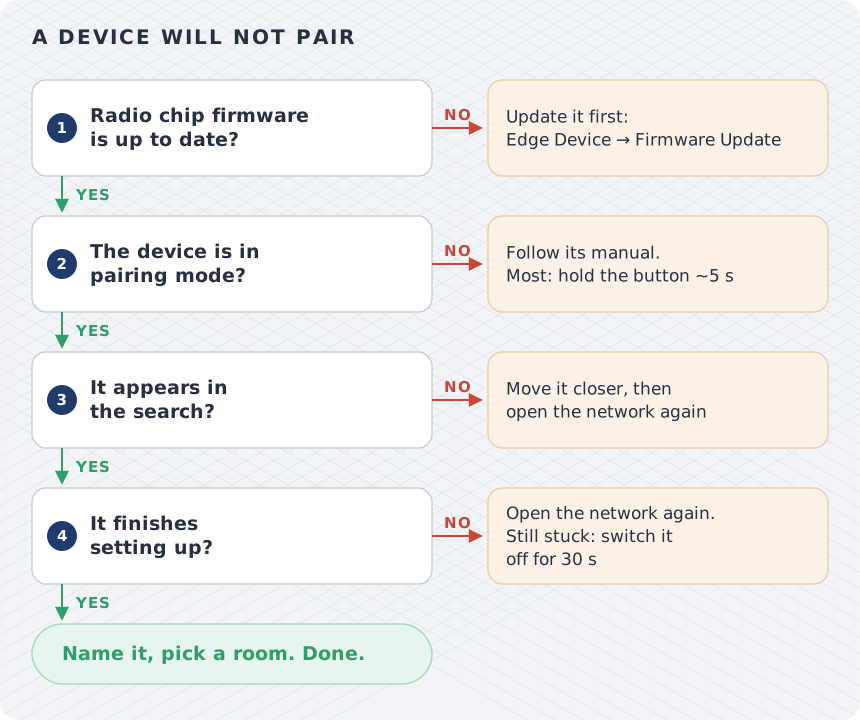
The Zigbee radio is a separate chip inside the Gateway, called the radio chip. It has its own firmware and its own version number, apart from the main firmware. Before you pair anything, check that the radio chip runs the newest version.
- Open the station's Settings tab, then Edge Device, then your device.
- Find the Radio chip firmware row. It shows the installed version.
- Tap Firmware Update. If the Radio chip (H2): Zigbee and batteries card shows an Update to v… button, install that update before you pair.
Older radio firmware can leave a plug half set up
On radio chip version 0.19.3, some Tuya TS011F smart plugs join the Gateway but never finish setting up. The app shows the plug as Unknown device · Connecting, and you cannot add it. The same plug model paired on version 0.19.8. Later versions fixed this in steps:
- 0.19.5 — each new search gives the Gateway fresh attempts to finish setting up a device that joined.
- 0.19.7 — a device that does not fully describe itself can still be set up.
- 0.19.9 — devices made before Zigbee 3.0, such as older Xiaomi plugs, stay connected after they join.
No Radio chip firmware row at all?
Then the radio chip runs firmware so old that it does not report its version, and Zigbee does not work reliably on it. Update the main firmware first: every main firmware from 2.88.0 on reports the radio chip's version. If the row is still missing after that, flash only the Zigbee module over USB, as described in Installing Gateway firmware. Like any USB flash, it erases the Zigbee network, so pair your devices again afterwards.
How the mesh works
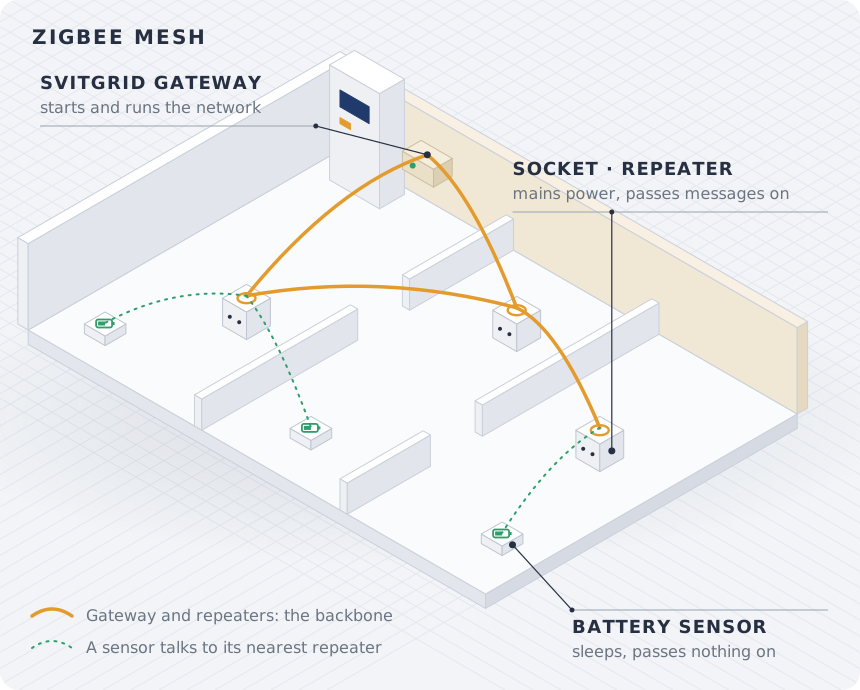
- The Gateway creates the network and runs it. It sits next to your inverter.
- Repeaters are mains-powered devices, such as smart sockets and relays. They stay awake and pass messages on for their neighbours. The app marks the devices that relay as Repeater.
- Battery devices, such as door, motion and temperature sensors and buttons, sleep most of the time and pass nothing on. Each one talks to a single repeater or to the Gateway, so it needs one of them within reach.
One Gateway holds up to 16 Zigbee devices. When it is full, the app says 16 of 16 devices. This hub is full. If your household has two Gateways, the app asks which one to pair a device with.
Build the network from the Gateway outward
- Update the radio chip, as described earlier on this page.
- Pair the devices closest to the Gateway first.
- Pair the next devices out, each one within reach of a device that is already paired.
- Put a mains-powered socket in every room or two, and one at each doorway or stairwell the signal must pass.
- Pair battery sensors last, once a repeater is near each of them.
- After each device, open the Zigbee network screen and check its link. It is the hub icon at the top of Settings → Smart devices.
The Zigbee network screen groups your devices as Connected directly to hub, Extended through a repeater, or Not reachable. Test connection checks a device that has gone quiet.
What blocks the signal
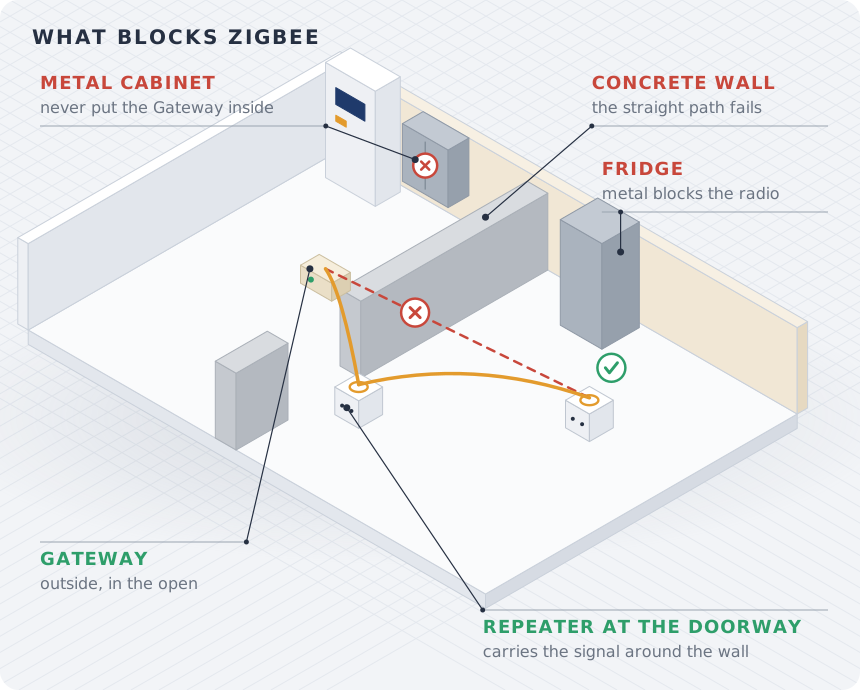
Zigbee shares the 2.4 GHz band with Wi‑Fi. Its signal passes through air and light walls well, and through metal, concrete and water badly. As the app puts it: walls and metal matter more than metres.
| Obstacle | Examples | What to do |
|---|---|---|
| Metal | The inverter's case, the electrical panel, metal cabinets, a fridge, foil-backed insulation, metal doors | Keep the Gateway out of metal cabinets and away from behind the inverter. |
| Reinforced concrete | Load-bearing walls, floor slabs | Put a repeater socket at the doorway, so the signal goes around the wall. |
| Thick brick or stone | Old outer walls, thick inner walls | Same as concrete: route the signal through a doorway. |
| Floors and ceilings | A second storey, a basement | Put a repeater socket on each floor, near the stairs. |
| Mirrors and water | Large mirrors, aquariums, water heaters | Do not place the Gateway or a repeater right behind them. |
A relay in a metal electrical panel
Metal blocks Zigbee. Open the panel door while you pair the relay, and put a Zigbee socket near the panel so the relay keeps a link after you close the door.
Pair a device
- Open Settings → Smart devices, tap Add Smart Device at the top, and choose Zigbee device.
- Stay within a few metres of the Gateway, or of a repeater that is already paired.
- Put the device into pairing mode, as its manual says. On most sockets you hold the button until the light blinks, for about five seconds.
- Tap Open the network. The network stays open for about two minutes, and the app lists each device that joins.
- Choose the device. If two look alike, tap Blink to tell which is which. Some models cannot blink.
- Give it a name and a room, and choose what it does After power returns.
It joined but never finishes setting up?
Search again with Open the network before you reset anything. Each new search gives the Gateway fresh attempts to finish setting up a device that joined. If the app then says The device is stuck joining, switch the device's power off for 30 seconds, switch it back on, and pair it again.
When a device does not pair
| What you see | What to do |
|---|---|
| Nothing appears during the search | Check that the device is in pairing mode. A device that was paired to another hub joins a new one only after you reset it, as its manual says. Move it closer, then search again: the network closes after about two minutes. |
| Unknown device · Connecting, or has not finished joining | Update the radio chip. Then search again. If the device is still stuck, switch its power off for 30 seconds and pair it again. |
| It pairs, then stops switching | Update the radio chip to 0.19.9 or later, and pair the device again. Older devices need it. |
| It pairs, then drops off or switches late | The link is weak. Add a repeater socket between it and the Gateway, and check the Zigbee network screen. |
| The hub would not open its network | The device is not at fault. Search again. |
| Your hub's Zigbee module isn't responding | Searching again does not help. Contact support. Your inverter data keeps flowing. |
| A message that this phone cannot send commands to your hub | Approve this phone in Your devices, then search again. |
| This hub is full | Remove a device you no longer use, or add a second Gateway. |
Checklist before you contact support
- The Radio chip firmware row exists, and no Update to v… button is waiting.
- The Gateway is out in the open, not in a metal cabinet or behind the inverter.
- The device is in pairing mode, and within a few metres of the Gateway or a paired repeater.
- You searched again at least once after the device joined.
- Each room with a battery sensor has a repeater socket near it.
Email hello@svitgrid.app with your Gateway's code, the device model, and what the app shows.