
Version 1.0.248
2 novembre 2026
In questa pagina
This release is in the App Store and on Google Play. It covers everything since 1.0.245. On Android, some of it already arrived in updates during October. Most screenshots are from the Ukrainian app; every screen is available in all 11 app languages.
A few terms
- Home Assistant: a program for running a smart home, which works on your own device at home.
- Island mode: the station works without the Svitgrid cloud, which means without our servers, and the data stays in your home, in Home Assistant or on your phone.
- ED-1 board: our small device that collects data from your inverter. An ED-1 works over Wi-Fi. An ED-1.1 connects to the inverter by cable, through an RS-485 port.
- Hub: the app's name for the board when it controls Zigbee smart devices and reads battery data.
- BMS: the electronic unit in a battery that watches its charge, cells, and temperature.
- Zigbee: a wireless connection for smart devices, such as sockets.
- TOU: the inverter's schedule by hour of the day (Time of Use). It tells the inverter when to charge the battery and when to use its charge.
- Firmware: the program that runs inside the board. A name such as S3 2.172.0 is its version number.
Island mode
You can now buy an ED-1 board, connect it to your own Home Assistant, and never pay a subscription. We built this for people who already run a smart home and want their energy data to stay in their own house. If that is you, Svitgrid is now a one-time purchase: a board, the free app, and your data in your own home. This is a beta version, and it will gain more features in coming updates.
Now is the time to buy. Think of a phone from a mobile operator. A phone on a contract costs less, but it is locked to that operator and you pay every month. An unlocked phone costs more, and you pay once. Our boards will work the same way: a cheaper board will work only with the Svitgrid cloud and its subscription, and an unlocked board, which also works without the cloud, will cost more. The board we sell today is the unlocked kind, at today's price. So hurry up!
Island mode keeps your station's data at home, in your own Home Assistant, instead of the Svitgrid cloud. It is free and marked Бета. The app has three kinds of station:
- Cloud: the phone or a board sends data to the Svitgrid servers. Available anywhere.
- Home Assistant island: the Svitgrid integration, our program inside Home Assistant, gets the data from the inverter and stores it.
- Edge island: an ED-1 or ED-1.1 board gets the data from the inverter and sends it to your Home Assistant. This one is new.
Stations in island mode carry an island mark in the station list and on the station picture.
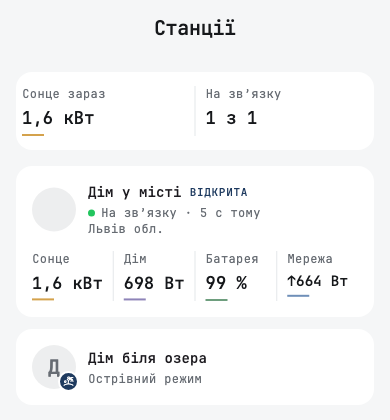
Edge island
Until this release, a board meant the cloud, and the cloud meant a subscription after the trial. That choice is now yours, and it is not final: you can move a working station to Home Assistant and bring it back. There are two ways in:
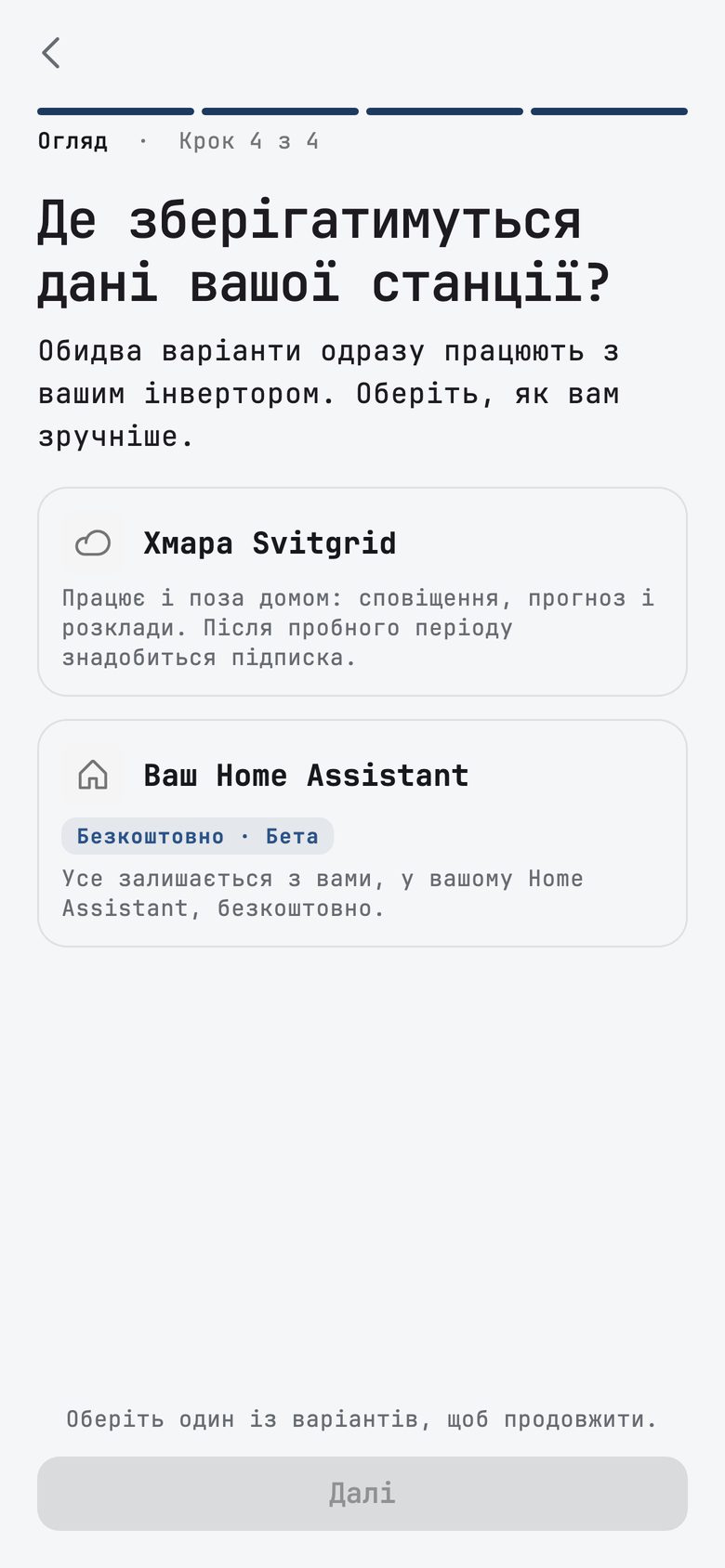
- During setup, the step Де зберігатимуться дані вашої станції? offers Ваш Home Assistant for a board too. The station is registered in the cloud, but the inverter's readings do not go there.
- For a board that is already working, use Перенести в Home Assistant on the board's screen.
The move needs the Svitgrid integration 0.26.0 or newer. The app finds Home Assistant on your Wi-Fi network, you confirm a code there, and the app lists what changes before anything moves. If the board does not switch, it stays in the cloud as it was. With several boards, you can keep the ones that moved or cancel the move.
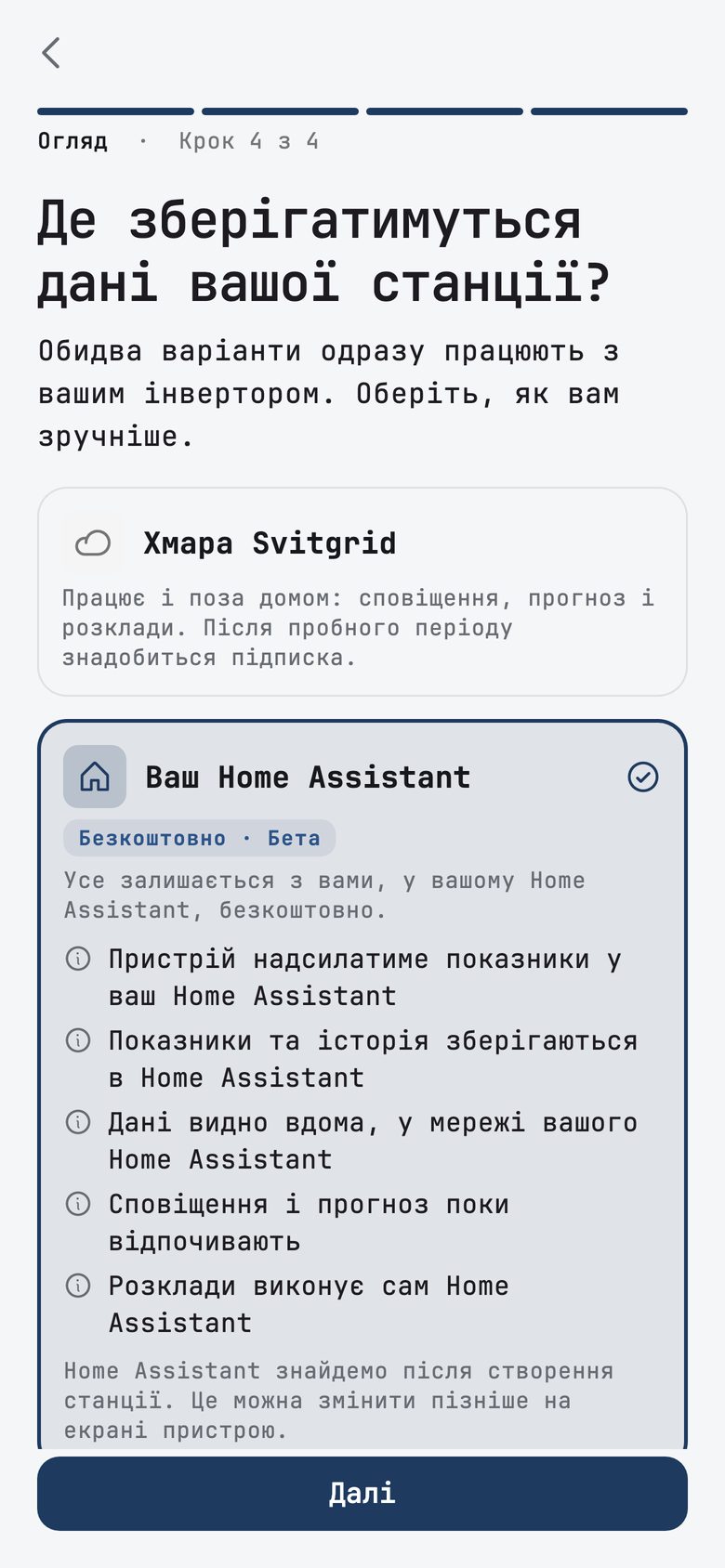
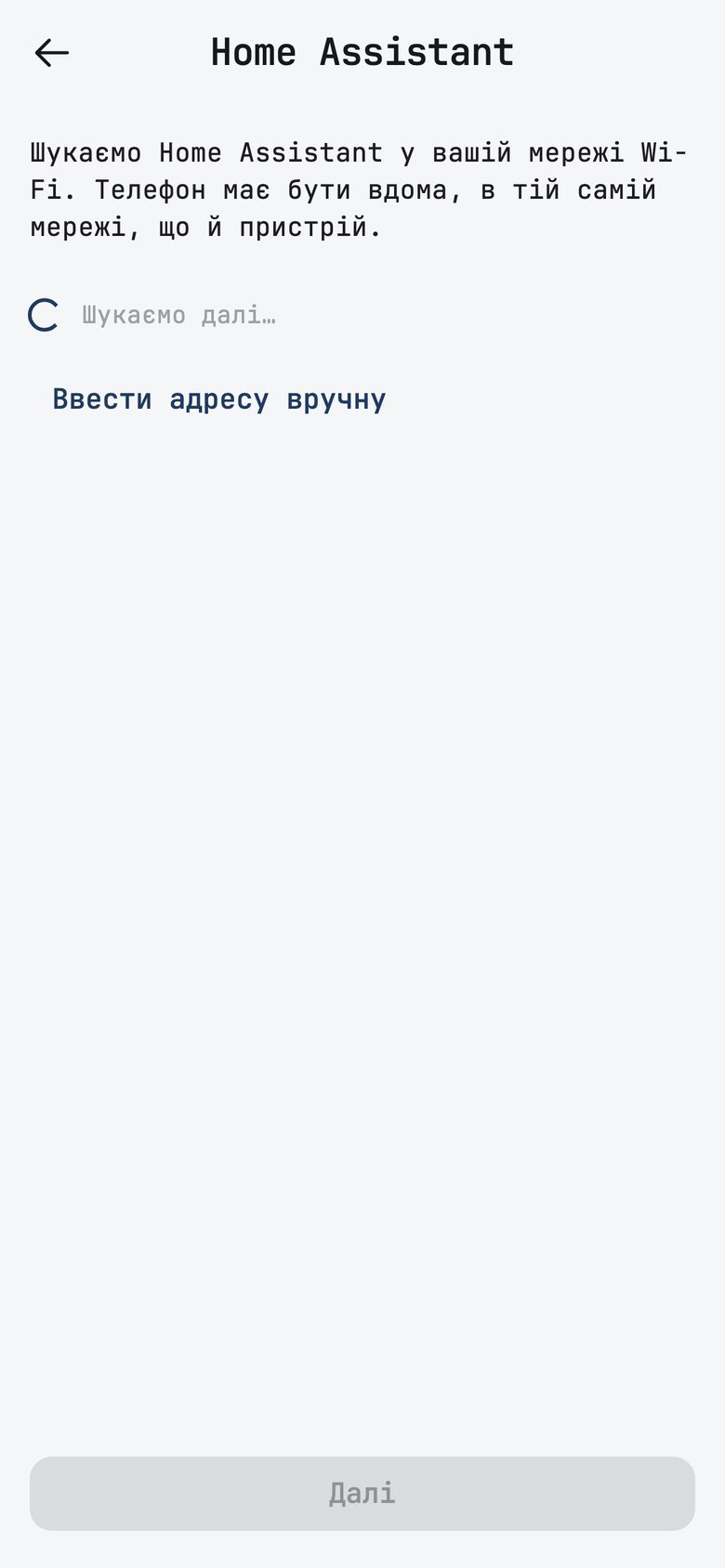
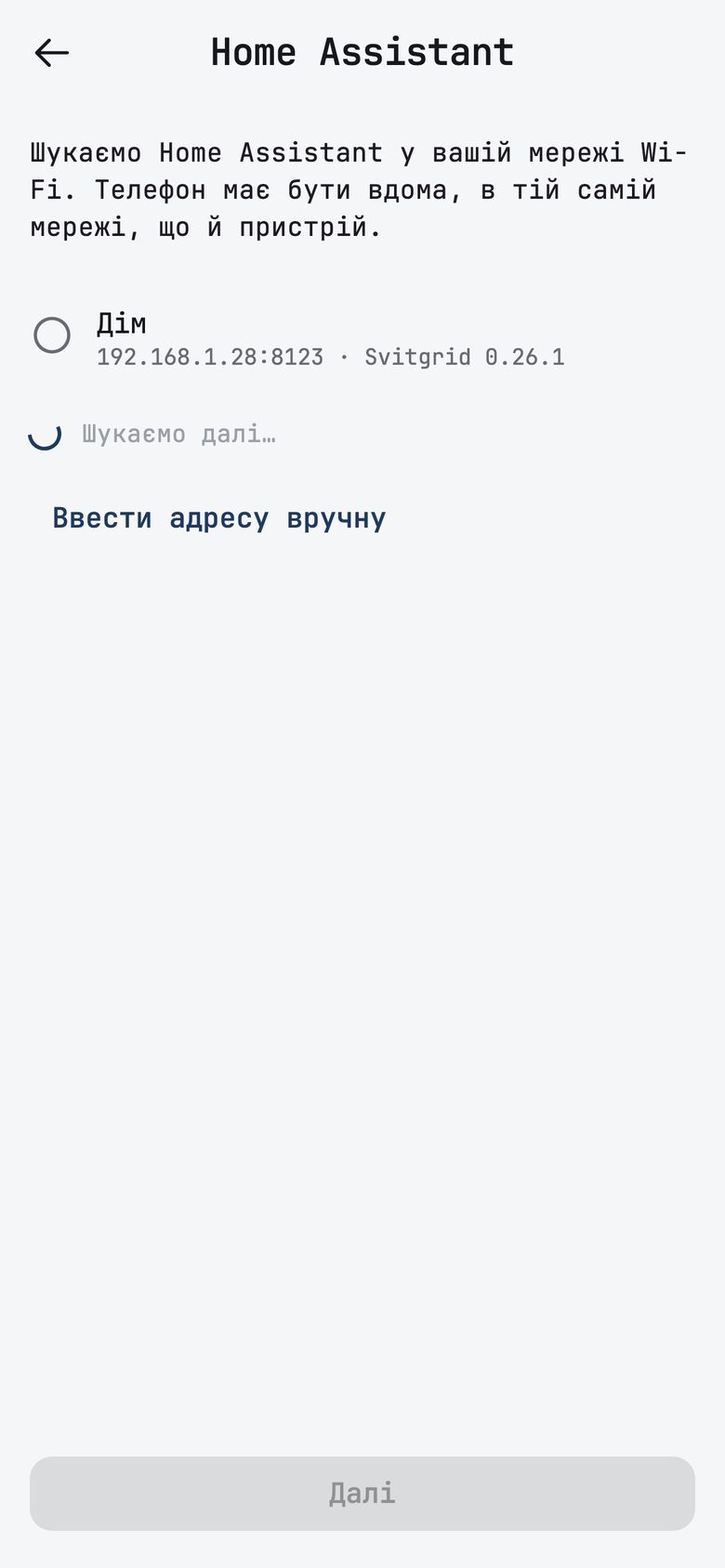
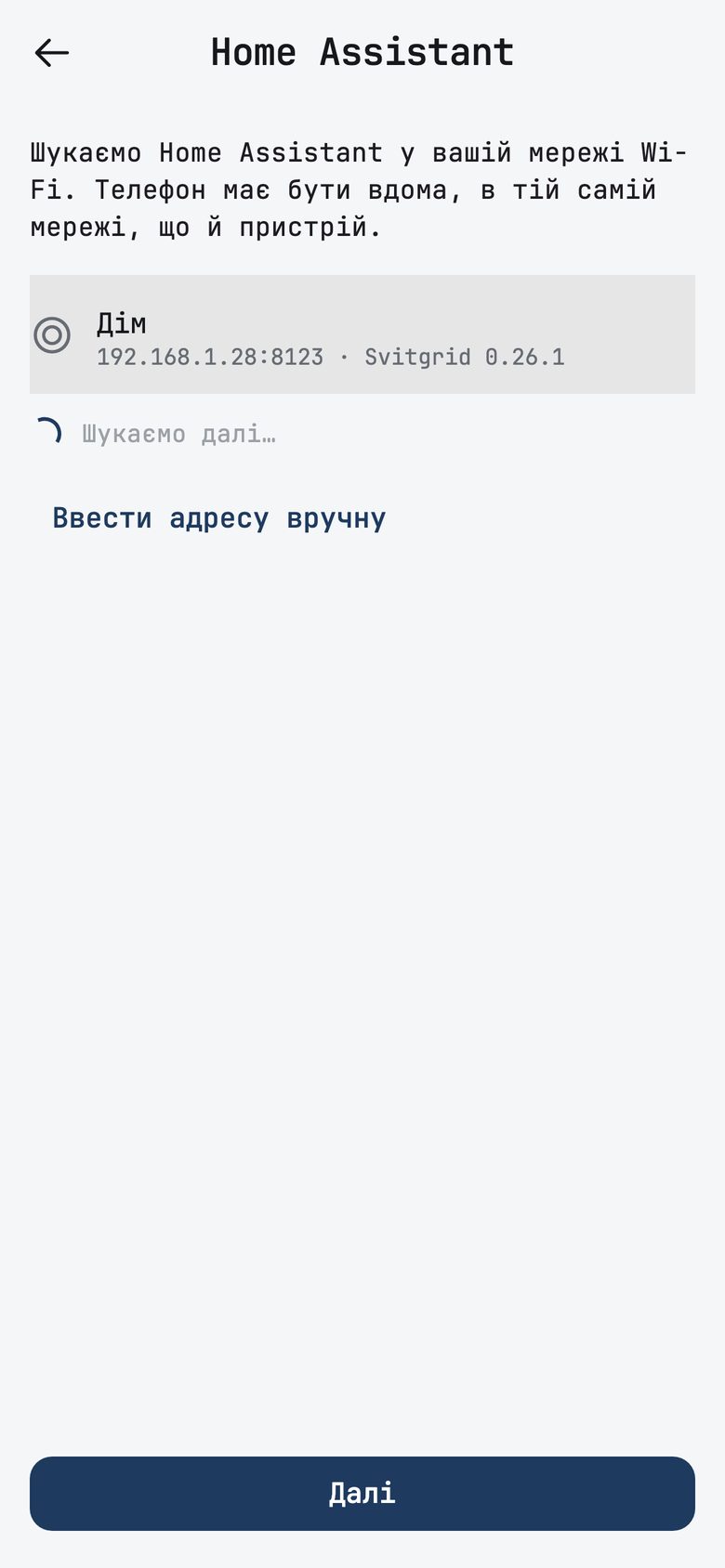
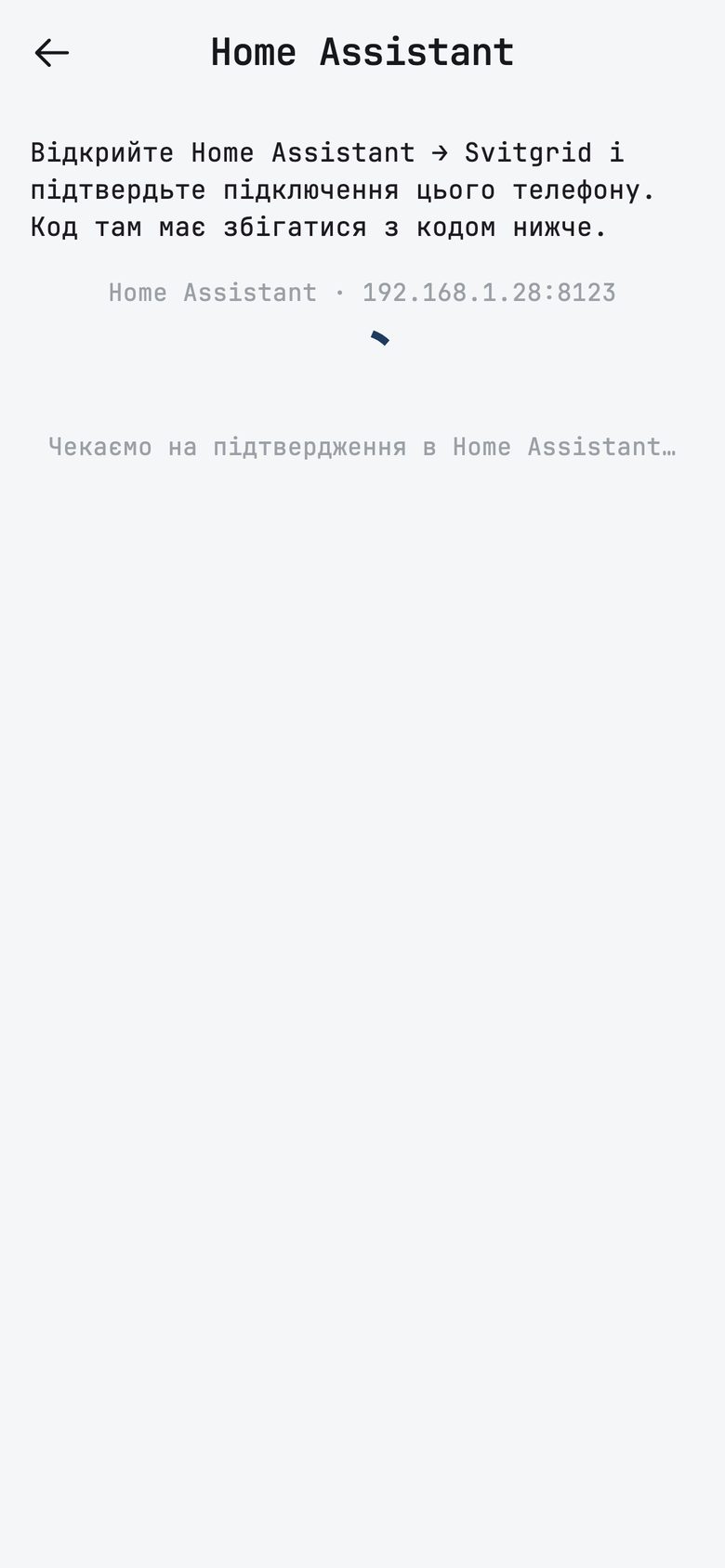
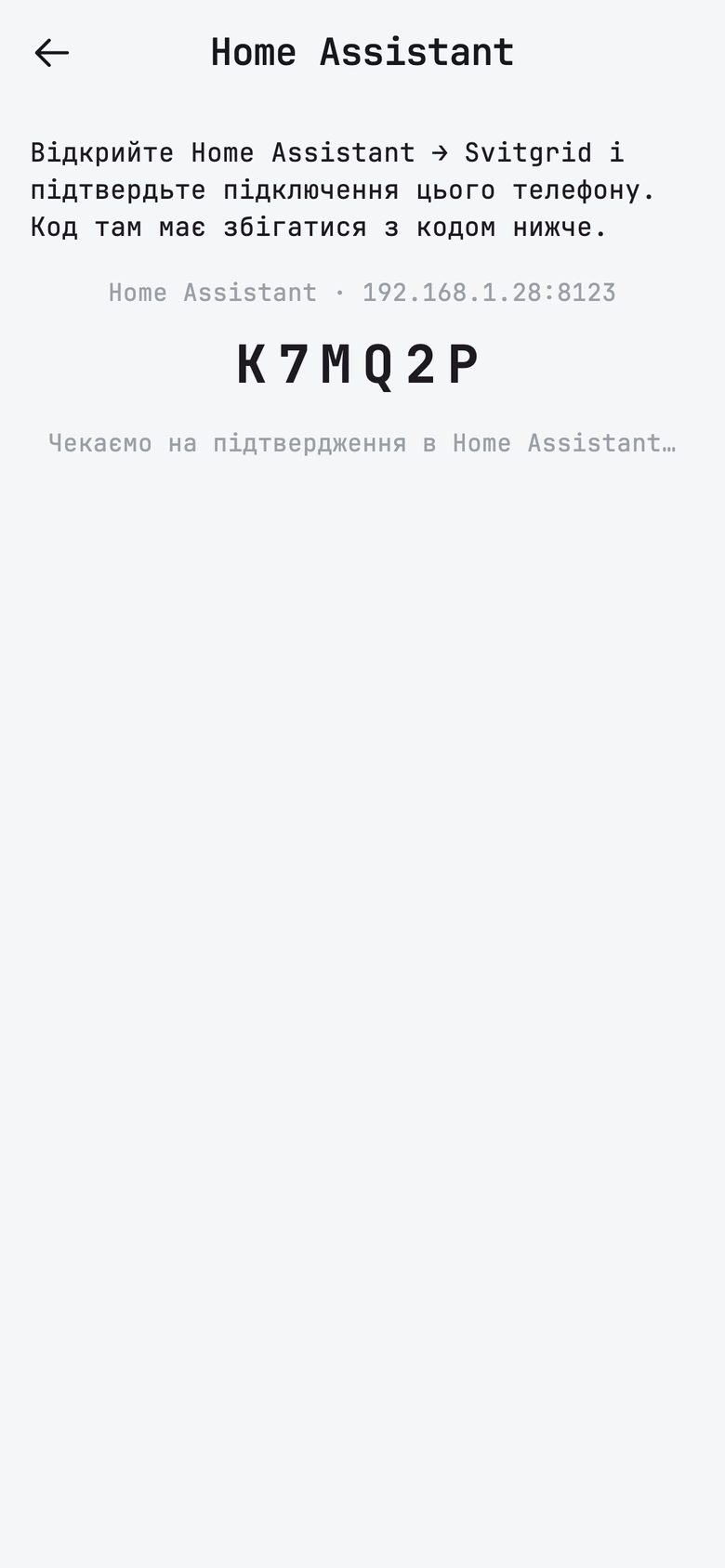
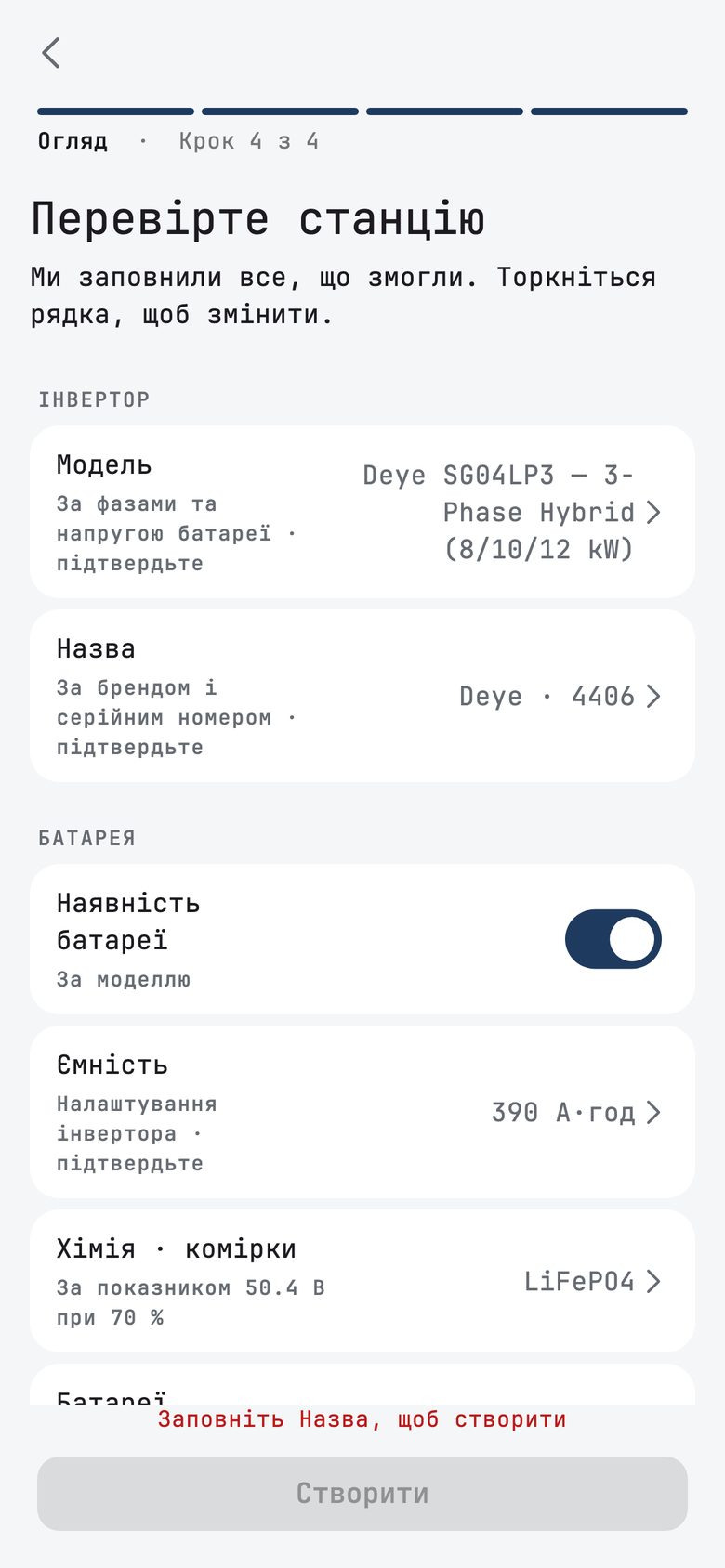
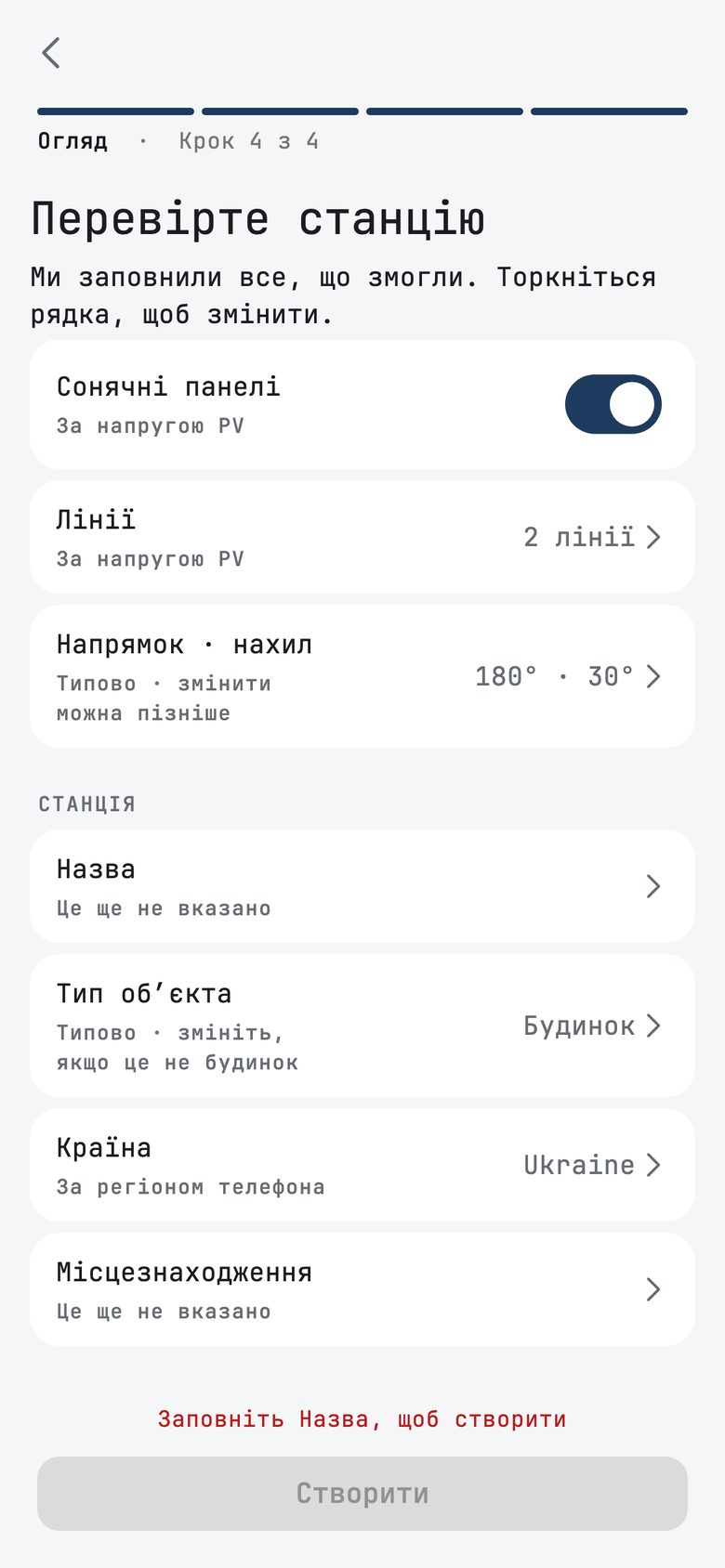
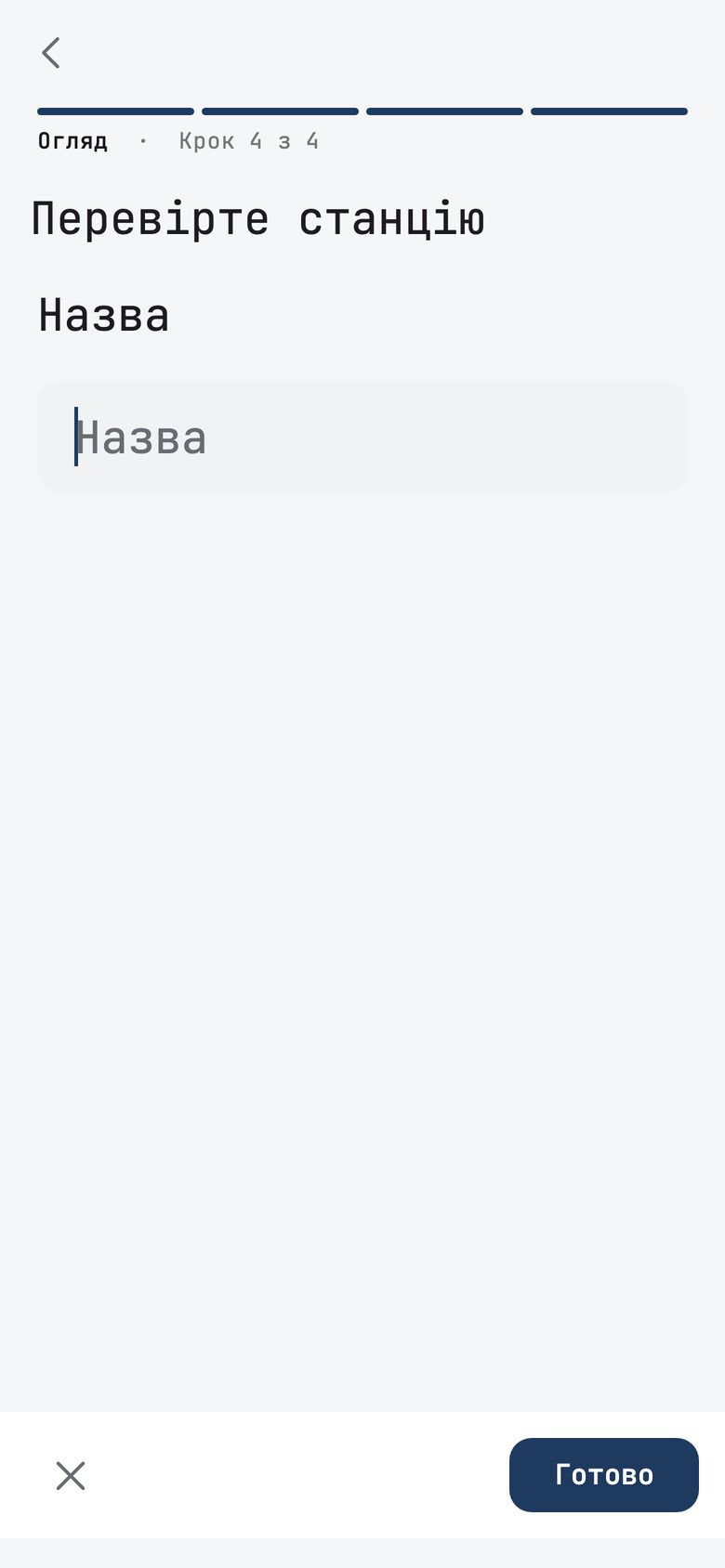
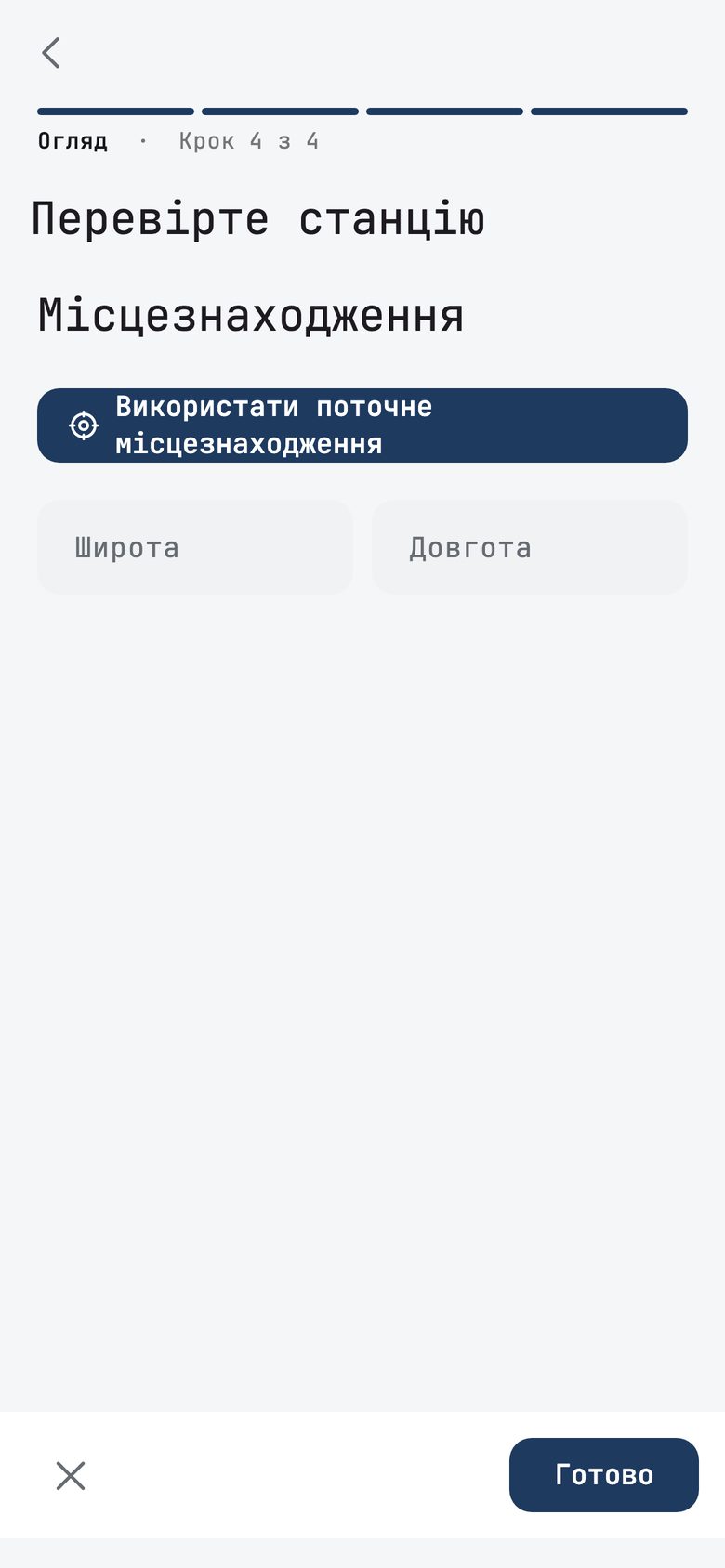
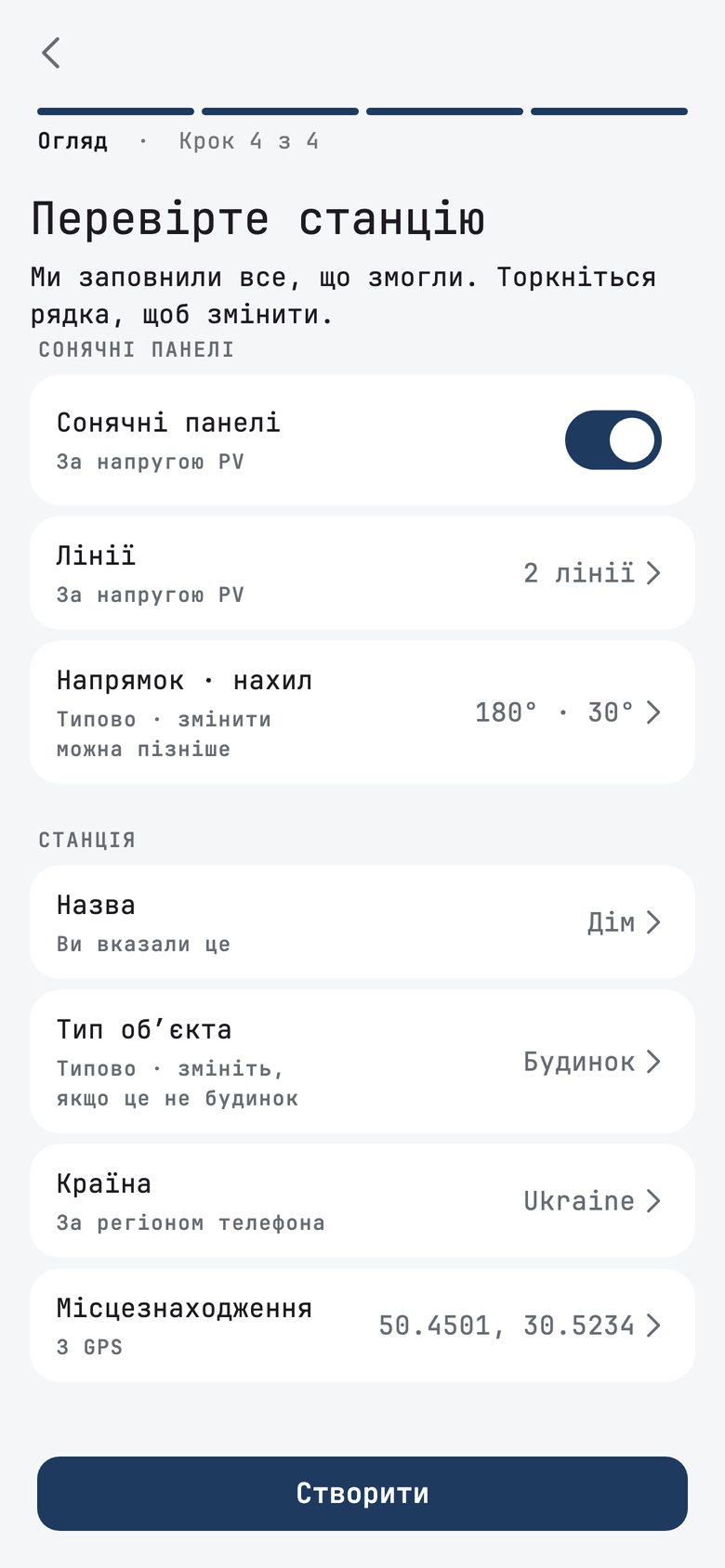
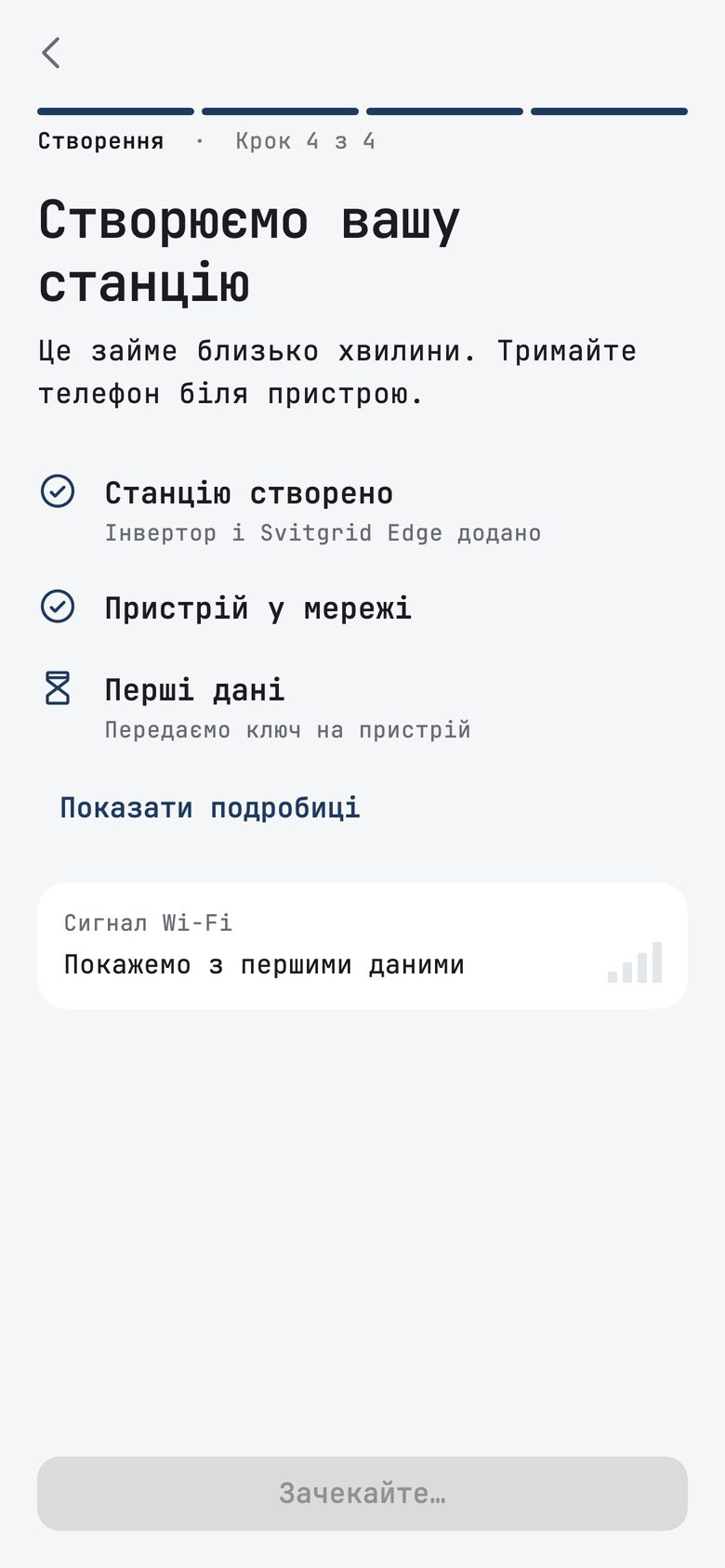
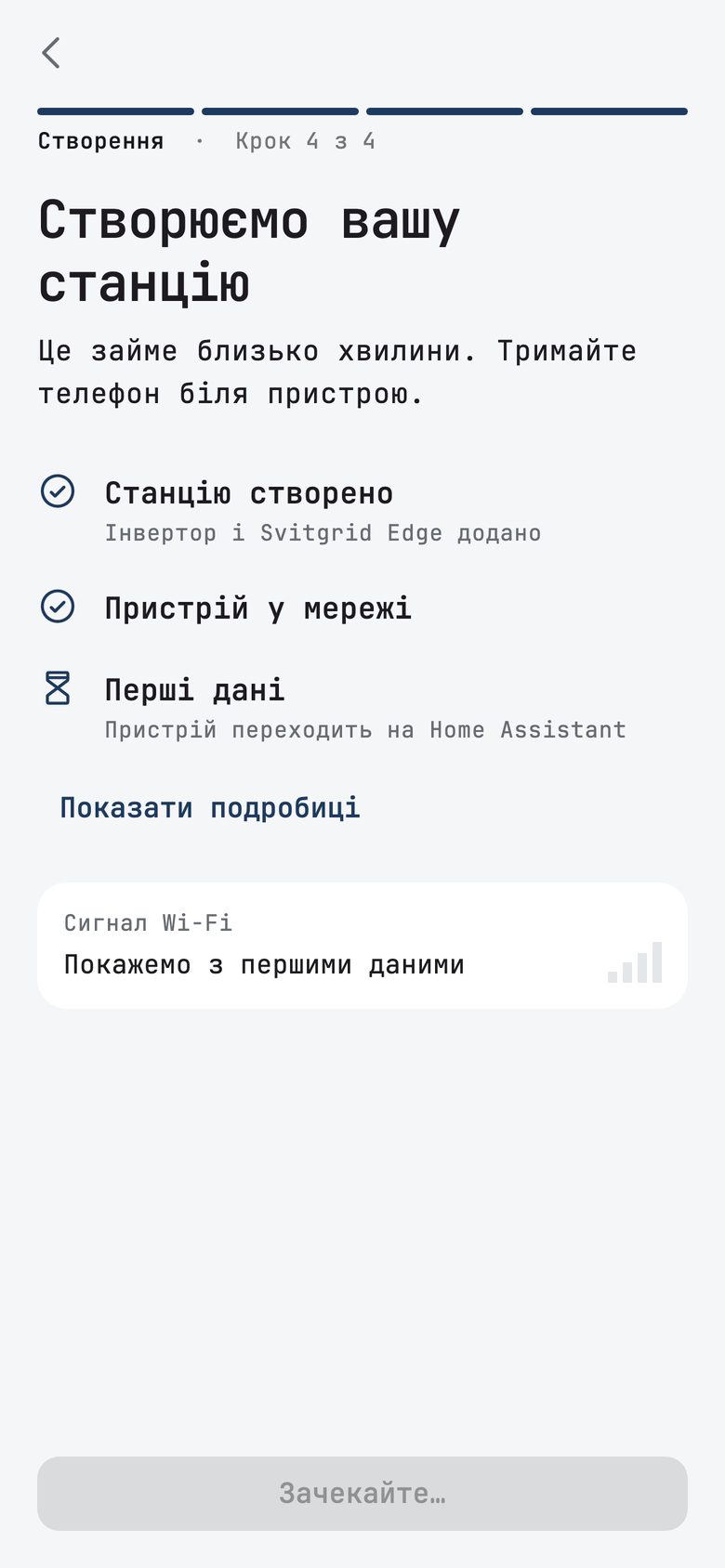
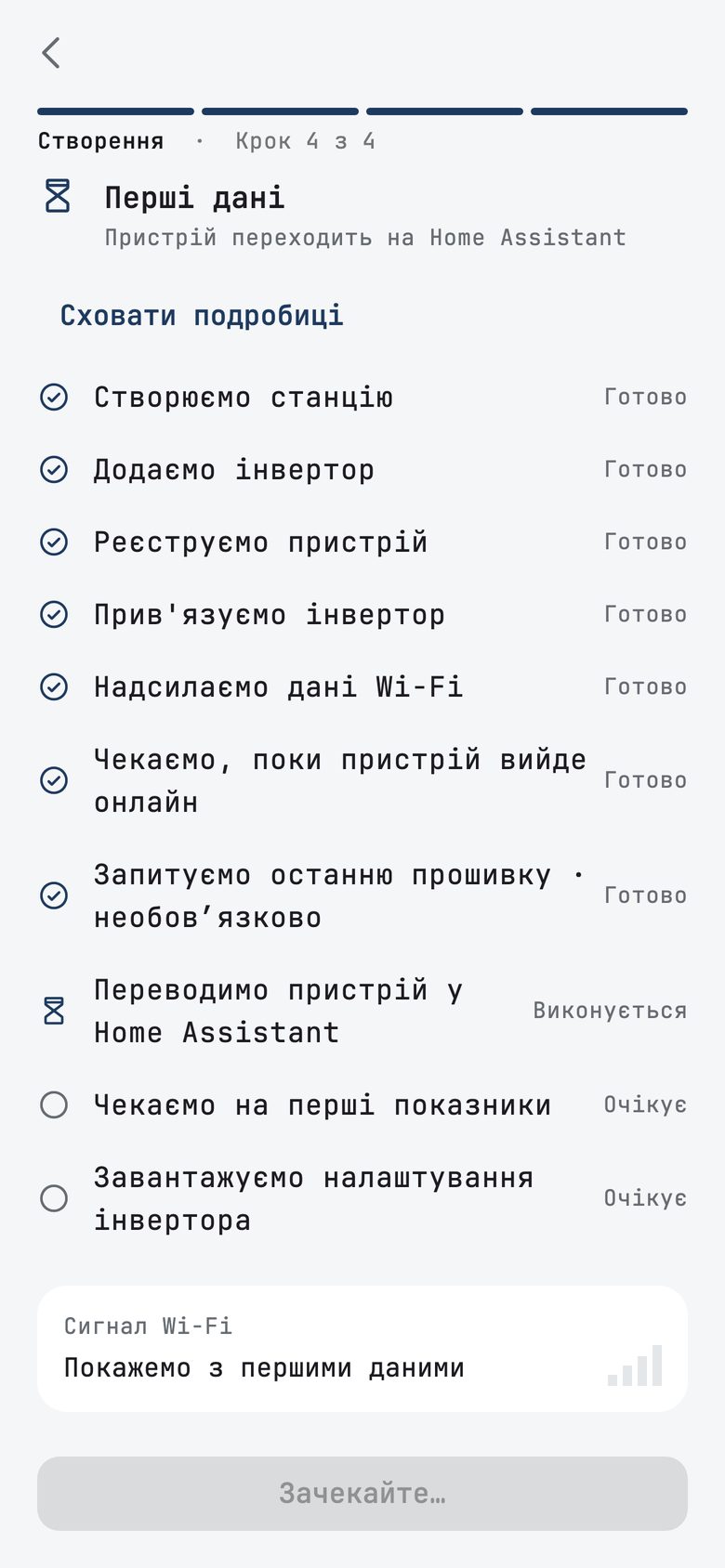
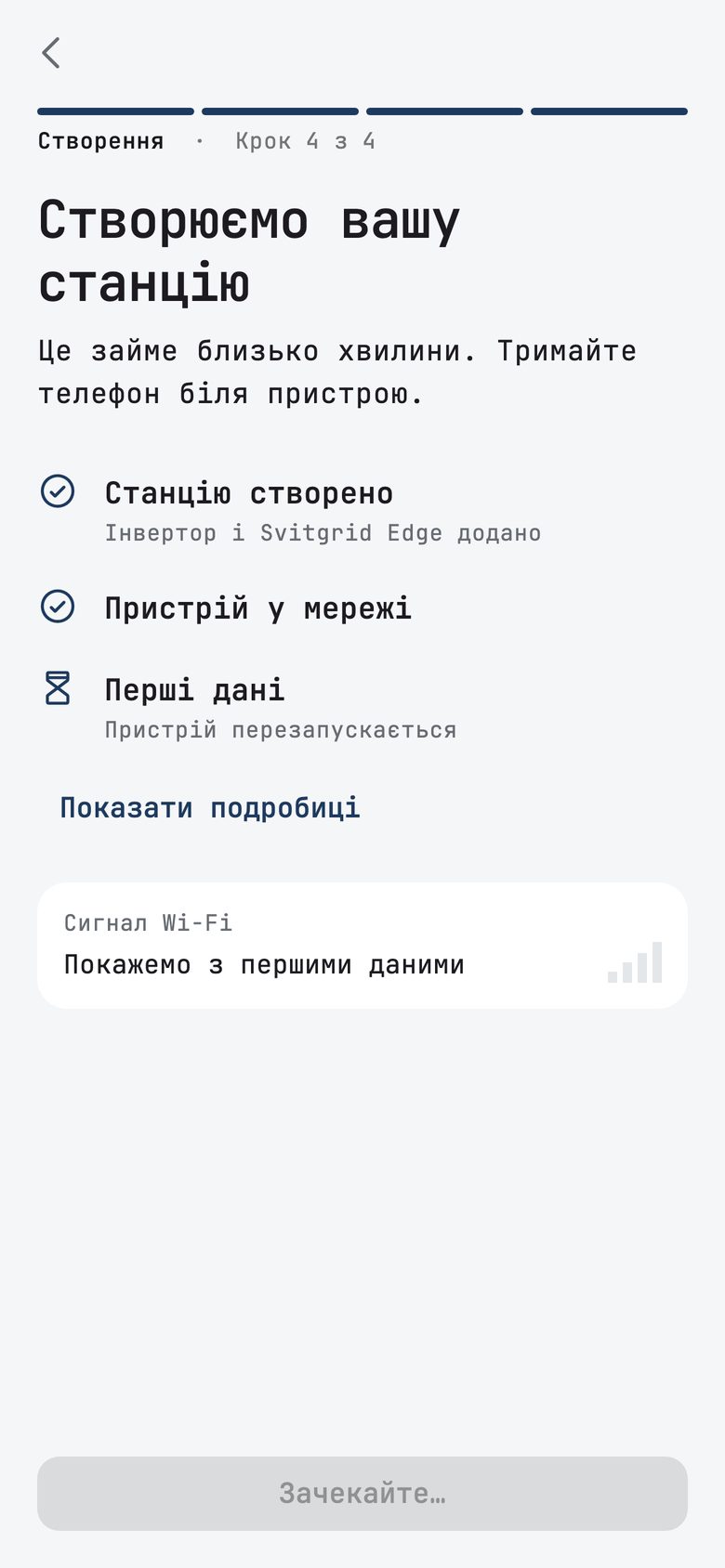
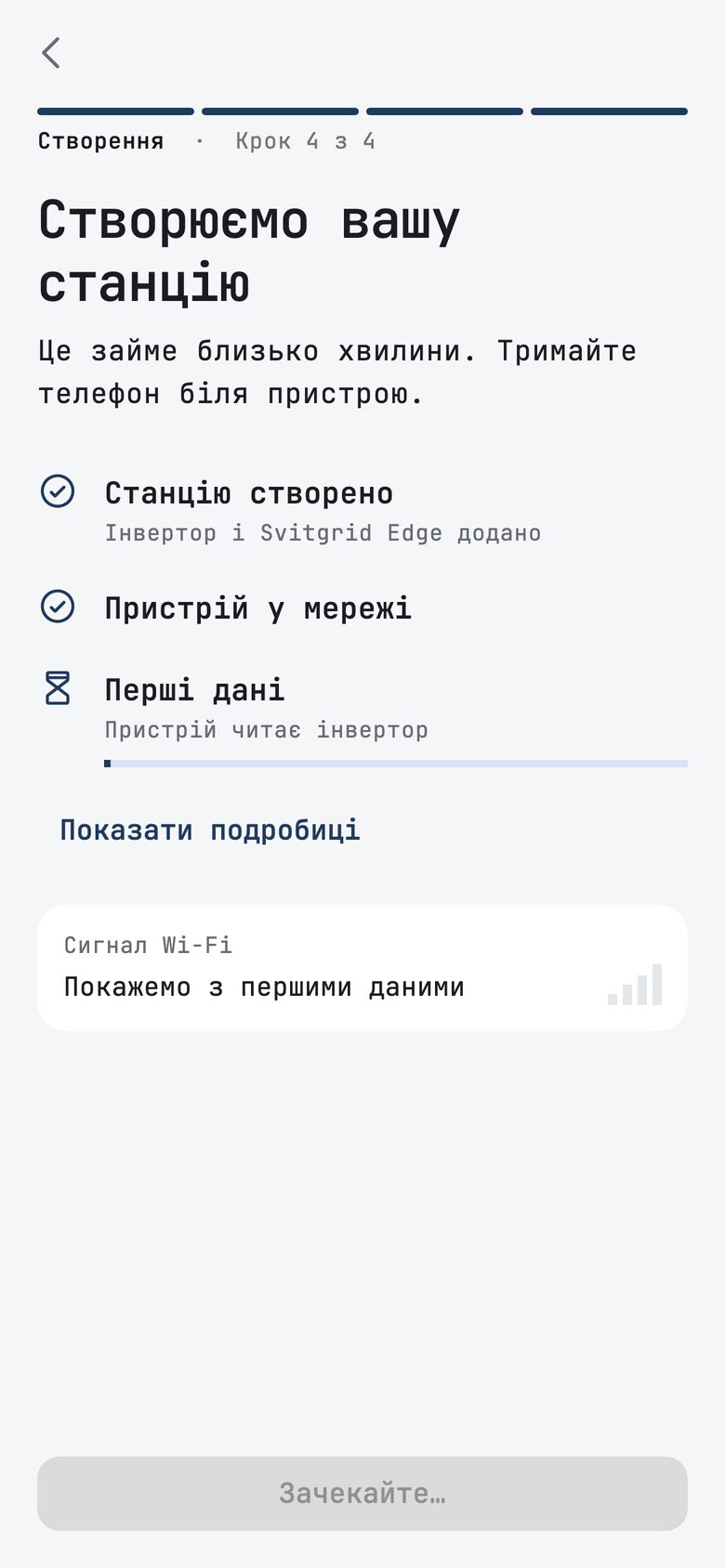
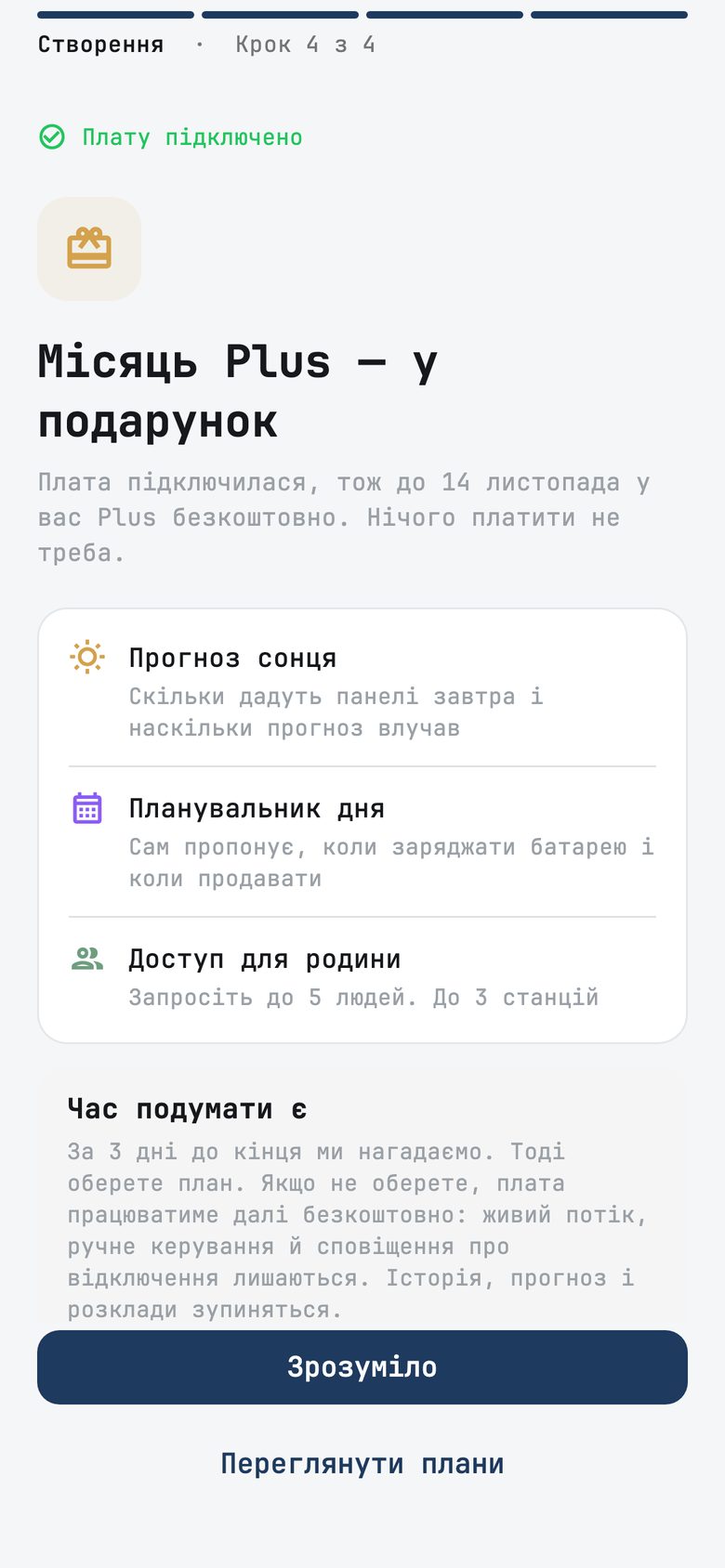
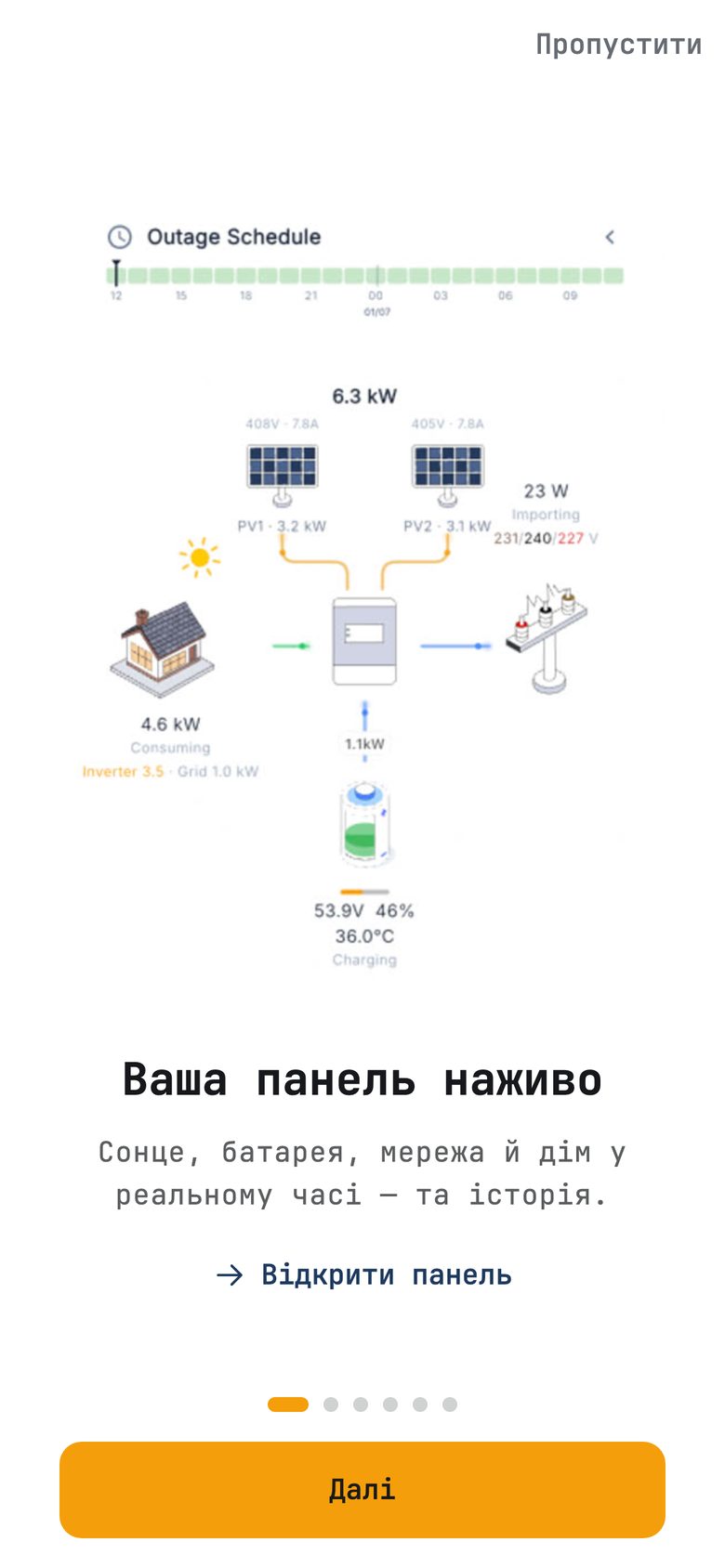
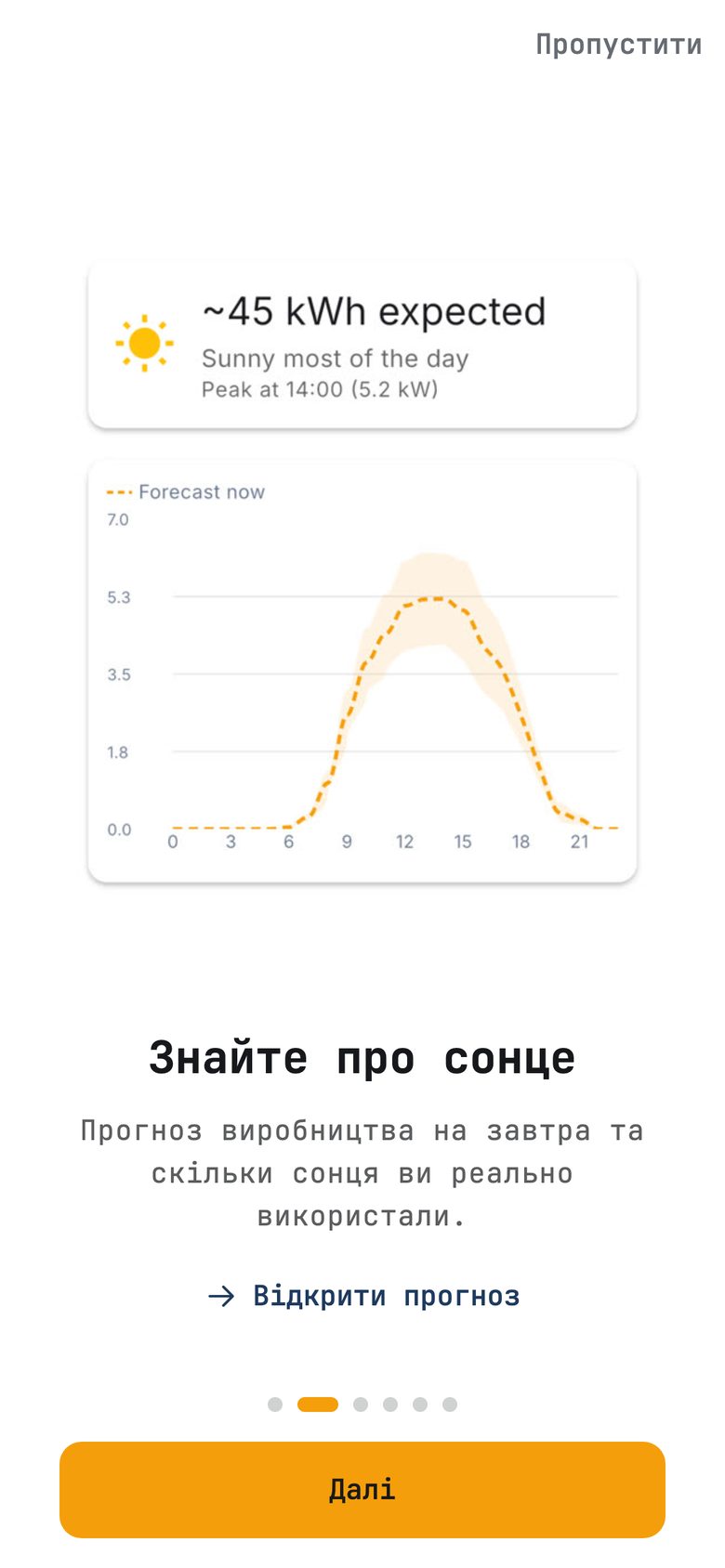
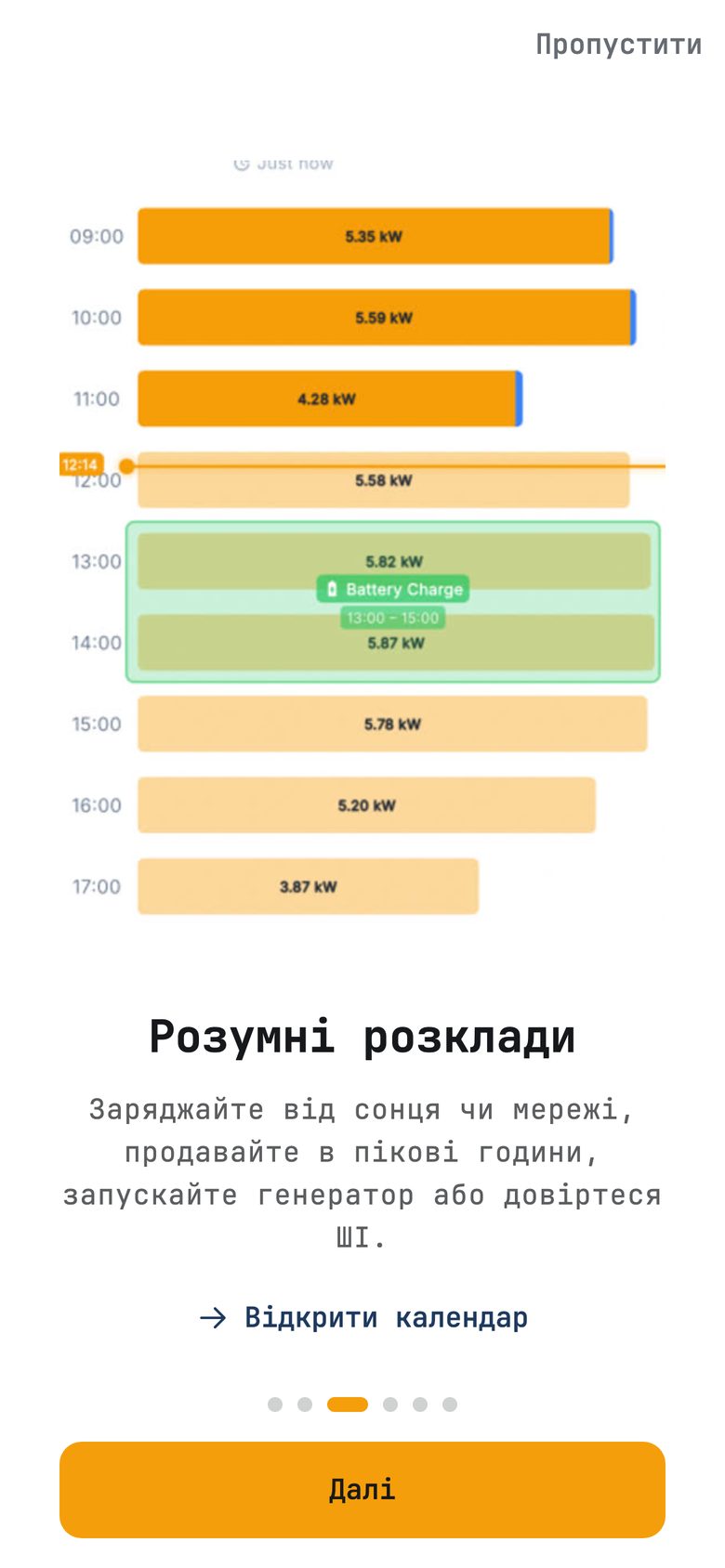
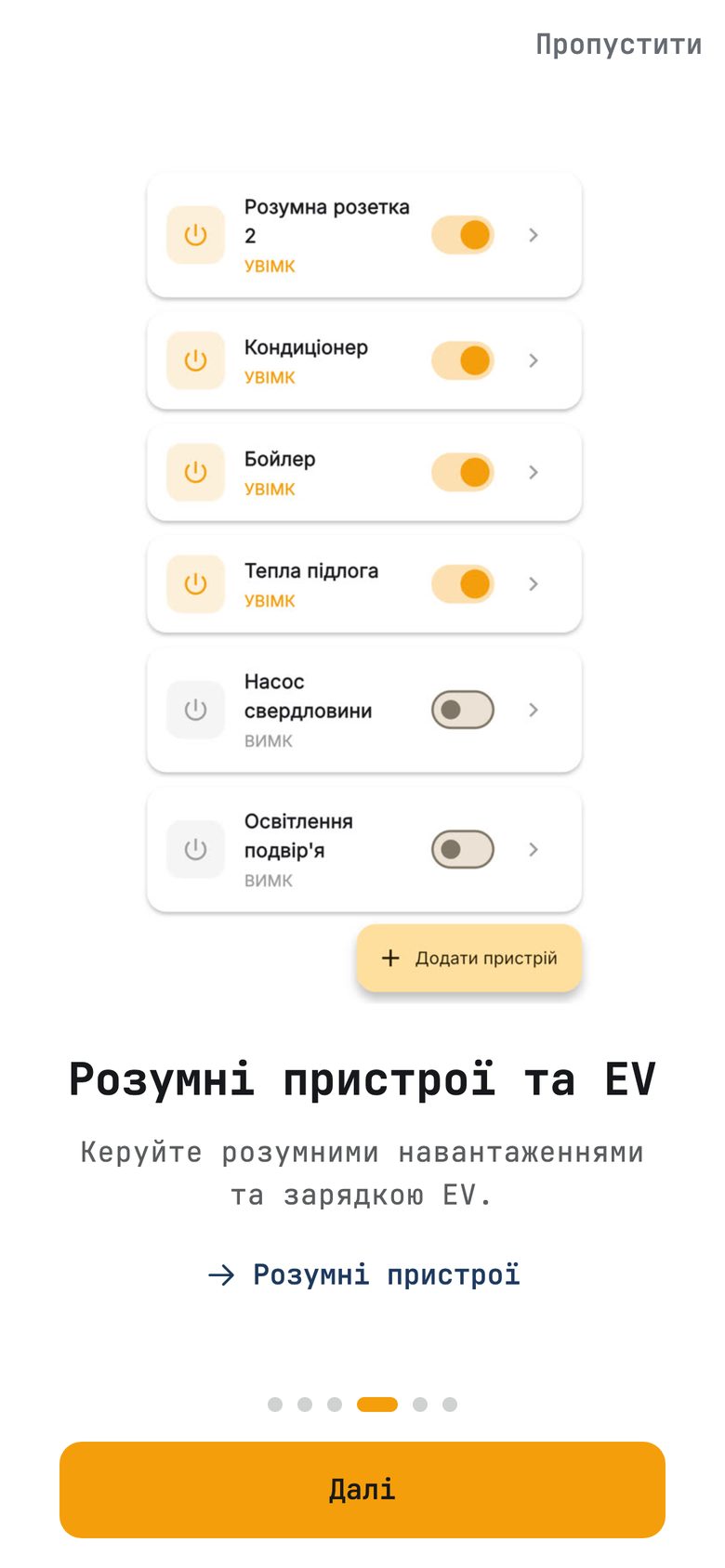
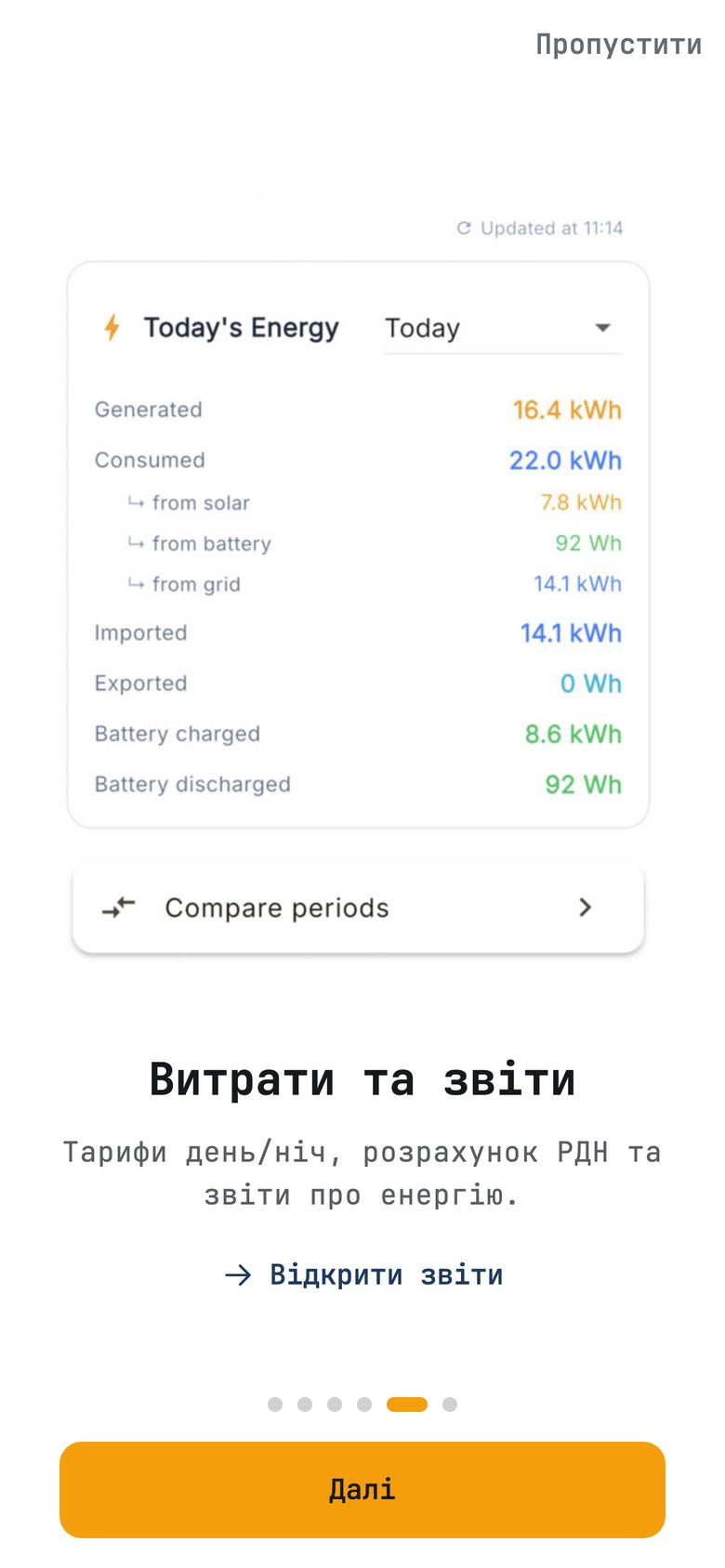
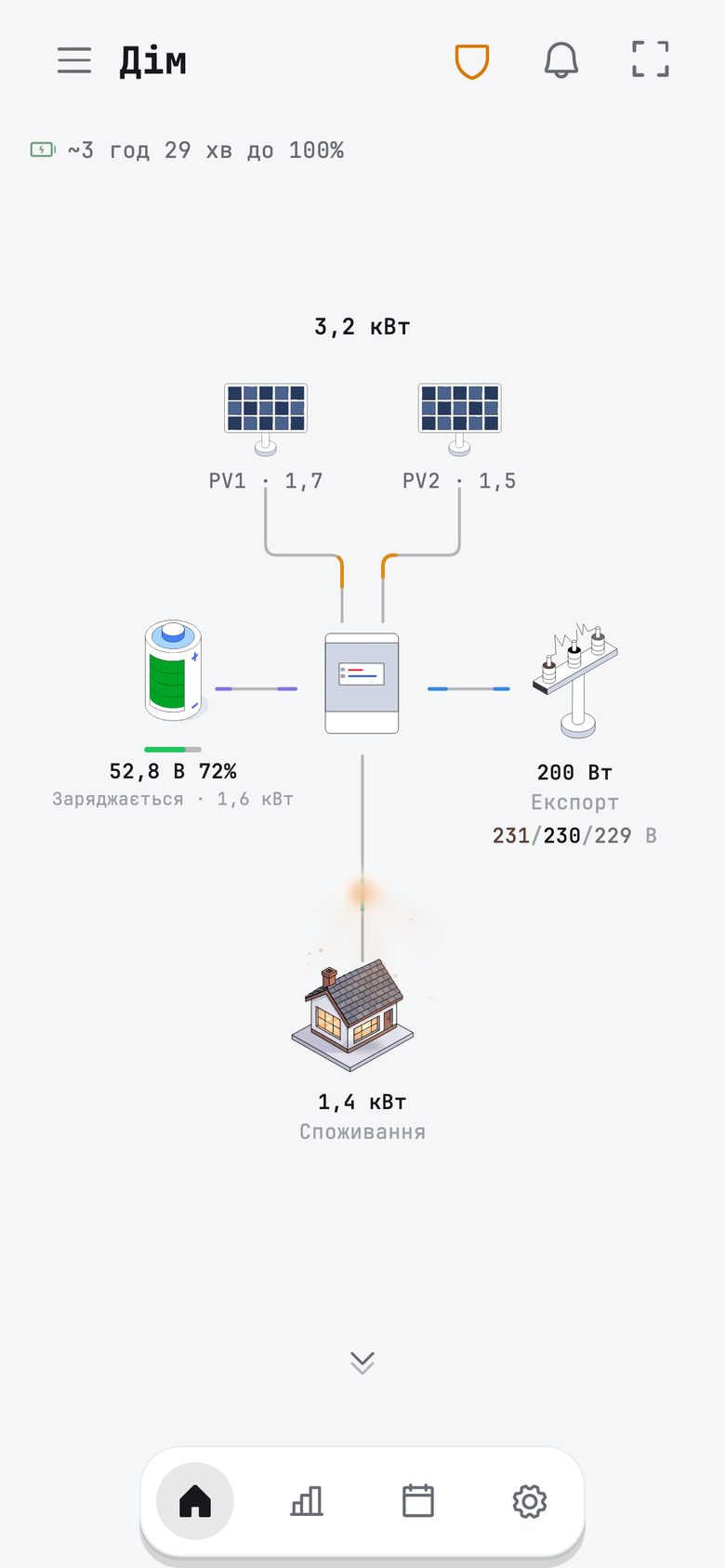
What stays: real-time data, manual control, the calendar, rules, inverter settings, Zigbee devices, and batteries with their names and rooms. New history is kept in Home Assistant.
What does not work yet: this is a beta, and we plan to bring more to it with coming updates. Today, an island has no phone notifications, sun and weather forecast, firmware updates, or data while you are away from home, unless you give Home Assistant an outside address. Rules that need day planning or the outage schedule stay in the cloud, and the app shows you which ones.
Alerts still reach you. An island sends outage and grid-restored alerts through your own Telegram bot, and it needs no cloud to do that. The next sections explain how.
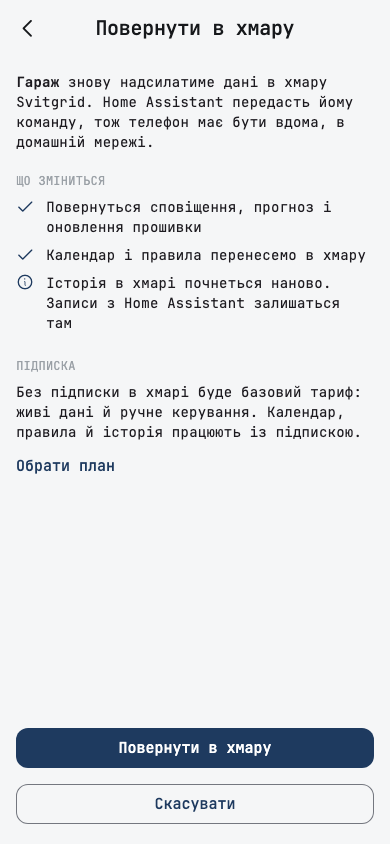
Повернути в хмару on the same screen brings the board back. Alerts, the forecast, and firmware updates return, the calendar and rules move to the cloud, and cloud history starts afresh. The records in Home Assistant stay there.
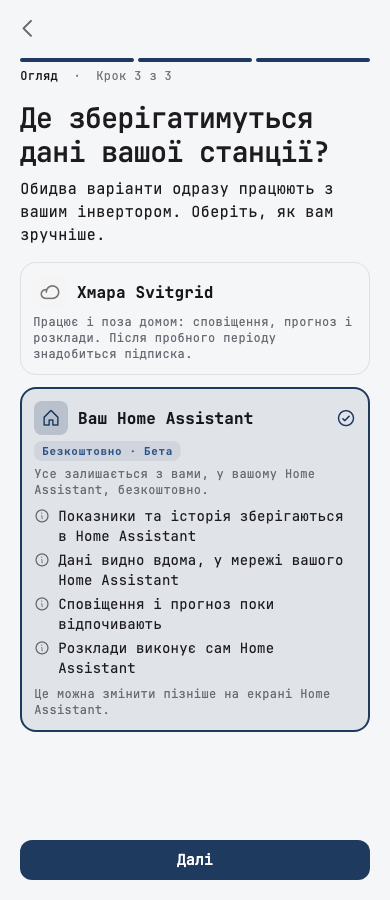
Edge island is a beta: it works today, and it will gain more features in coming updates. We tested ED-1 on Wi-Fi, and ED-1.1 connected by RS-485 cable to inverters that speak the Modbus "language". An ED-1.1 on inverters that speak other "languages" (PI30, LuxPower, or MUST) has not been tested in island mode as of this release.
What you can do on an island
You do not give up control of your station when you leave the cloud. The Svitgrid app works the same way at home, and it talks to your board through Home Assistant.
- Manage your devices. See and rename Zigbee devices and battery packs, pair new Zigbee devices, reset the Zigbee network, and restart the hub.
- Stay informed away from home. The app shows your last readings instead of an error. Old values turn grey, and control buttons stay visible but disabled until you are home.
- Reach your station from outside. Give Home Assistant an outside address, and the app tries it when the home address does not answer.
- Know when something is wrong. If Home Assistant cannot be reached, the app says so, instead of showing an empty device list.
- Use temperature in rules. The app offers the rule conditions your Home Assistant supports, including the temperature conditions.
- Add a second phone. Another phone joins from the Home Assistant screen.
- Reconnect a board. If a board loses contact, reconnect it over Bluetooth from the same screen.
- See that a move worked. After a clean move, the app opens the dashboard with a short confirmation.
Choosing and paying
- The subscription screen offers island mode to a station with an ED-1 board and Home Assistant, and you can start the move from there.
- A station on a Home Assistant island never sends data to the Svitgrid cloud, and setup does not ask you to take a subscription.
- If a Home Assistant station uses the cloud and has no subscription, the app opens the subscription screen at once, instead of showing an error.
- Calendar events and rules follow the station between the cloud and the island.
- On an island, the settings screen shows data for every inverter brand, and an Anenji accepts settings changes through Home Assistant over the home network.
- A station with one board has one source of data: when you add an inverter, the app offers only the way the station already collects data. If an inverter is cabled to a board that does not read inverters, the app stops at that step and explains why.
A phone station
- A phone station is a station whose data the phone itself collects. If the phone that collected your station's data is gone, you can move the station to this phone or delete it.
- A phone that lost a station to another phone says so, stops collecting data, and tells you how much history it kept.
- A phone station shows settings for SMG II and Solis inverters, and it says when an inverter has nothing to configure. It also accepts the settings the app read from the inverter while creating the station.
- On a recheck, a phone island works out again whether this phone still collects its data, and a phone island with no inverters keeps its delete button.
- A phone station notices when the grid goes down.
Signed firmware
We are making your station harder to attack. Your board controls equipment connected to your home, so you should be able to trust what runs on it.
Every firmware release is now signed with a digital key that only we hold, on dedicated security hardware. An unsigned version cannot be published, and your board checks that each update really came from us. This builds on protection you have had for months. Since spring 2026, your phone has signed every command that changes your inverter's settings or switches a smart device, and a board refuses such a command without a valid signature. In this release, we started signing Wi-Fi and EV charger commands too.
We are rolling this protection out in stages. As of this release, boards check every update and report the result, and the next step is for them to refuse an update that fails the check.
Telegram alerts
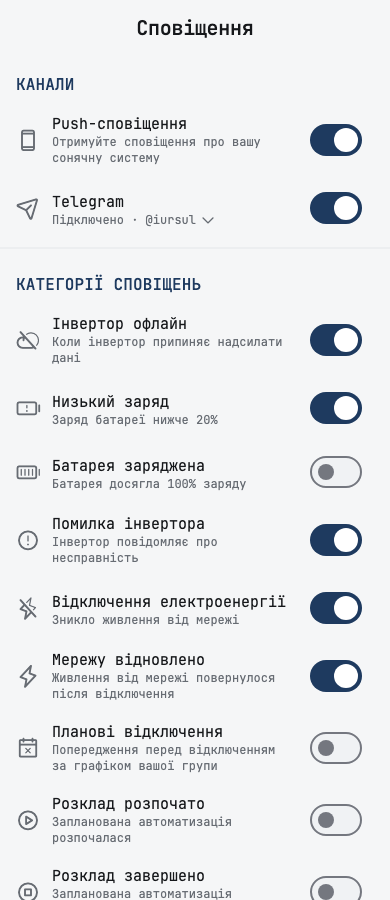
An outage alert should reach you even when a regular phone notification does not. Phones silence these notifications, and some people never allow them. Telegram is an app you already check, so we now send every alert there too. Open the notification settings, tap Підключити, and press Start in the chat with @svitgrid_notifications_bot. Your mutes, categories, and quiet hours apply on both your phone and Telegram.
Each message has an Відкрити в Svitgrid button that opens the right screen in the app.
An island station has no cloud to send through, so it uses your own bot, which is an automated Telegram account. Create one in @BotFather, then paste its token, the bot's secret key, in Сповіщення in the station's settings. This bot sends outage and grid-restored alerts, and every member of the station can connect to it. On a phone station, alerts go out while the phone that collects the data is running.
The web console, the browser version of Svitgrid, has Telegram too, with a link and a QR code. Notifications and the subscription moved to the account page there.
Live reporting
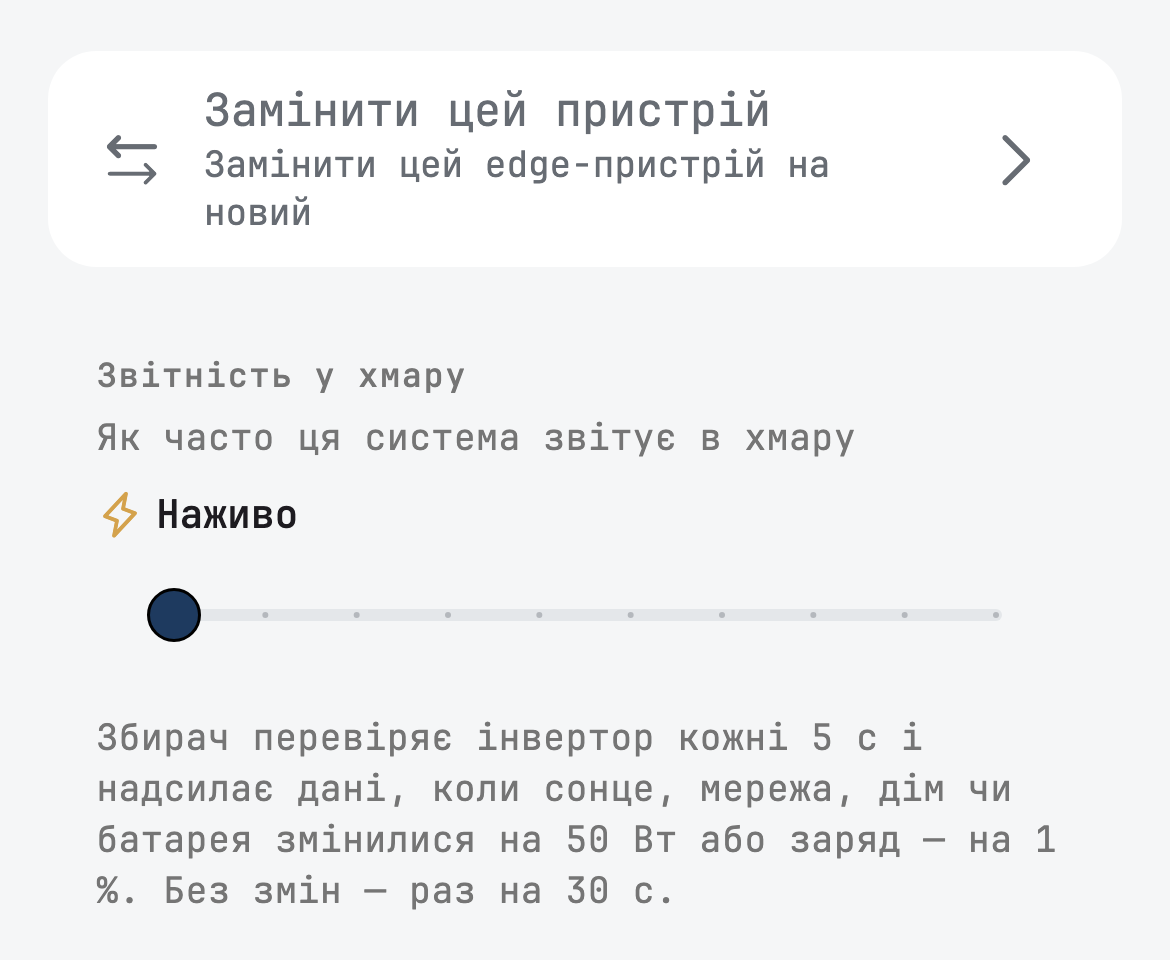
Your dashboard can now feel like looking at the inverter itself. A station normally sends data on a fixed interval, so a change can take a while to appear. With Наживо, the far-left stop on the Звітність у хмару slider, the phone, board, or Home Assistant sends a reading as soon as solar, grid, home, or battery power moves, and the dashboard refreshes every 10 seconds. You see a kettle switch on or a cloud cross the panels almost as it happens.
- Live is part of the Plus subscription. If a subscription ends, the app tells you and the station returns to its usual interval.
- It works if the data comes from a phone that collects data, from an ED-1 board with firmware S3 2.170.0 or newer, or from the Home Assistant add-on 0.24.0 or newer. The slider offers it only where this is possible.
- A fully local island shows data live by default, for free.
- During an outage, a board limits Live to one reading for each of its regular check-in signals.
As of this release, Live in the cloud is opening in stages, and only a few stations have it. The slider shows the stop when it reaches your station.
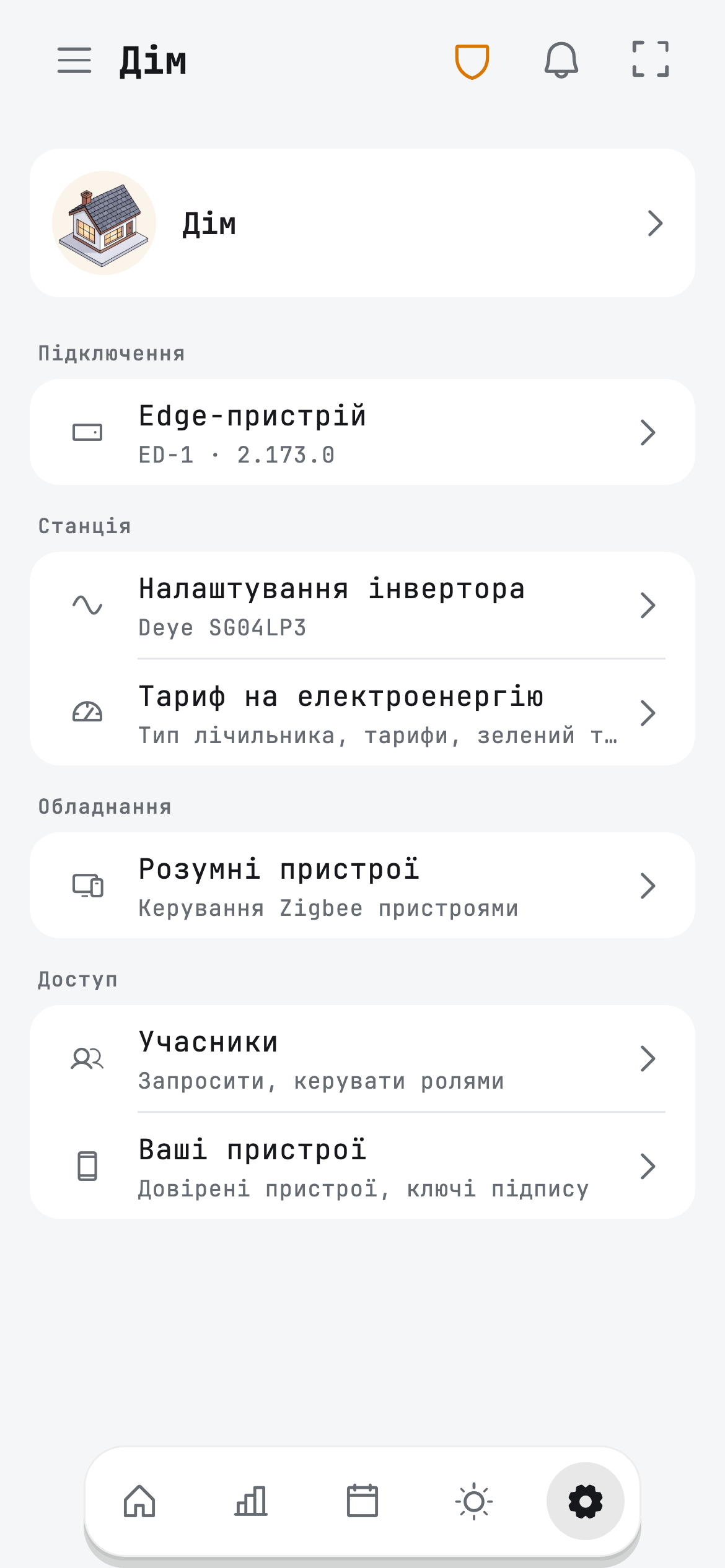
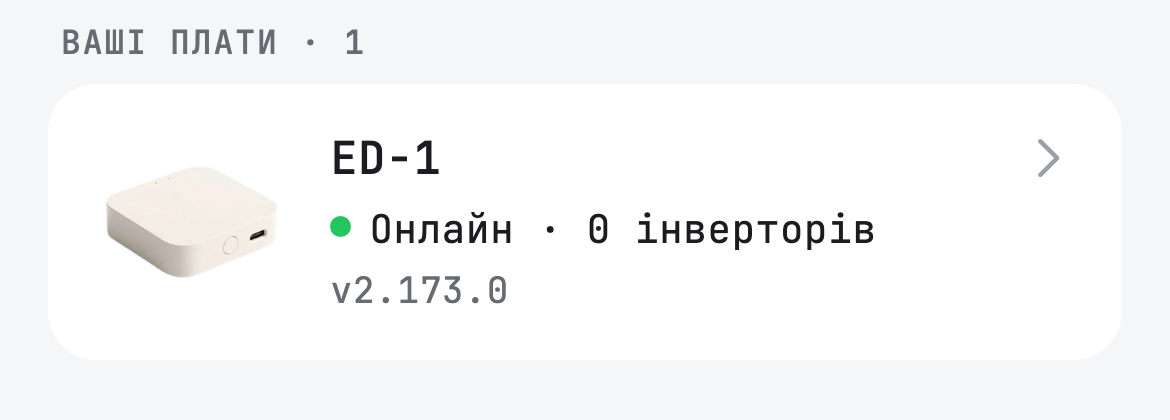
On a board, open the ⚙ tab of your station, then Edge-пристрій, then Плати Edge, and tap your board. In Звітність у хмару, drag the slider all the way left to Наживо.
Critical devices
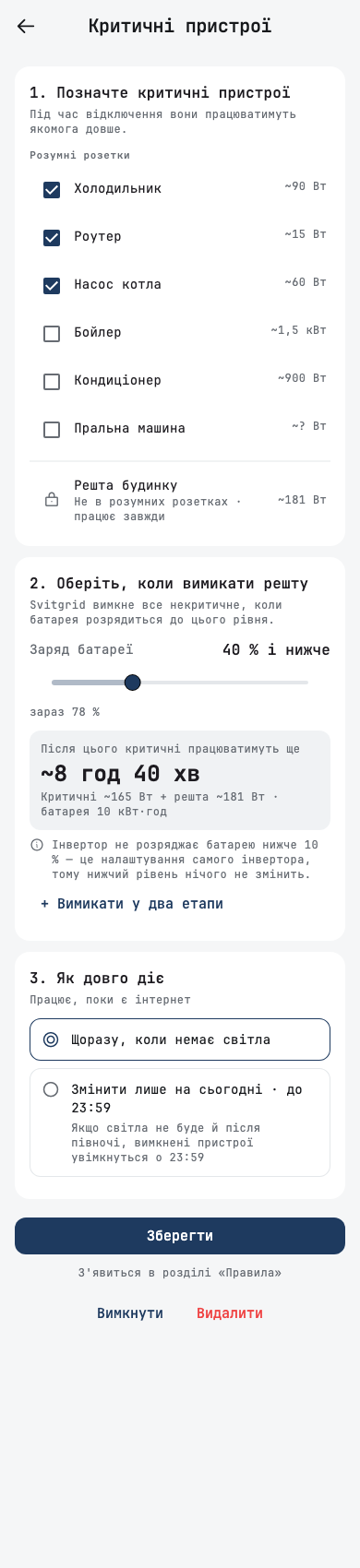
In a long outage, the question is not how much battery you have, but what it should keep alive. You should not have to run around the house switching things off at 2 a.m. Критичні пристрої does it for you, and replaces the Battery Advisor. Mark what must keep running in an outage: the fridge, the router, or a whole room. Then choose the battery level at which Svitgrid switches off the rest. The screen estimates how long the critical devices will then last.
- You can switch devices off in two stages, or for today only.
- During an outage, the screen shows what is still on and what Svitgrid switched off.
- When you pair a socket, the app asks whether the device is critical.
- The rules this screen creates appear as a locked group on the Rules tab.
- A new rule action keeps a list of sockets on, switches off the rest, and later switches back on what it switched off.
- A socket that also belongs to another rule is marked.
This works while the internet is up, and it needs Zigbee sockets. It is not available in island mode.

Batteries
Your battery is the most expensive part of your system, so you should see how it is really doing. We now take the numbers from the BMS itself, not our estimate, and keep them, so you can see a weak cell or a falling capacity before it becomes a problem.
Battery reports and history
Reports has a fourth tab, Батареї, for a station with a battery monitor, which is a device that watches the battery's condition. It shows charge cycles, capacity, and health for the period, and you can export the figures as a CSV file, which opens in spreadsheet programs. Where the monitor reports its own cycle count or capacity, that figure replaces our estimate.
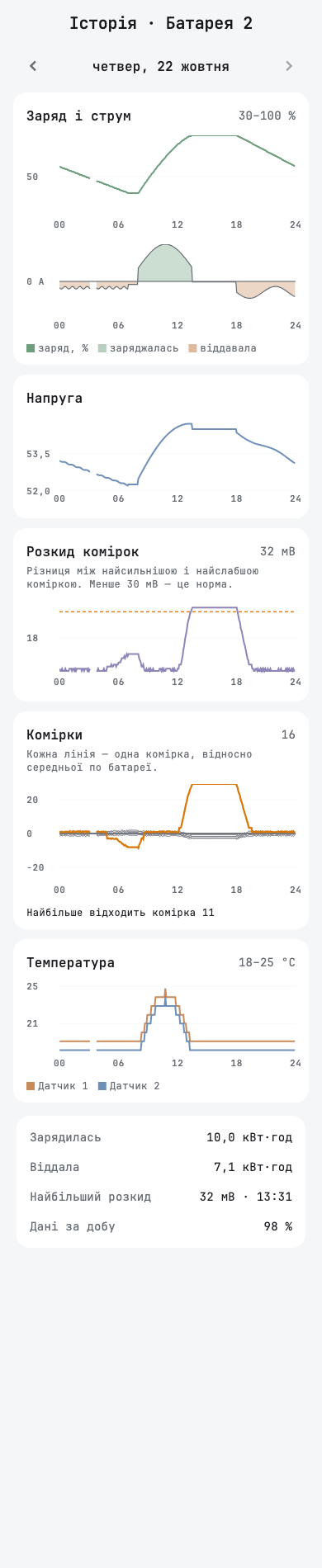
Історія on a pack's page shows one day: charge and current, voltage, the difference between cells, each cell, and temperatures. Touch a chart to read a value.

Adding a battery from the phone
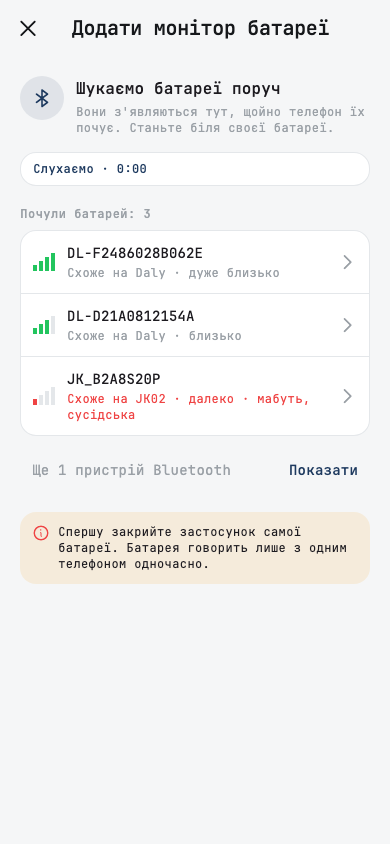
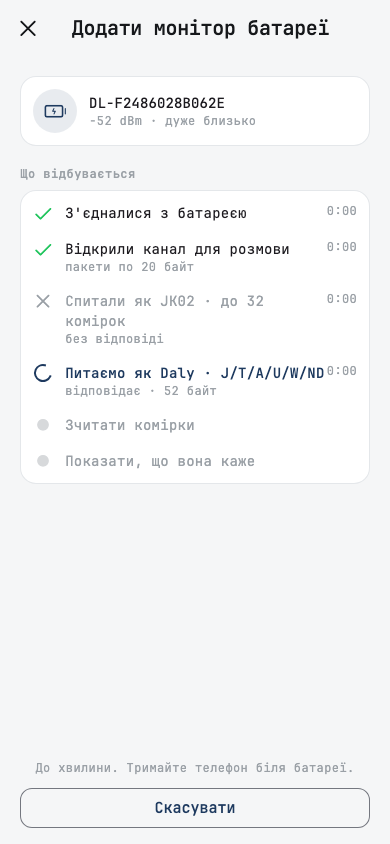
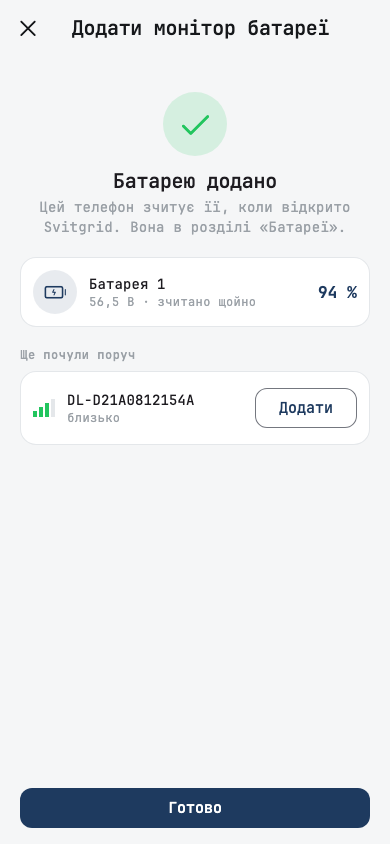
The add flow is rebuilt. You add one pack at a time and watch each step. A busy battery is waited for rather than reported as a failure, and if another app holds the battery, the app says so.
Other battery changes
- JK packs read by the phone report battery health, the switches for evening out the cells (balancer) and for charging and discharging (MOSFET), and every temperature probe.
- Daly packs read more reliably, including packs with a renamed Bluetooth module and packs that need a slower start. A third way of talking to Daly packs (a protocol) is supported.
- The app warns you when it is reading the wrong battery.
- Bluetooth problems have names: permission refused, Bluetooth off, Location off, pack busy.
- A phone reads packs only while the app is open on screen, and it says when reading is paused or Bluetooth is off, instead of «скоро».
- On iPhone, the phone disconnects from a pack once the hub reads it.
- Packs read by the phone are named «Батарея N», and a pack seen twice counts as one pack.
- A battery removed on the phone is removed on the server too.
- A battery diagnostic reads a pack connected to the phone with the same protocol the phone uses, and keeps the reason a pack would not connect.
- If the phone cannot read a pack, or reads only part of it, this information reaches support in cloud and island mode.
- The battery screen shows the row for a shared battery bank, and the secondary inverter in a pair (slave) has a «shared battery» switch.
- Capacity from the BMS now takes battery health into account, and the Solis high-voltage pack is sized at its real voltage.
Battery charge from the BMS
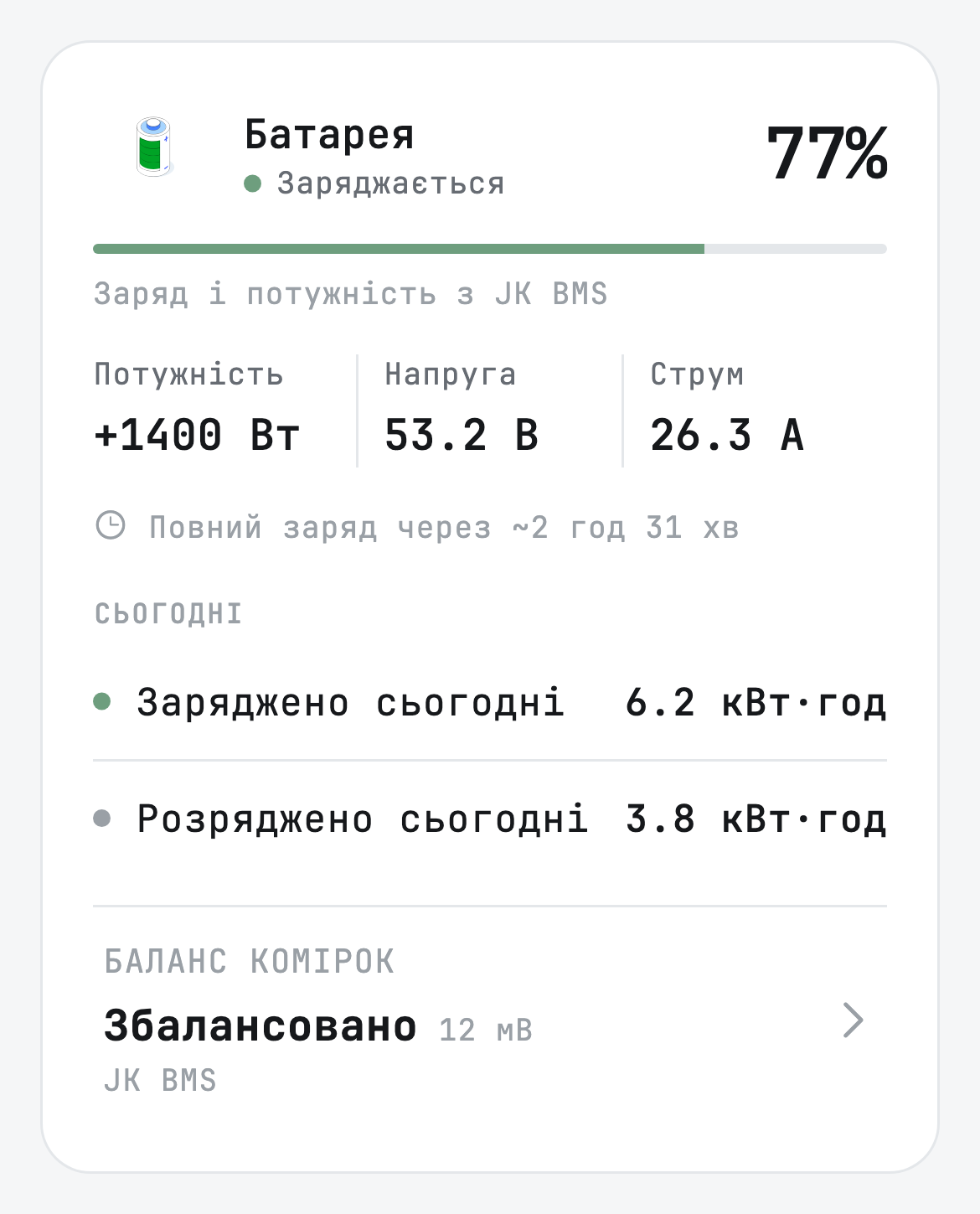
The percentage on your screen should be your battery's real charge. Many inverters estimate charge, and the estimate can drift far from what the battery knows. Your BMS measures it directly, so you can now tell Svitgrid to trust the BMS.
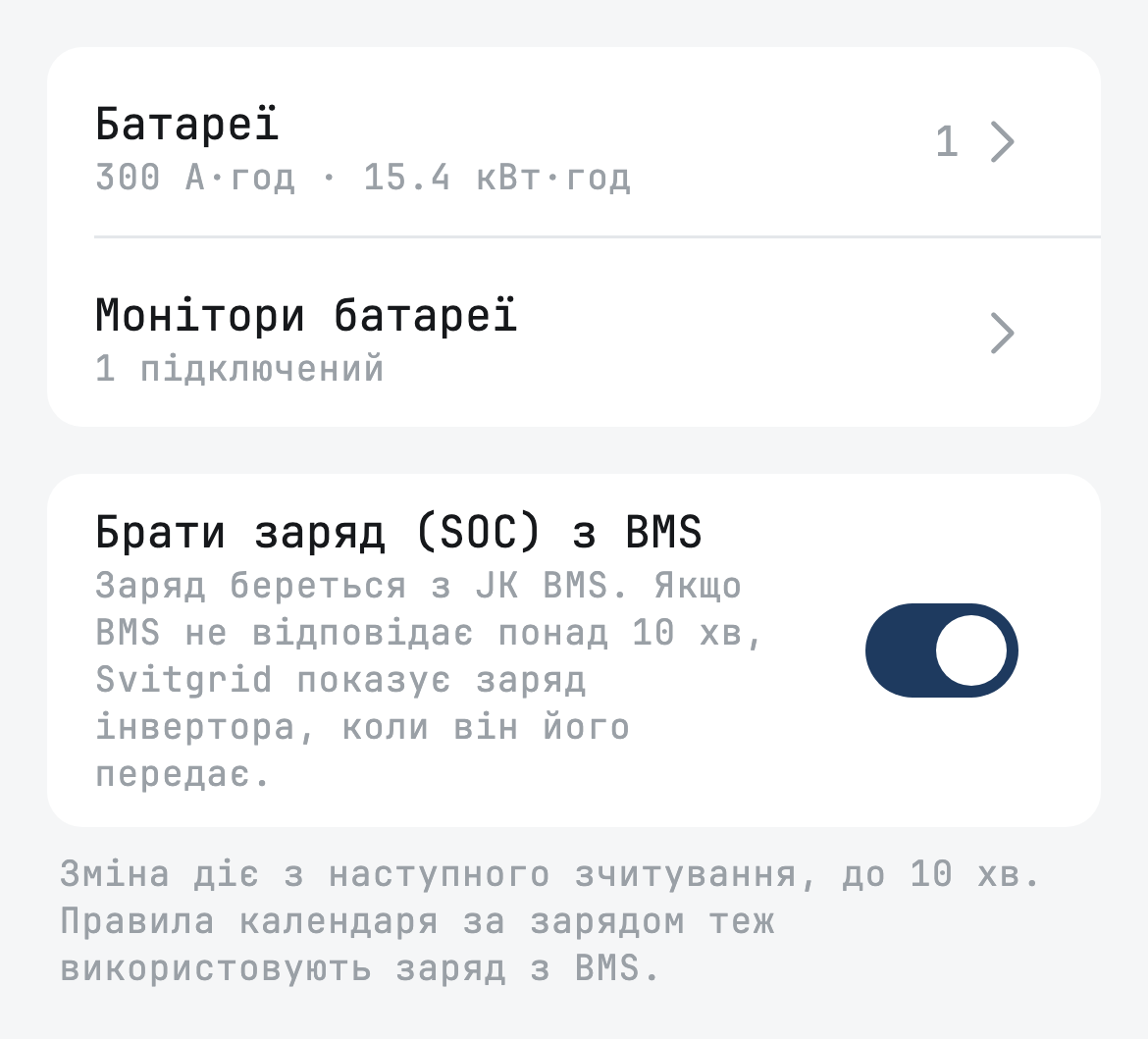
Turn on Брати заряд (SOC) з BMS on the battery screen (SOC is the charge percentage), and the dashboard, history, and rules all use the BMS figure. The change applies from the next reading, within 10 minutes. It matters most for rules: a rule that acts at 30 % now acts at a real 30 %.
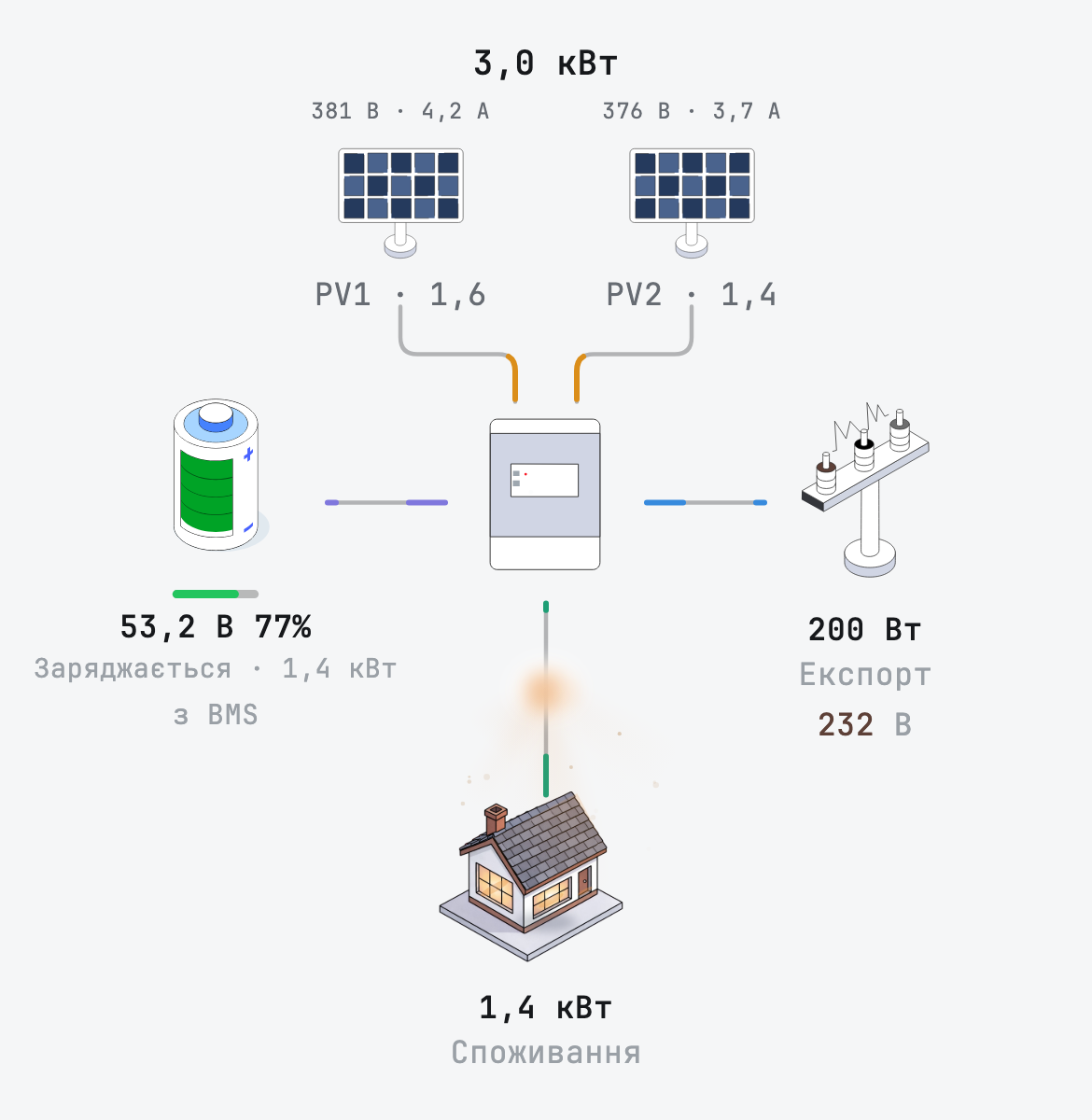
The diagram marks the figure «з BMS», and the battery card names the monitor it came from. If the BMS stays silent for more than 10 minutes, Svitgrid shows the inverter's charge, when the inverter reports one, and the diagram tells you how long the BMS has been quiet.
Rules
Rules can now protect your equipment, not only save money. A hot inverter or a cold battery can start or stop a rule, so the system reacts to the conditions in your home, and it can prepare for an outage before it starts.
- Two new conditions: Температура інвертора and Середня температура батареї, the mean of every BMS sensor. The inverter condition also works on inverters with no battery.
- A scheduled-outage condition can start up to 3 hours before the outage, and the rule list names the outage.
- Межі батареї for a MUST inverter and Пороги перемикання for Voltronic family inverters (PI30) are new rule actions.
- A rule on a LuxPower SNA uses the inverter's third time window and names the reason if the inverter refuses.
- If a command to sell to the grid repeats, the app tells you, and one tap stops the repeats.
- A value that automation re-sends unchanged no longer uses up the daily limit on inverter changes, and the app names that limit when you reach it.
- A custom event re-sends an action that failed, even if other actions beside it worked.
- A template rule hands over without leaving a socket on.
- If restoring the earlier settings fails, the attempts continue even after the event is switched off or deleted.
- A smart device command that the hub failed is retried once, about 60 seconds later.
- The rule list and summaries read better: a smart-plug rule loses a stray number, and an EV charger restore that is still due reads as pending.
- The remove-member dialog names the events that stop running.
Inverters
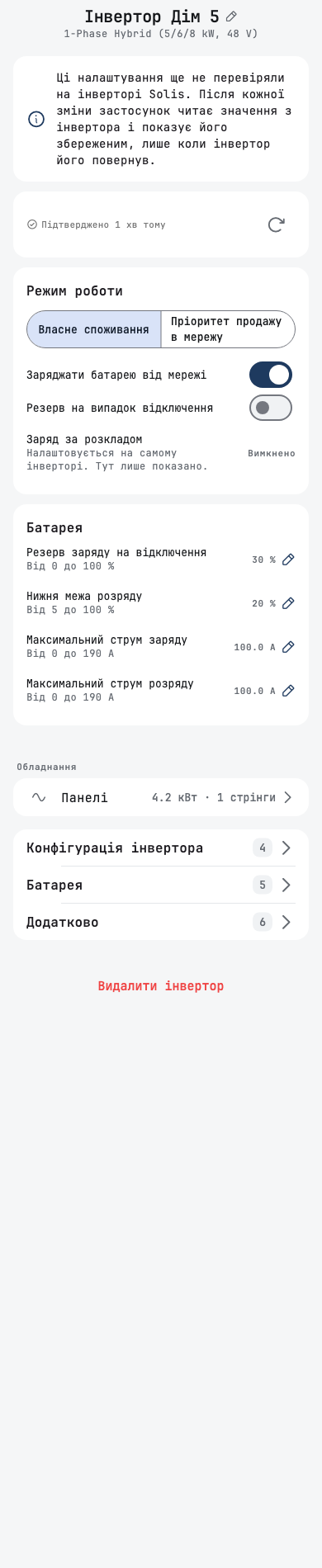
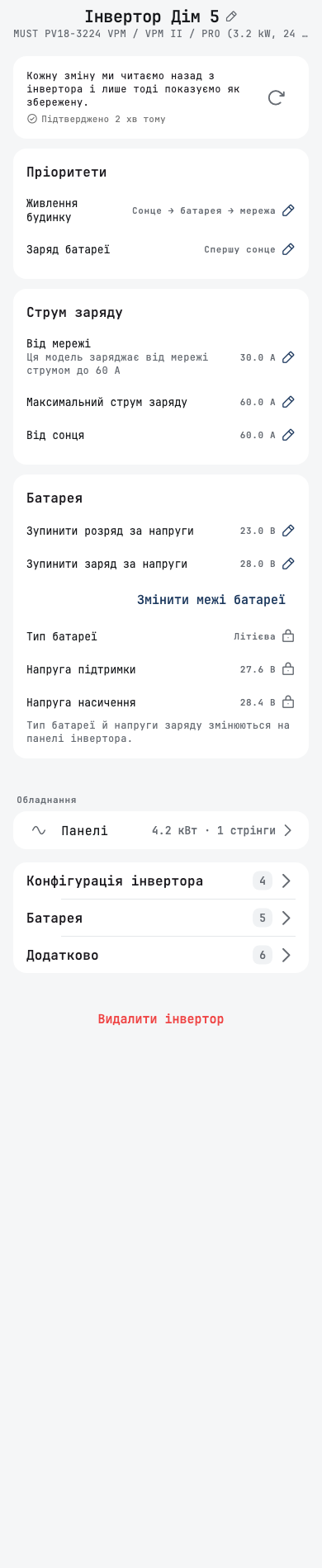
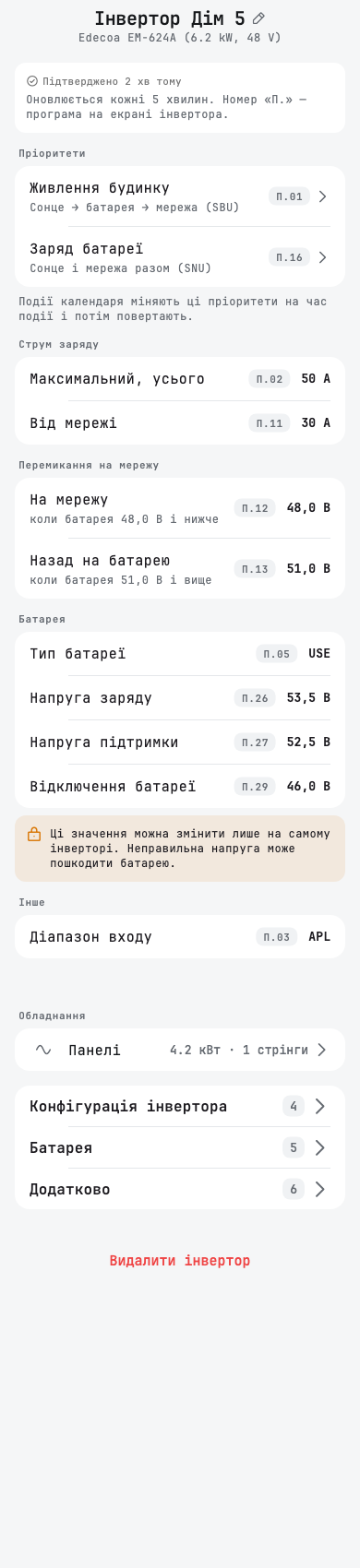
More owners can now use Svitgrid with the inverter they already have, without replacing anything. Each of these families gets its own settings screen, because their controls differ.
- Solis hybrid: setup in the app and a settings screen. The phone collects the data through the Solis Modbus TCP stick, a small communication module that plugs into the inverter.
- MUST PV1800: an ED-1.1 board finds this inverter on its RS-485 cable. It has settings, holds for the length of a calendar event, and rule actions.
- Edecoa: its own settings screen for priorities, currents, and grid-switch voltages.
- LuxPower SNA: settings over a board. You can view grid protection limits but not change them.
- Anenji: an inverter cabled to the RS-485 port of an ED-1.1 works from setup onward. Protocol 4 models (ANJ-11KW) show their readings, and you can view settings we have not measured but not change them. On the phone, one process serves every SmartESS inverter. The phone remembers where the communication module was, disconnects from a neighbour's module, and says why it cannot reach yours.
- PI30 (Voltronic family): a board confirms a grid outage, and after each settings change it checks that the value was saved. A manual priority change during a calendar window becomes the value restored after the event, and an idle battery keeps its grid power.
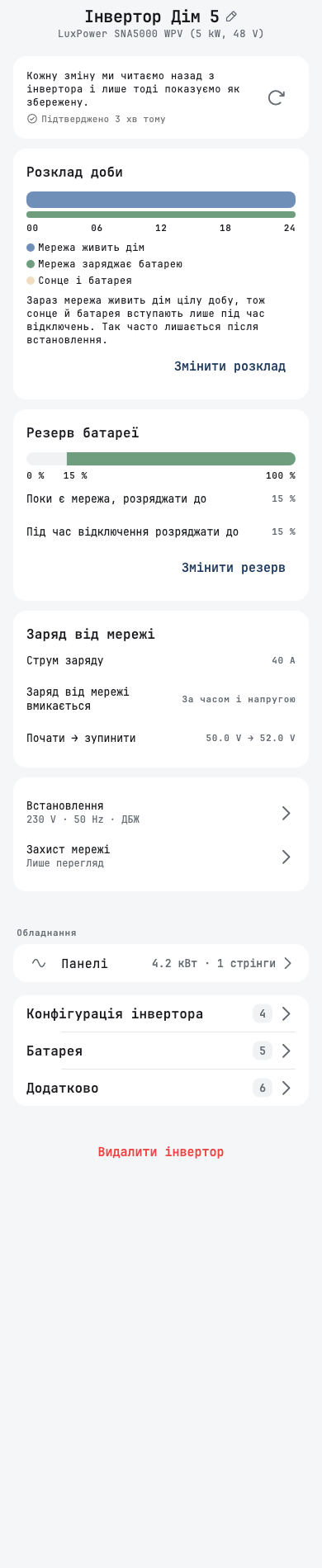
Deye and schedules
Most of you run a Deye, so these are the fixes you are most likely to feel. Your schedule now stays yours: the app no longer overwrites a time boundary you set, or loses an edit you made during a quick charge.
- The main TOU schedule switch is labelled TOU (Time of Use), and only the switch toggles Grid Charge, not a tap on its label.
- A battery-charge event no longer has a kW limit, and its time period in the schedule gets the rated power.
- An event refuses a TOU change that would leave identical time periods or erase your time boundary.
- A manual TOU edit during a quick charge survives when the earlier settings return at the end of the window. If an event activates a single time period, the whole schedule table returns afterwards.
- A window that ends at or just before midnight restores the settings after 00:00.
- High-voltage Deye models lock TOU period power and the sell-power cap until the app accounts for their 10 W power unit. These models can change the main Grid Charge switch.
- Grid Charge is disabled on boards with firmware below S3 2.161.0.
- The work-mode card names the calendar event that holds the mode.
- If Deye data carries no grid relay status, the app no longer treats that as the grid being restored.
- Daily generator energy reads correctly on single-phase Deye inverters.
Setup
Setting up a station should end in a working station, not in a question to support. Too many people lost an evening to a board that would not join Wi-Fi and an error that blamed their password. We rebuilt the steps where that happened, so the app now tells you what went wrong and how to fix it yourself.
Finding your equipment
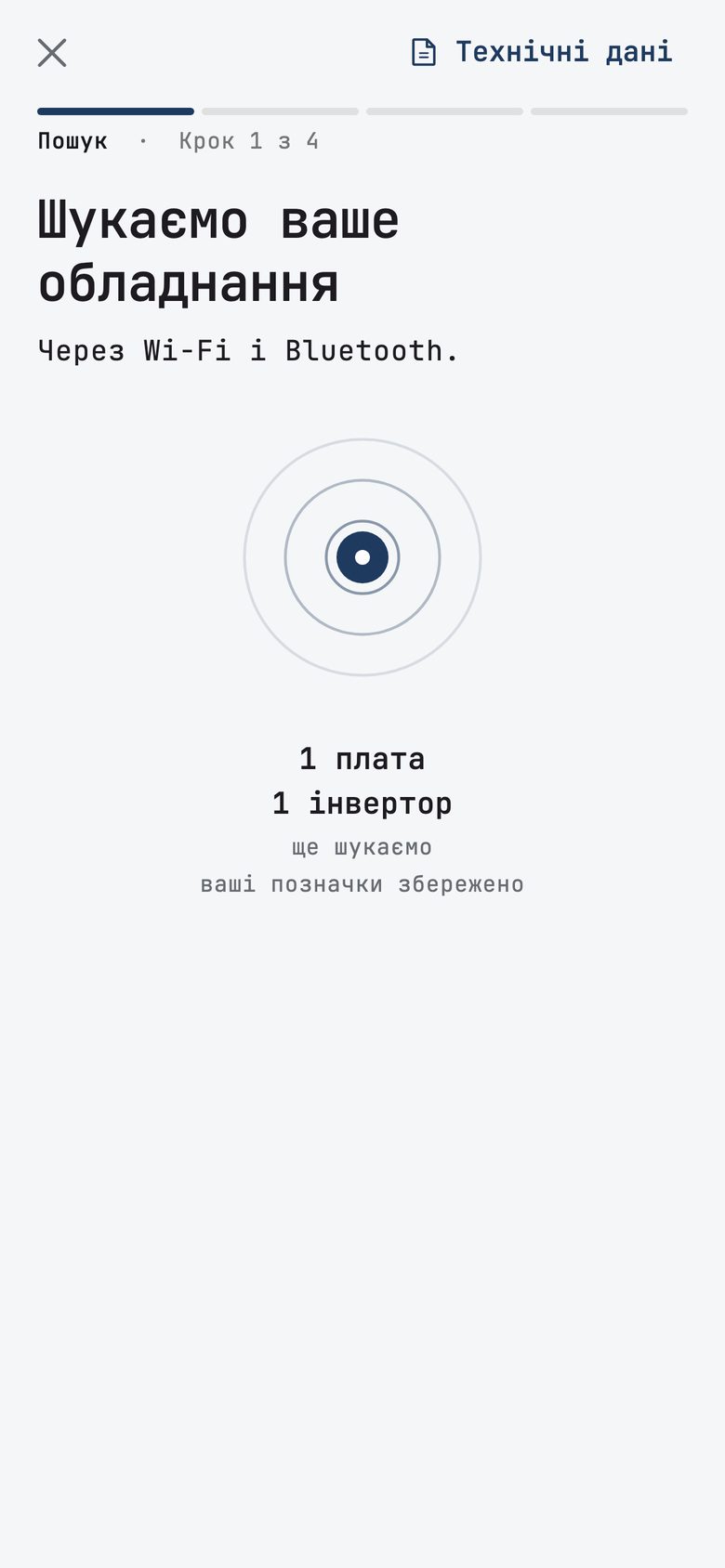
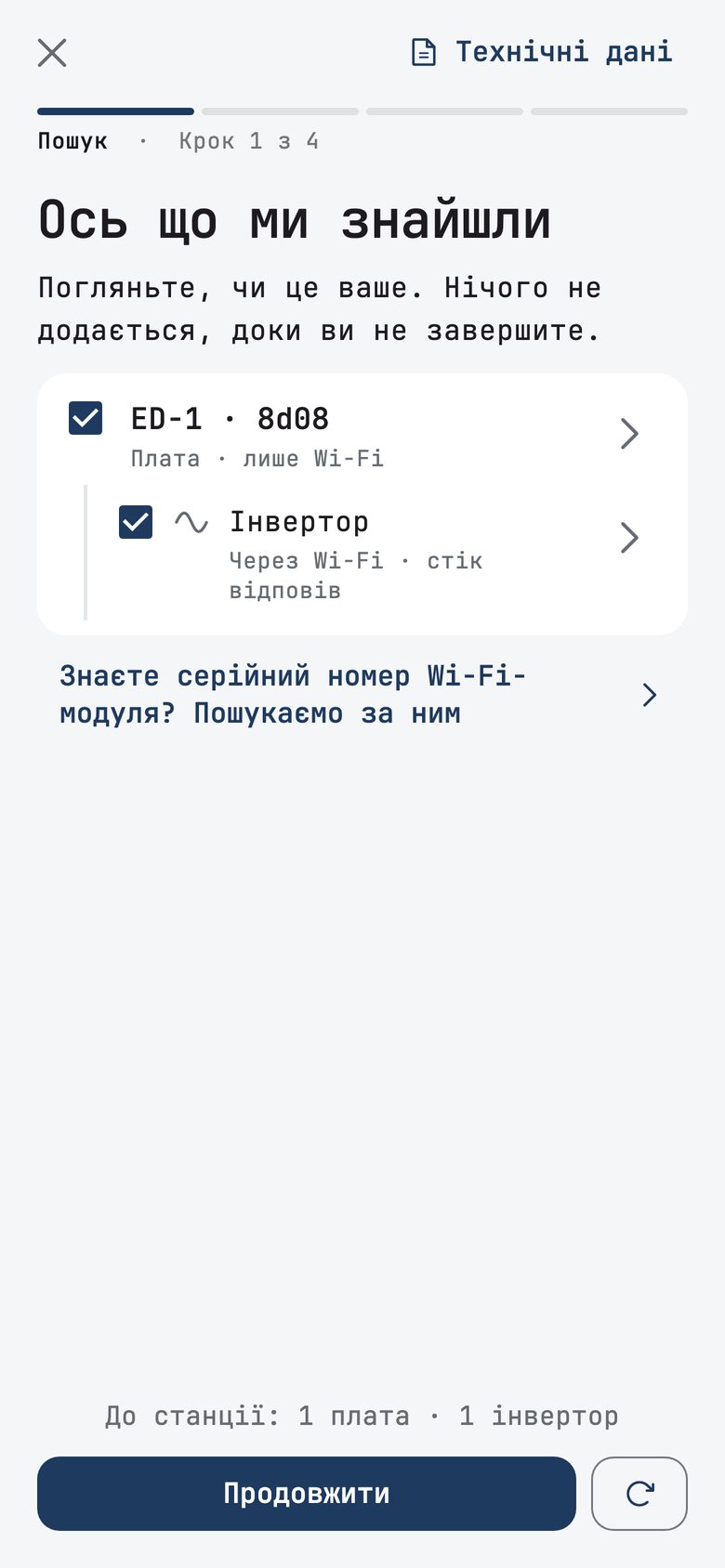
The Пошук screen is new. It shows a pulse animation and a running count, and offers the main button after about 8 seconds, so you do not have to wait for the end. The results are one short row per device, with details one tap away. Bluetooth devices that cannot be a battery move to a separate list, with Показати всі in case your battery has a new name.
The search also says what it tried for each kind of connection, and that a logger, the communication module on the inverter, must be on Wi-Fi first.
The search also finds a Huawei SmartLogger and a Victron GX on your home network. These devices connect to the network by cable and answer over Modbus TCP. Before this release the search did not look for them, and you had to type the address by hand. The search only reads from them and changes nothing.
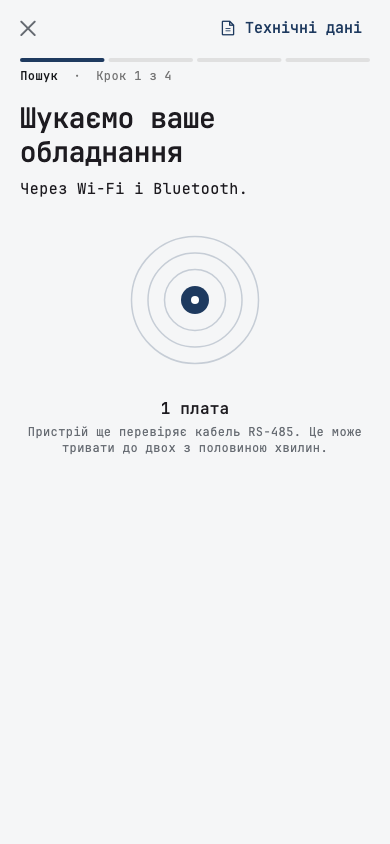
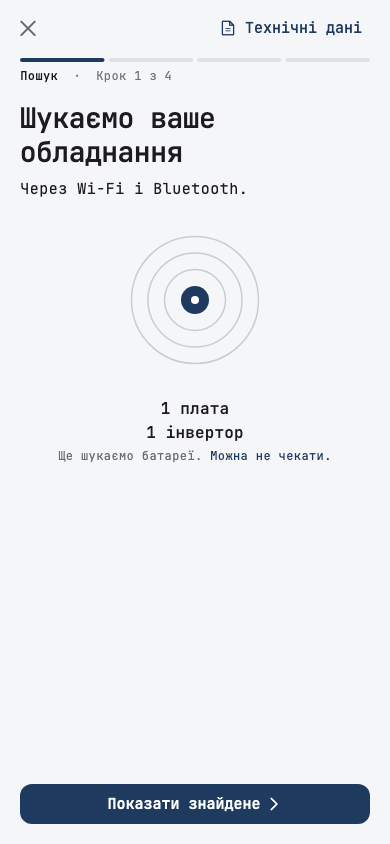
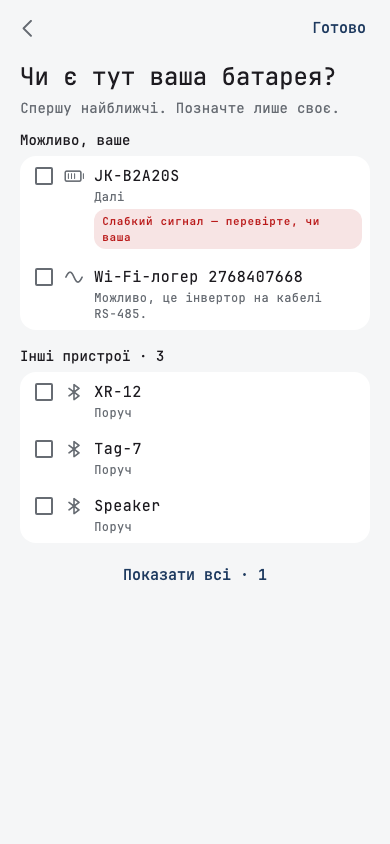
Wi-Fi on a board
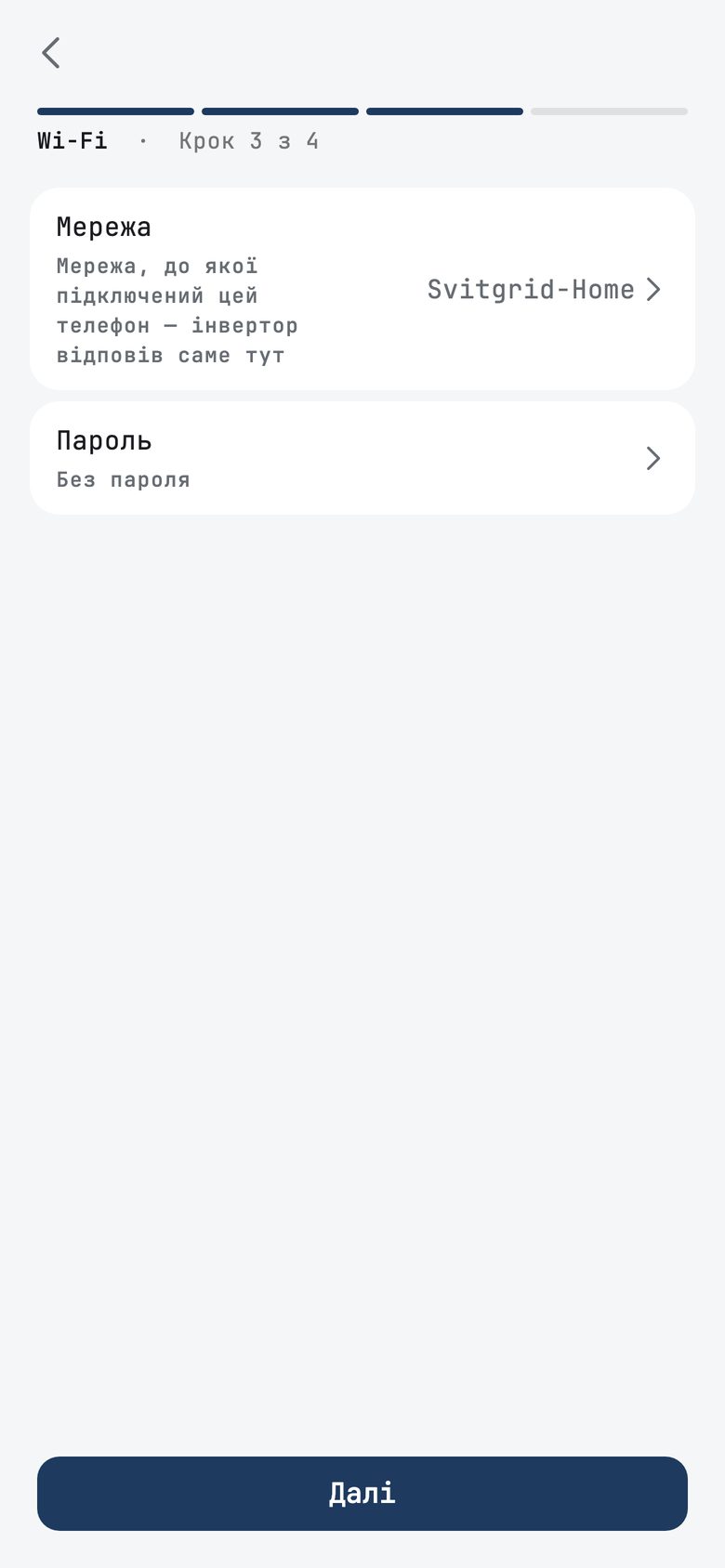
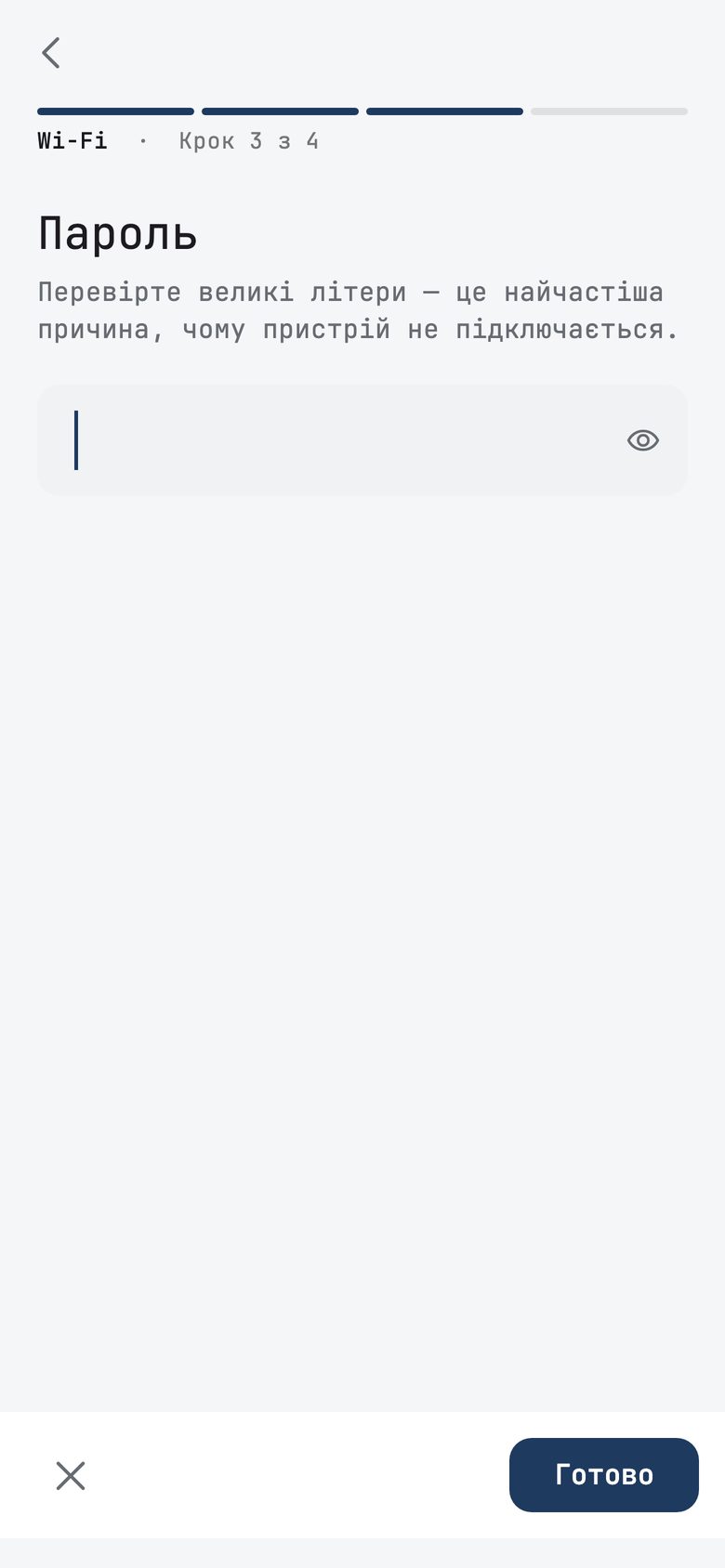
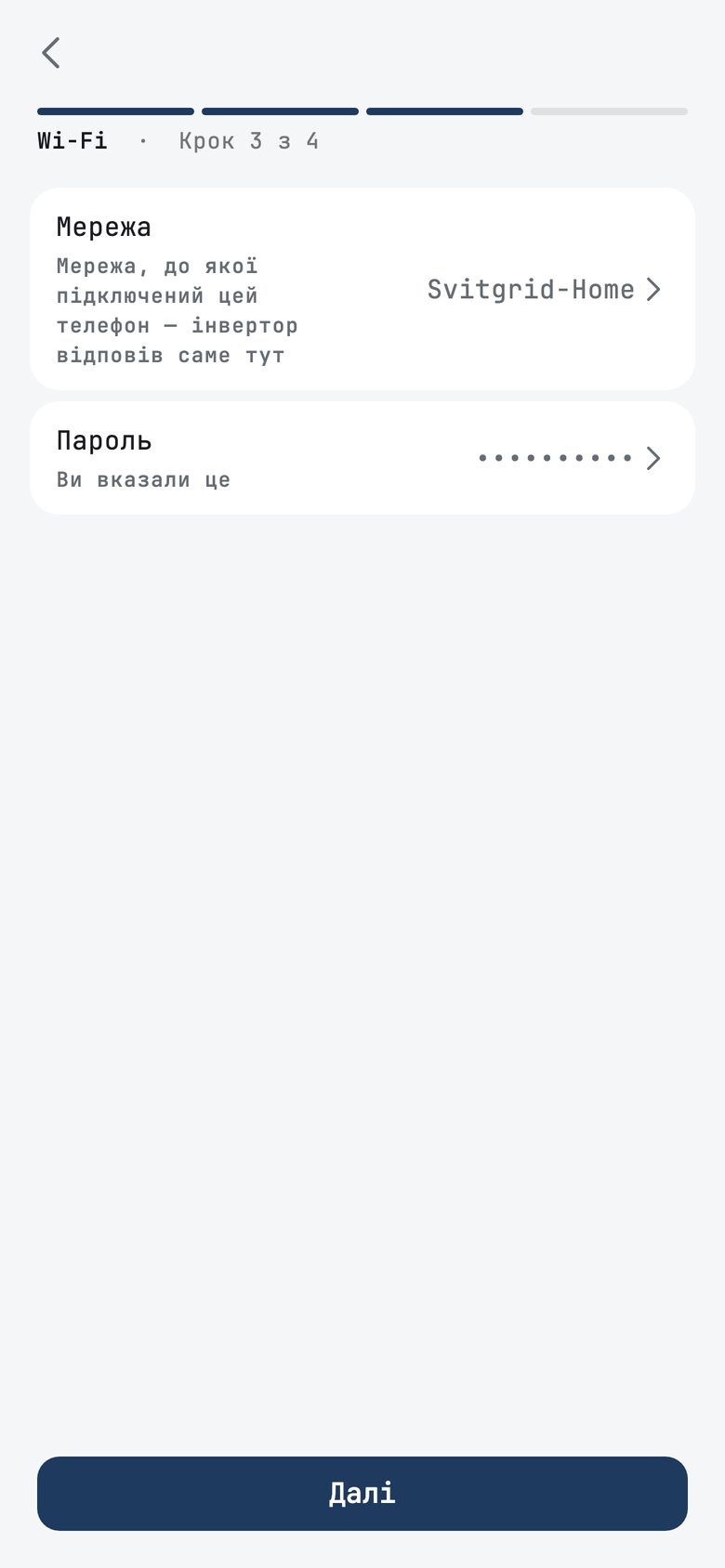
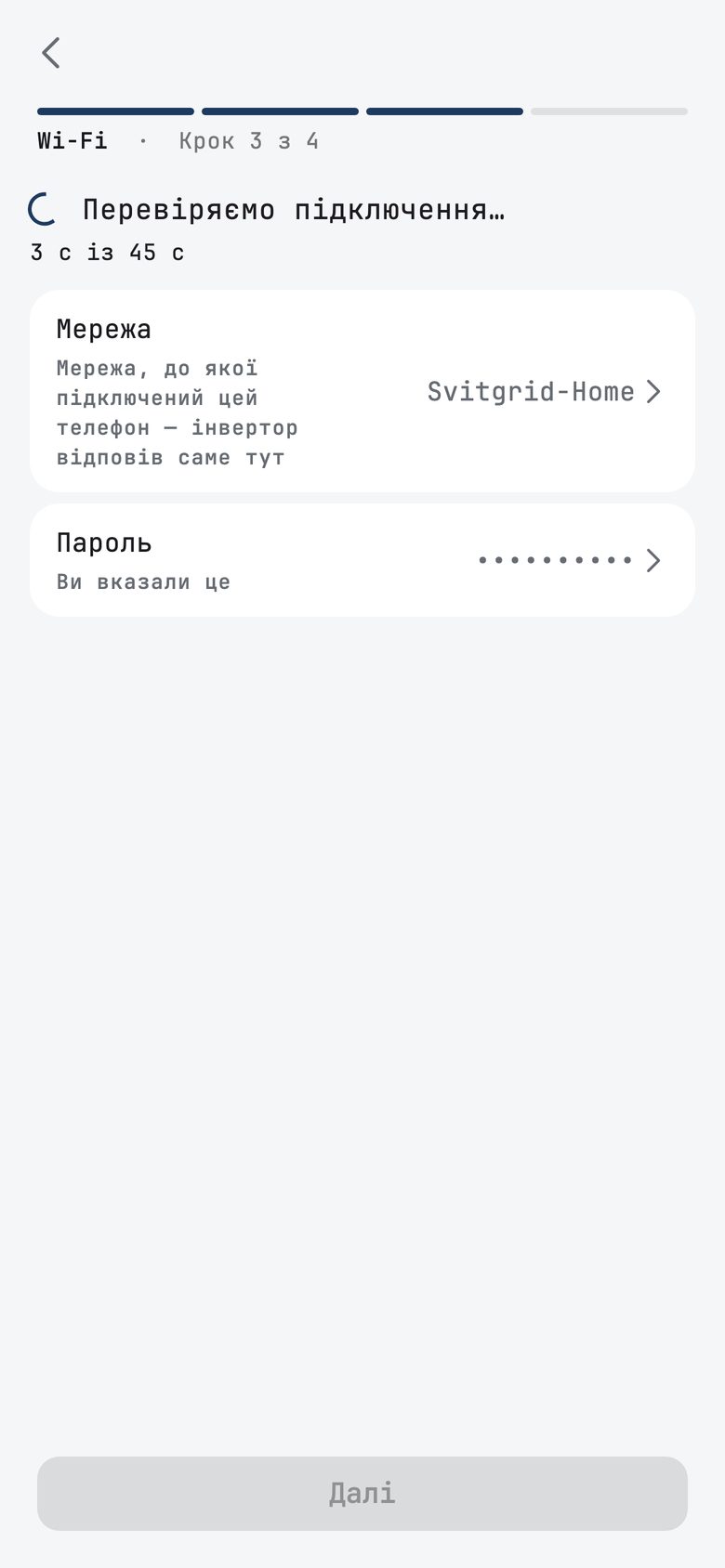
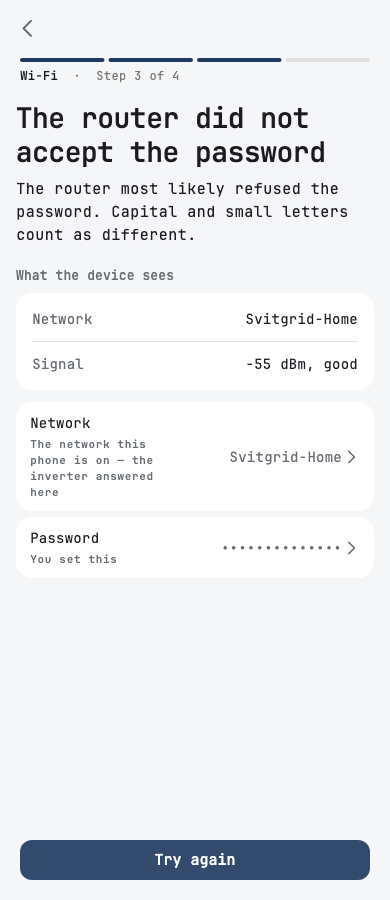
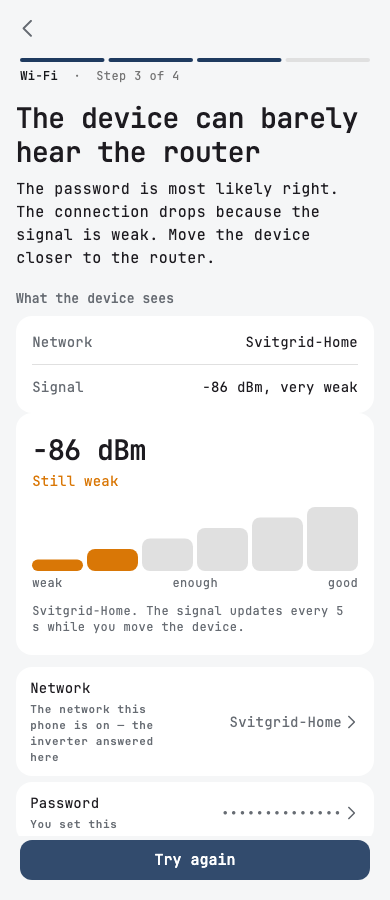
Setup proves the board's Wi-Fi on the Wi-Fi step, before it creates the station. It checks that the board joined the network and then that it reaches the internet. A failure names its cause and the fix on the same screen: a refused password, a blank password, a weak signal, a network the board cannot see, or a security mode it does not support. Спробувати ще раз sends the new details again.
The app also recognises a board that is already paired, one that restarted, and one that is still joining.
Other setup changes
- Перші дані says what is happening while the first reading is on its way.
- Home Assistant setup has separate steps for the pairing code and for where the data lives.
- For batteries found in the search, the app fills in capacity, chemistry, and cell count on the review screen.
- You can answer that a battery-capable inverter has no battery.
- Adding an inverter offers only the way the station already collects data.
- The app shows a Bluetooth step without a pop-up message over Next, and Back during the internet check does not skip that check.
- Try again finds a station that was already created, even if the answer never reached the phone. When Bluetooth does not work, the app asks the server first.
- A short Wi-Fi password says why Next is grey, and a blank one on a protected network says so.
- A hand-picked Huawei is not asked for a logger serial, and an inverter typed in for Home Assistant asks for its address.
- A communication module found on Wi-Fi stays selected, and a search that found only other people's devices says nothing was found.
- A faulty microSD card shows a warning on the board row.
- A guest who signs in for the cloud returns to setup.
- A board hint moved to the inverter's sheet, and a search that restarts returns to the first stage.
Firmware
A board on your wall should keep working without you thinking about it. Boards update themselves over the internet, a few at a time, and if an update does not work, the board goes back to the earlier version. This round makes updates safer and Wi-Fi far more dependable.
In S3 2.172.0
- A board can work with Home Assistant instead of the cloud. Commands signed by the phone switch that mode on and off.
- A power cut or an internet outage during an update no longer sends the board back to the old version. A board keeps a new version after 3 hours of readings without a gap.
- Boards ask for scheduled updates about every 2 hours.
- A startup step that failed once is retried, and a clock that is not set takes the time from the server.
- New for an RS-485 cable connection: MUST PV1800, LuxPower settings, and PI30 setting changes with a check that the value was saved.
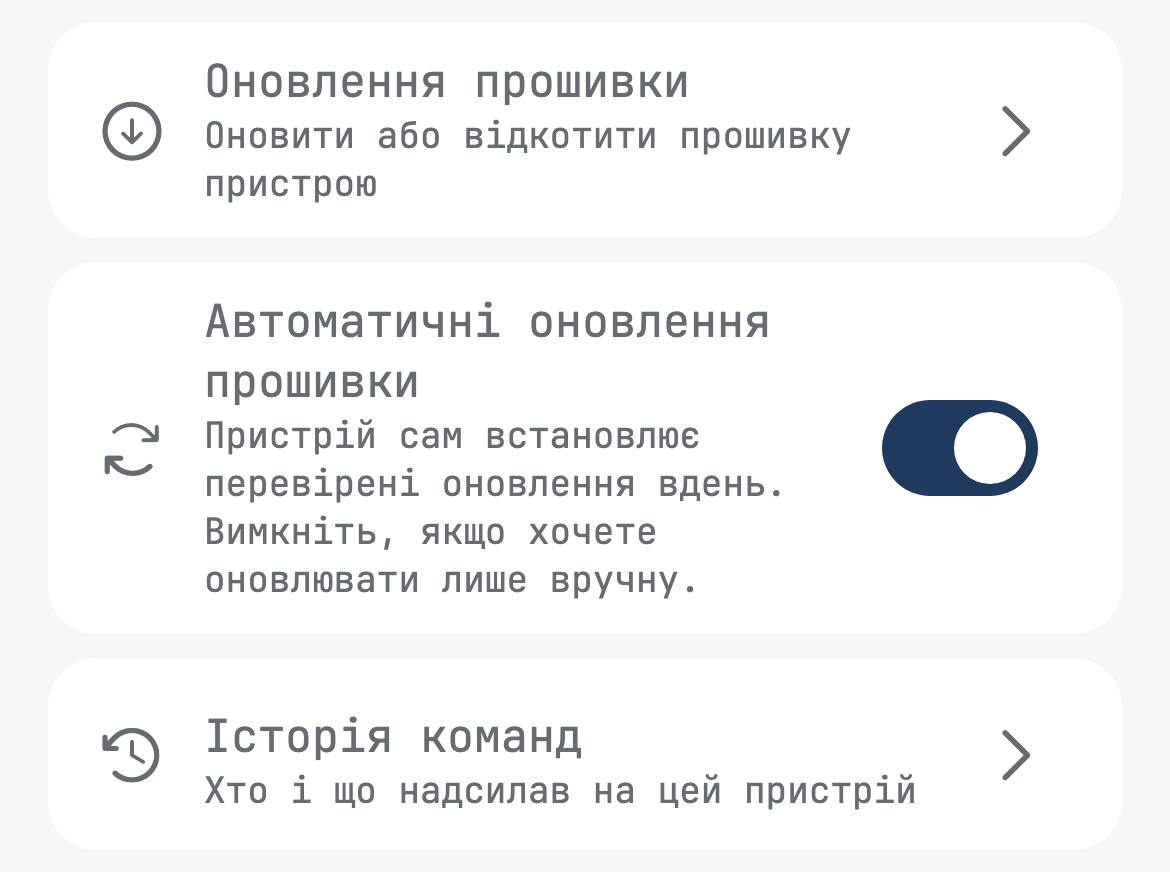
- Автоматичні оновлення прошивки on the board's screen turns these updates on or off.
- An Anenji SMG II works over an RS-485 cable, and after every settings change the board checks that the value was saved.
- Every failure to read over an RS-485 cable is named.
- An owner whose board already runs a beta build sees and installs beta firmware.
- Updates reach string-inverter boards only between 09:00 and 13:00 Kyiv time, and a board whose inverter is silent waits.
In the next firmware
These improvements are finished and reach boards with the next S3 release, after this app version.
Stable Wi-Fi
Many of you told us your board loses Wi-Fi, takes minutes to come back, or will not join a router that works for everything else. You were right, and it was not your router.
We measured it on a board that showed the problem. Boards started Wi-Fi at full transmit power, a default nobody had chosen. On some boots, the radio could not reach the router at that power, even with a strong signal. The board kept failing for about a minute before it tried a lower power, and that happened on every restart. Those failures also looked like a password problem or a weak signal, which sent people looking for a fault in the wrong place.
The board now starts at a power the radio can use. If that fails, it steps through other levels quickly and remembers the one that worked. If a connected board goes silent, it checks whether it can still reach your router, and changes power only when it cannot.
On the same test board, in the same place:
- Boots that joined Wi-Fi: 15 of 15. Before, it was 3 of 6.
- Time to join: 5 to 6 seconds. Before, it was 7, 7, and 46 seconds.
- Boots that did not join within 110 seconds: none. Before, it was 3 of 6.
These results are from one test board on our bench, and they are very promising. We will release this to our own boards first and then watch it in real homes. A board far from its router is the case we will watch most closely, because it now starts at a lower power.
Other improvements
- A board keeps trying a network it can reach. A failed join no longer counts as a wrong password.
- A paired board keeps its working Wi-Fi until the new network joins.
- The board scans for networks before it has any connection details. The app uses this for the network list and the real-time signal reading during setup.
- A board has a main and a backup path for sending data (MQTT and HTTP). It uses the backup path only when the main path did not deliver the data.
- Inverter temperature stays correct below zero and at high values.
On the Zigbee hub
- Repeat on/off commands are spread over about 8 seconds, and after a failed send the hub looks for the path to the device again.
- The hub chooses how to work with a device by its manufacturer and model.
- The hub recognises a renamed Daly pack and reads a Daly through its Wi-Fi/Bluetooth module.
- The app warns on every hub operation when the Zigbee module never reported its version, and the hub returns to a pack that refused it after a board restart or a hub update.
Outages, tariffs, and the map
You should know what is happening to your power, and what it costs, without doing the sums. The outage banner tells you whether the outage is wider than your home, schedules cover more regions, and the money figures now follow the rules your bill follows.
Who else is without power
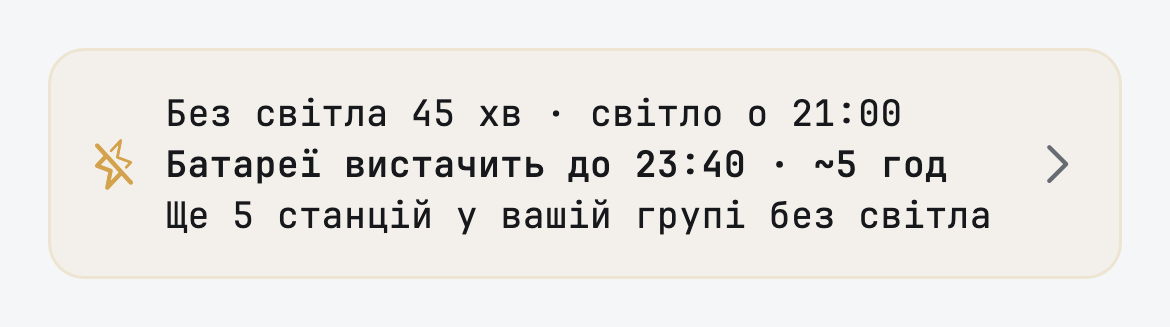
When the power goes, the first question is whether it is only your home. The outage banner now answers that: it shows how many other Svitgrid stations in your outage group are also without grid power right now. If others are out too, it is probably the network, and you do not need to go and check your own breakers.
Other outage and tariff changes
- Outage schedules are read directly for Vinnytsia and Rivne, and a Yasno emergency shutdown is treated as an emergency, not a day without outages.
- The outage screen says how long the battery lasts, and names the date when it lasts past tomorrow.
- An outage that no reading will close is closed by an hourly check.
- An active consumer buys electricity from the grid at the zoned retail price, the day-ahead market price (РДН) applies only with registered energy storage (УЗЕ), and the sell price is capped only with storage.
- The tariff card shows the zone hours your bill is calculated on, on their own line.
- Цей місяць shows the month of the reading, and the finance tiles name the settlement month.
- Одна фаза appears only when the month has a phase loss.
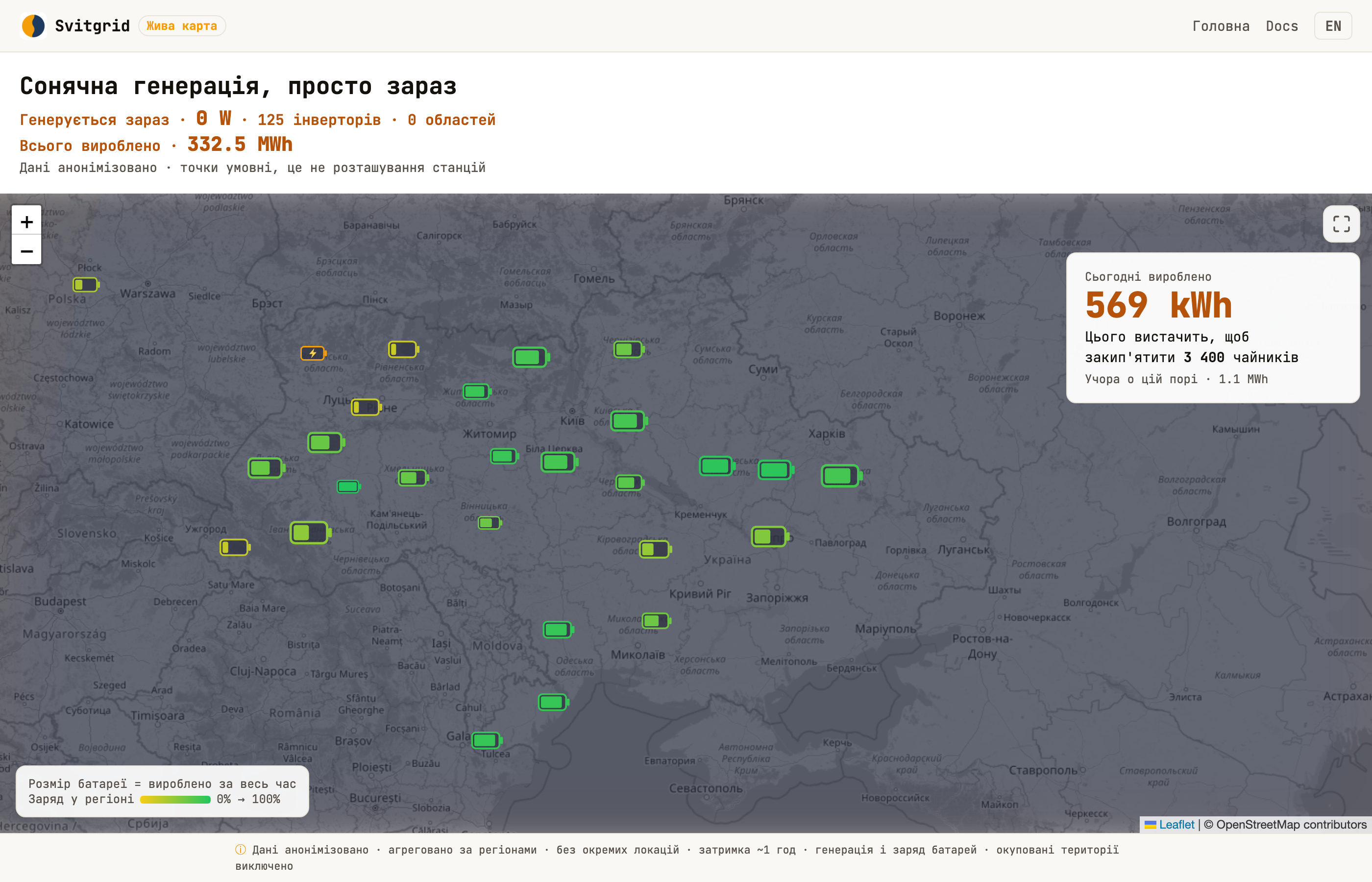
- The public map shows a level for every region with a battery. After sunset, it shows each region's battery charge, with a night shadow and a today panel.
Web console
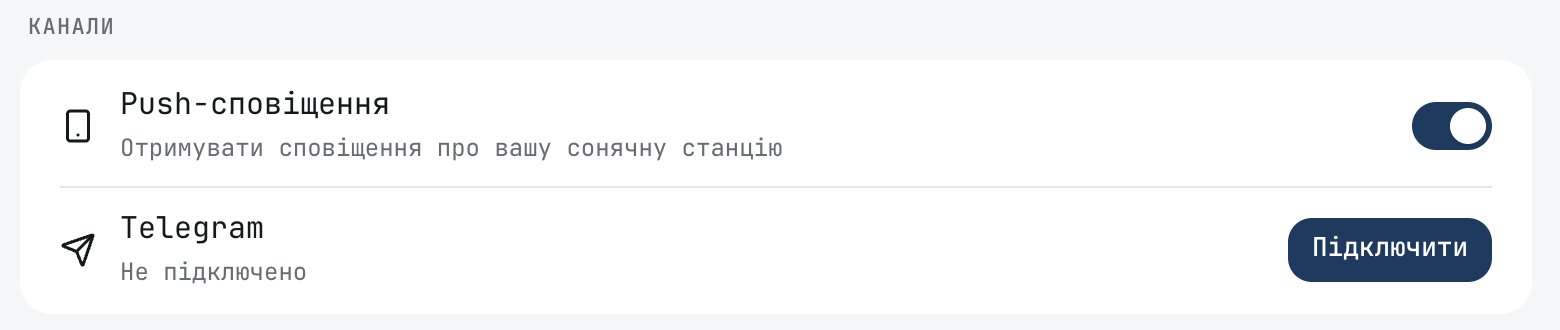
- Telegram notifications, with a link and a QR code.
- Notifications and the subscription on the account page.
- The outage banner names the battery alone on a station without panels.
- The Home diagram's labels shrink with its artwork, and the energy balance fits a laptop screen.
- The Details card rounds the voltages of panel strings and phases.
Account and data
- Deleting an account ends your session even if sign-out fails, and a hung clean-up step cannot hold the dialog open.
- Deleting a station detaches its inverters, and data of deleted stations and detached inverters is purged.
- A removed board disappears from the firmware screen and from the bell.
- An operator can open a personal station outside the group of stations they look after.
- Failures to set up two-factor sign-in (2FA) are reported with their code.
Getting help
The Telegram community, from the app
When a station stopped sending data, its owner had no way to reach other owners or us from the app, because the link to the group was only on our website. That was the moment people needed it most.
Спільнота в Telegram now sits at the top of Support in the menu, and guests see it too. It also appears where something has gone wrong: the troubleshooting screen, a device-fault alert, the screen where the phone collects data when collection is really broken, and the card for a station that never connected. It always sits below the action that can fix the problem, so you try the fix first.
A device-fault alert also has Усунути несправність, which opens the troubleshooting screen. Before, the alert said to tap to fix the fault, and the screen it opened had nothing to tap.
Your station's diagnostic code
The drawer header shows your station's diagnostic code, such as \SG-7K3MQP\. It tells us exactly which station you mean, without your address, email, or a long exchange of screenshots. It used to be buried; now you can find it in one swipe.
Send the code to @svitgrid_bot, not to the group. The group is public, and the code lets someone connect to your station's data through that bot and view it.
Across the app
Swipe left to delete
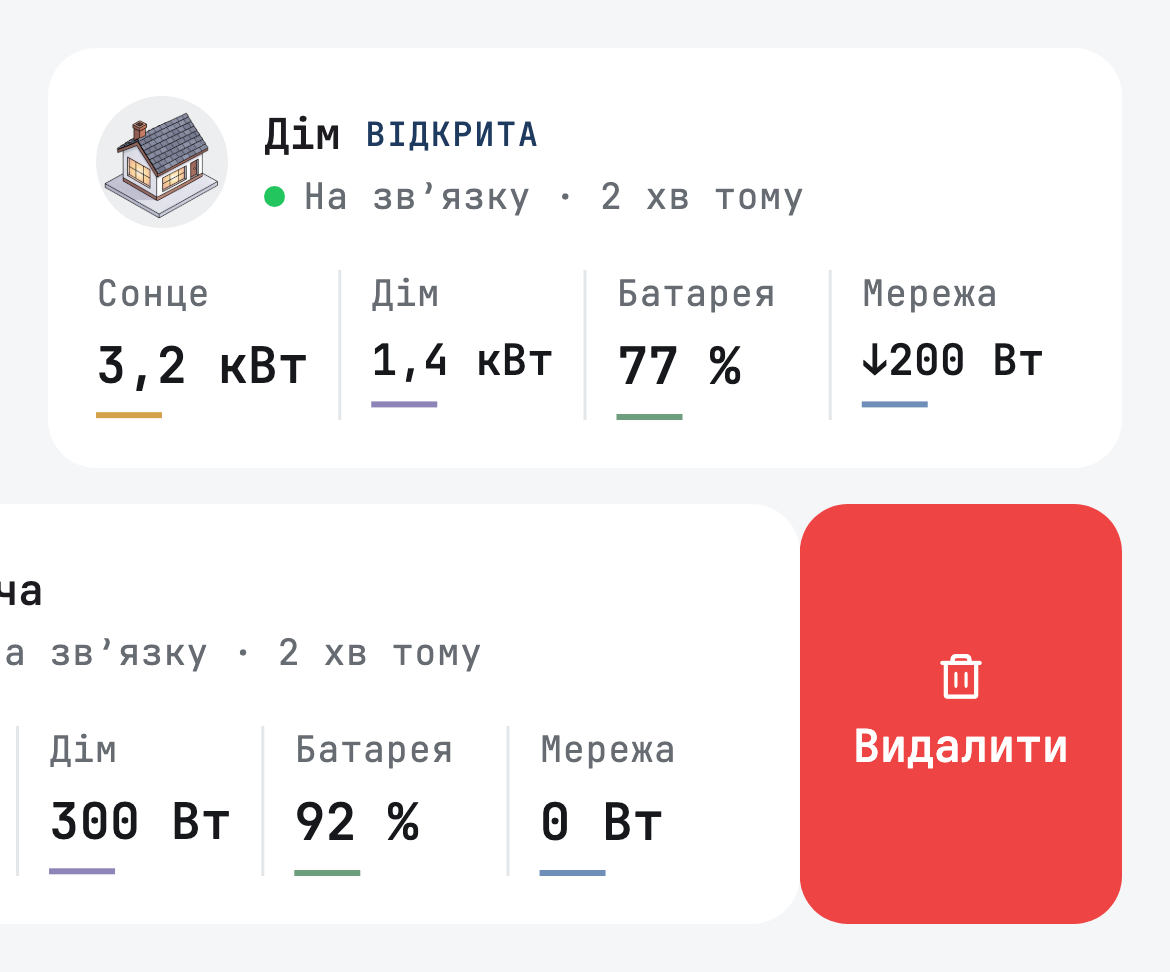
Swipe a station card or a battery pack left to reveal a red delete action. It appears on the Home screen, in Станції, and in the pack list.
- Nothing is removed by the swipe alone. A station goes through the same delete steps as its settings, and a pack through its usual removal window.
- On a cloud station, only the owner gets the swipe, because the server refuses delete from anyone else.
- Deleting a cloud station also clears what the phone kept for it: data collection, battery reads, island data, and saved readings.
Other changes
- Шрифт in Appearance offers JetBrains Mono, the default, and IBM Plex Sans.
- The app says станція, not household, everywhere.
- Calendars, rules, event times, and countdowns use the station's clock, not the phone's.
- The home-screen widget has an Авто row for stations with an EV charger.
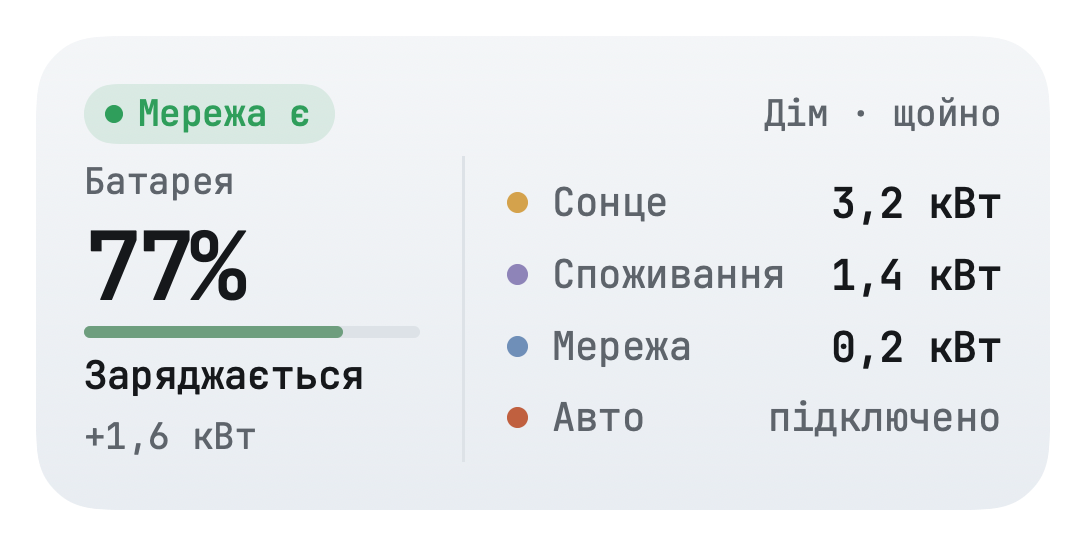
- On shared packs, the widget takes battery charge from the data of the pack's owner.
- Boards no longer offer or promise sending data every 30 seconds where they cannot keep it.
- Alerts refresh every time you return to the app, and dismissing alerts updates the bell dot.
Smaller fixes
- On the grid label, the measured grid state outranks the outage schedule.
- The fullscreen grid tile's lightning shows grid presence.
- The forecast chart labels its hourly line as an average and marks the day's real 5-minute peak.
- The solar panel card compares inverter inputs per installed kW.
- A generator delivering power reads as on.
- Reports keeps its scroll position while the yearly stats reload.
- A dismissed share sheet no longer says the report was exported.
- A tap on a week strip opens the day you tapped.
- Deleting a station or a pack no longer leaves a blank screen.
- Texts no longer overflow on narrow phones.
- A load card marks per-phase values as approximate when they miss the total, and one silent plug no longer makes the card blame the hub.
- An EV charger that stopped answering draws no charging on the dashboard.
- The voltage tooltip leaves out a missing minimum or maximum, the grid-chart title wraps, and the clipped right-edge label is gone.
- The day's grid voltage minimum and maximum are written again.
- A past forecast day headlines the measured kWh, and the forecast footer scrolls clear of the navigation.
- Day charts size themselves by the real day and step by calendar days.
- Dashboard card messages appear over the card, and full-screen lists scroll their last row clear of the Android navigation bar.
- The kiosk mode settings window scrolls in landscape, and the Type label clears the name field on New Organisation.
- Board command history uses the app language.
- Settings rows wrap at word boundaries above the default text size.
- A phone notification always opens a screen the app has, and a page with nothing to go back to leaves for the Home screen.
- The Home Assistant join text says two minutes, and Connection says how to make an unseen Home Assistant visible.
- The app shows a clear error at once when Home Assistant fails, and a Telegram page opens with a back arrow.