Version 1.0.243
13. Oktober 2026
This release is in the App Store and on Google Play. The screenshots are from the Ukrainian app; every screen is available in all 11 app languages.
Support for Eveus car chargers
Svitgrid now supports Eveus car chargers. The app finds the charger on your home network and adds it to your station. The app asks the charger what it can do, so you never choose a model from a list.
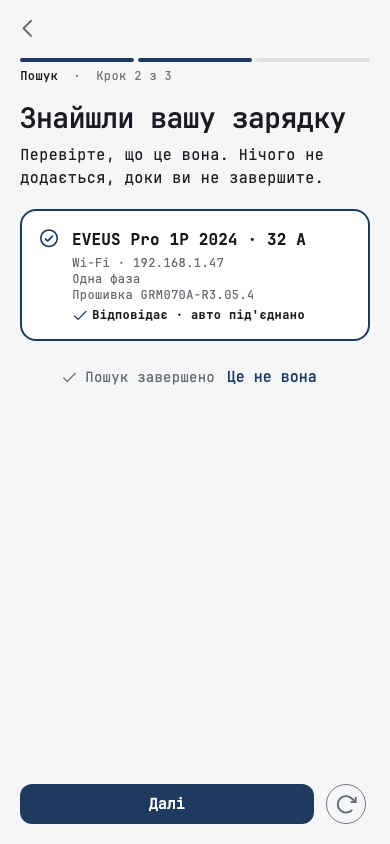
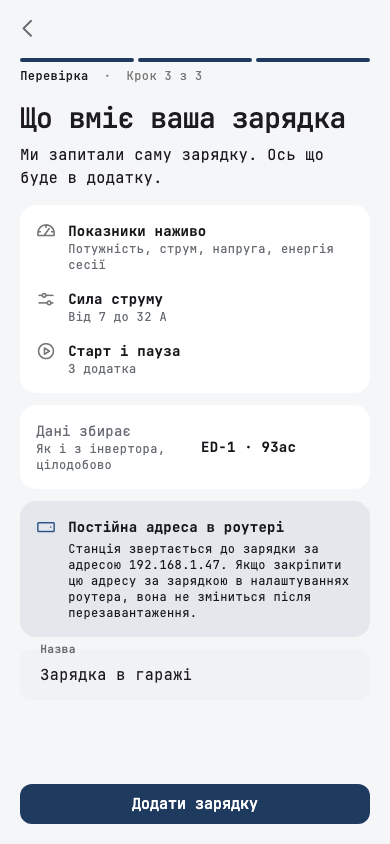
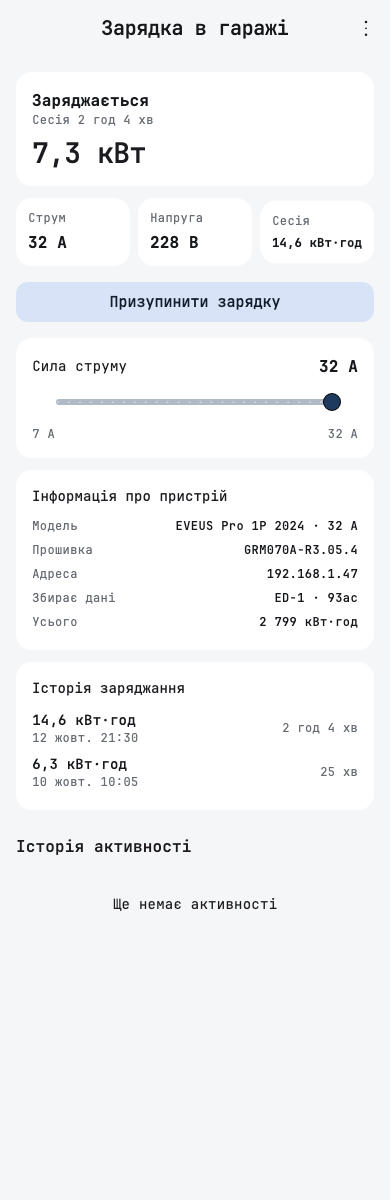
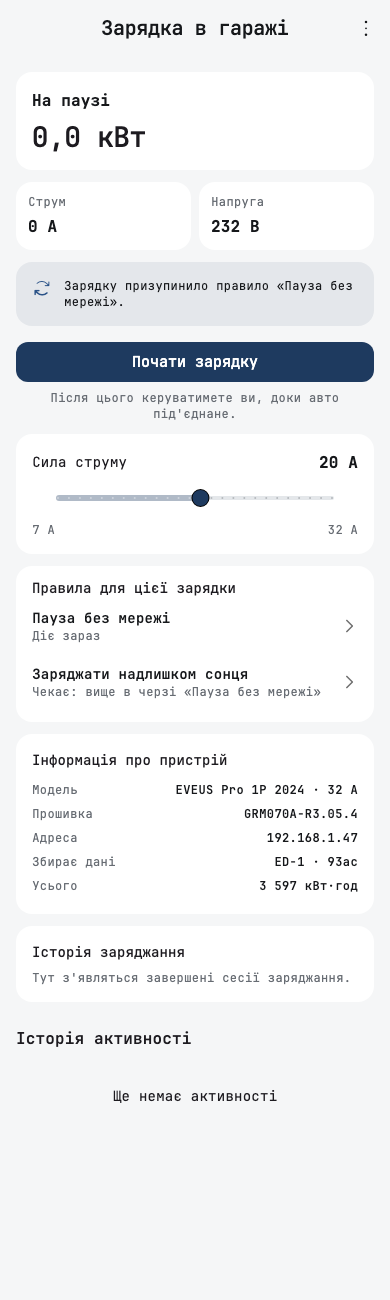
The charger's screen shows power, current, voltage and the energy of the session as it charges. You set the charging current with a slider, and pause or allow charging with one button. Finished sessions are listed under the controls.
When the Eveus app is in control of the charger, Svitgrid shows the readings and the current limit, and one switch hands control over to Svitgrid.
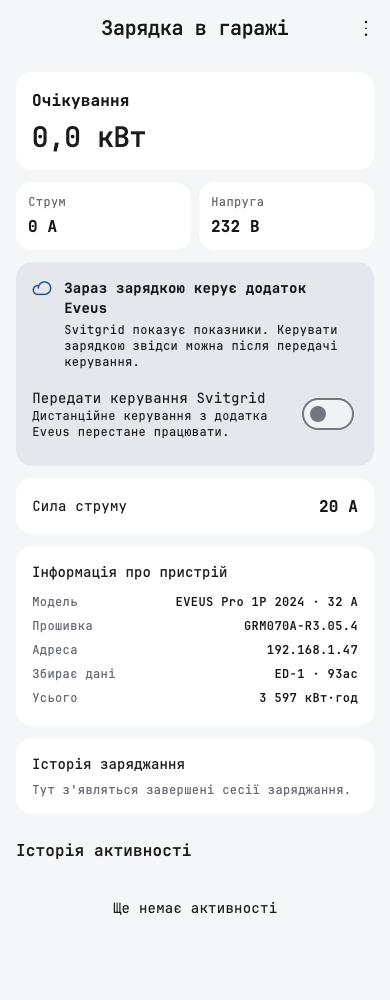
Rules and professional calendar events can drive the charger: pause it, allow charging, set its current, or follow the solar surplus. The charger's screen lists every rule that names it and says which one is acting.
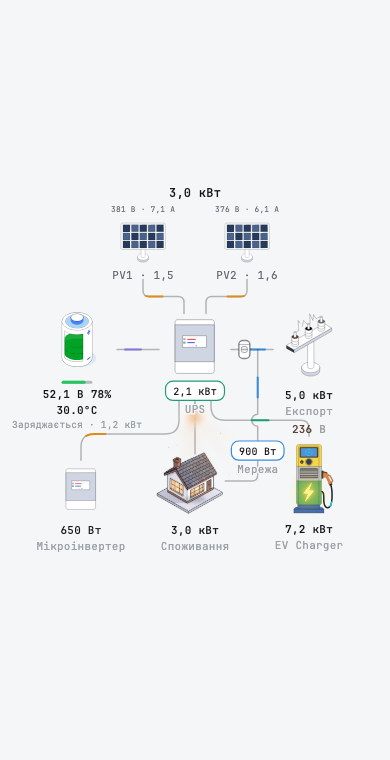
The charger also appears on the energy flow chart. A tap opens a card with its state, readings and the pause button. Eveus chargers are counted in Reports too.
Svitgrid in the browser
Svitgrid also works in a browser, at console.svitgrid.app. You sign in with the same account as in the app: Google, Apple or email. The console is in English and Ukrainian. Try the demo on the sign-in page opens a sample station, so you can look around without an account.
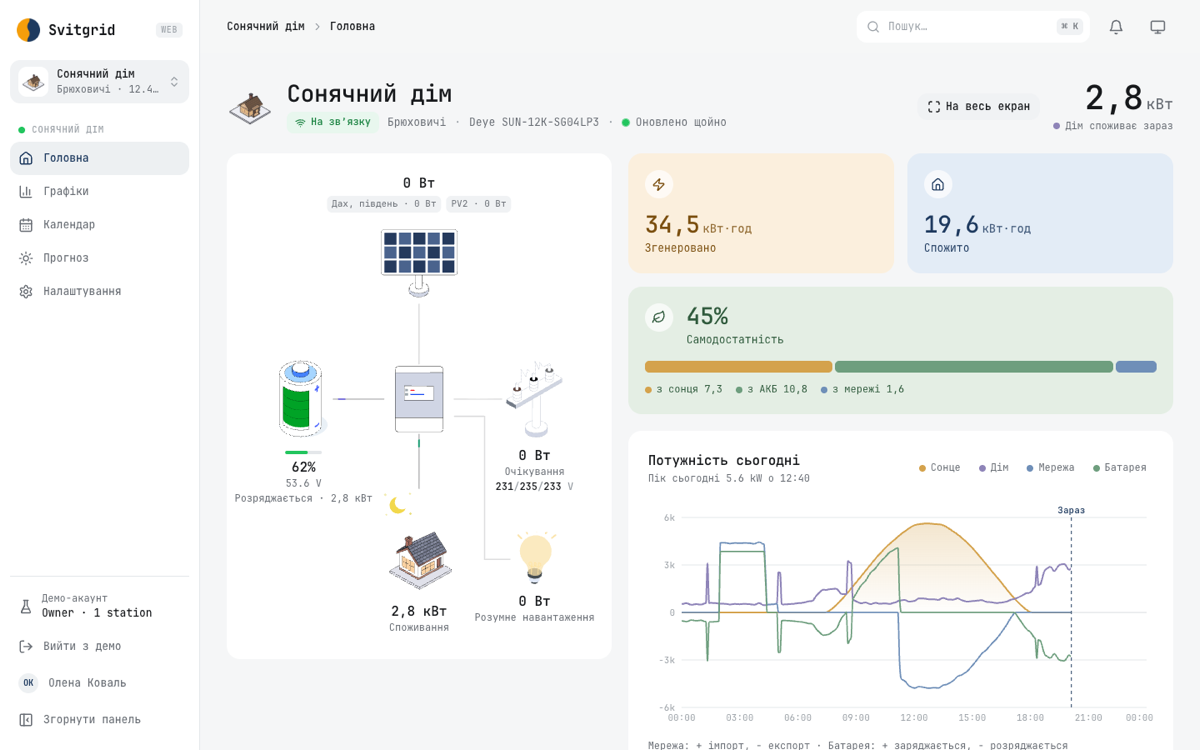
The home page shows the station's energy flow, today's energy, self-sufficiency and the power of the day. A click on any part of the flow chart opens its card, with the same details as in the app. Full screen turns the station into a wall view for a tablet or a TV, and the view darkens after sunset.
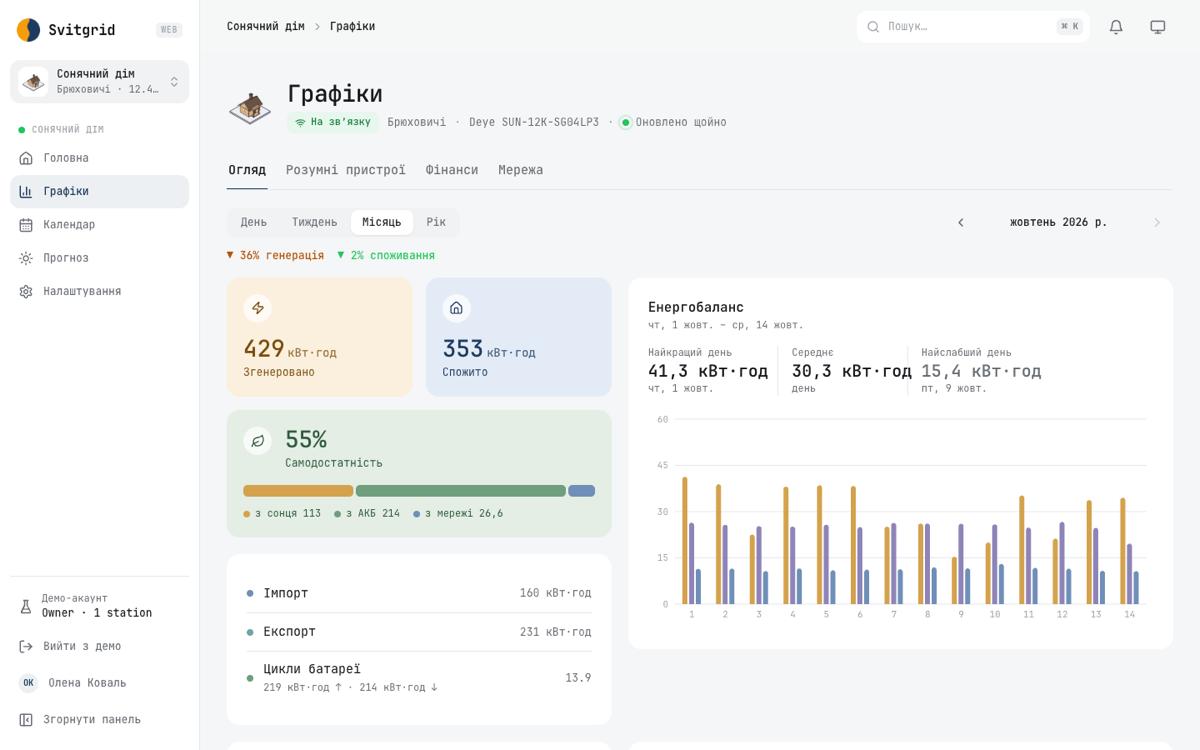
Charts has the views of Reports in the app: overview, smart devices, finance and grid, by day, week, month or year. Forecast shows the solar forecast with its range.
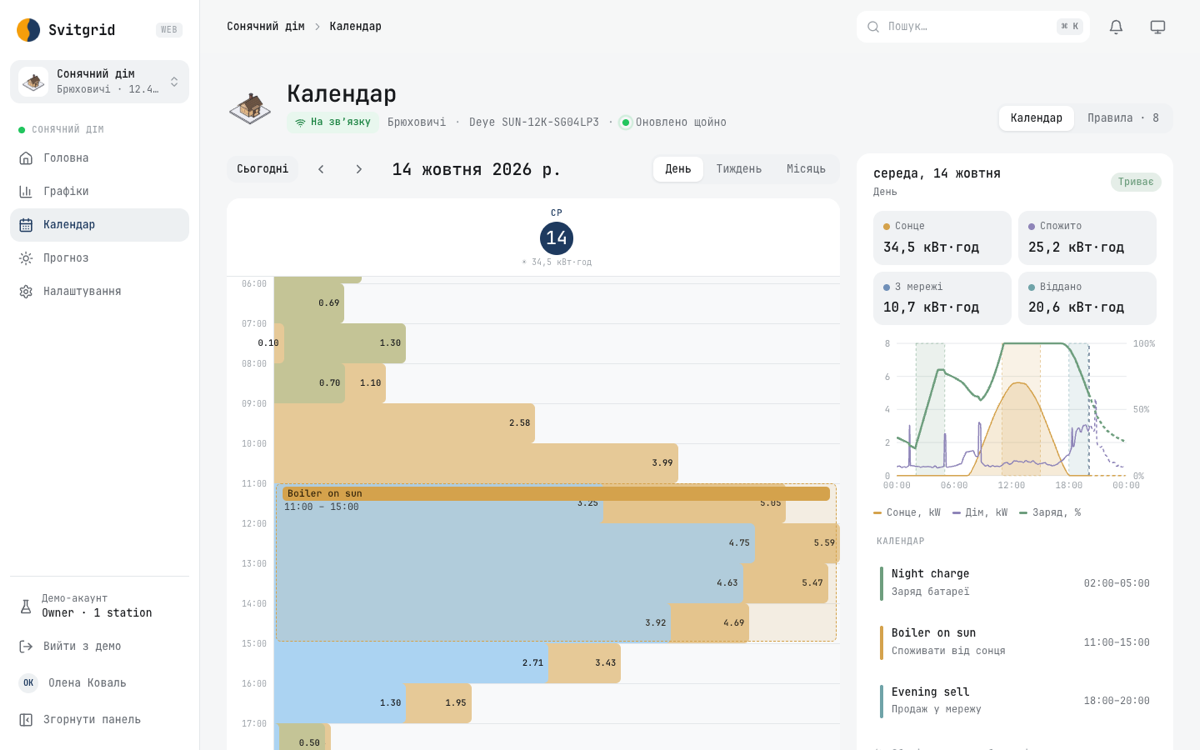
The calendar shows your events by day, week or month, with the energy of each hour behind them. From the browser you can pause an event for today, switch it on or off, or delete it. In Rules you can switch rules, reorder them, group them and delete them. Events and rules are still created and edited in the app.
Settings has every section the app has. Each board opens into its own page, with its status, firmware updates, restart, a pause of monitoring and the command history. Smart devices and Eveus chargers have their own pages with their controls.
After you sign in, the console offers to approve this browser with one of your phones. It shows a four-digit code for each station, and you confirm the code in the app. The approval prepares the browser for changes that a board accepts only when they are signed.
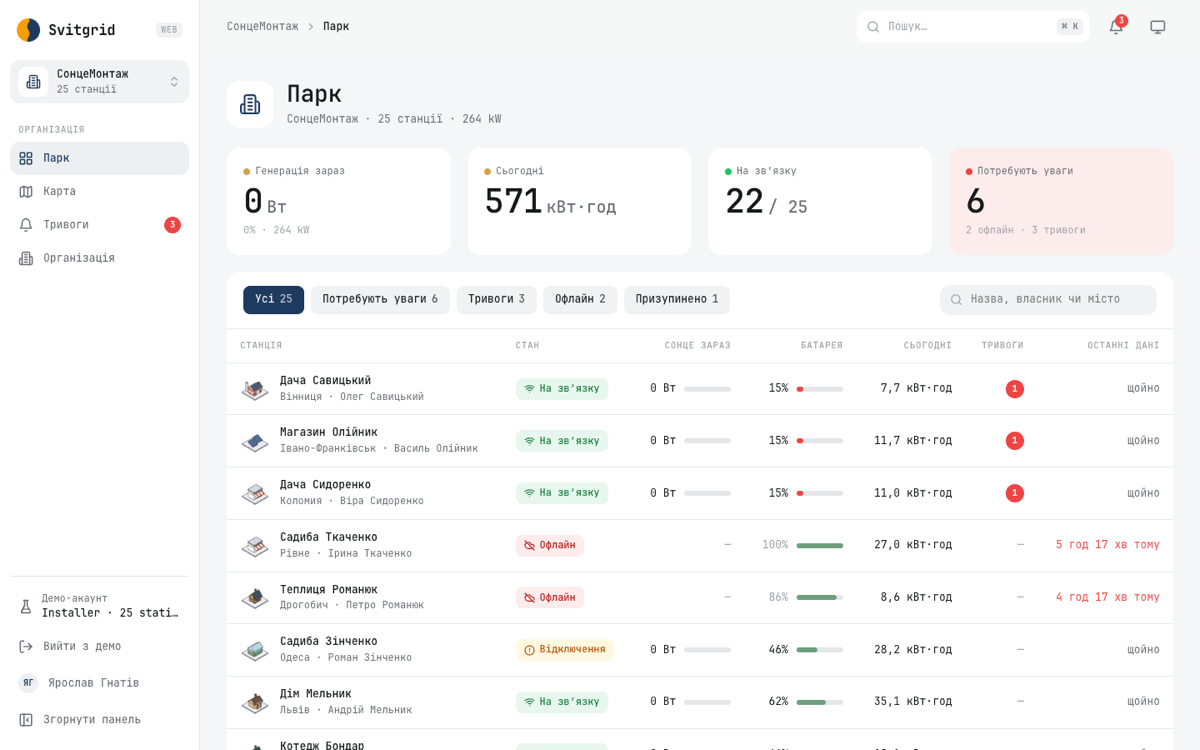
An organisation sees all its stations at once: a Fleet table with the stations that need attention first, a map, and one list of alarms.
Live data and history in the console follow the station's plan, as they do in the app.
Svitgrid without an account
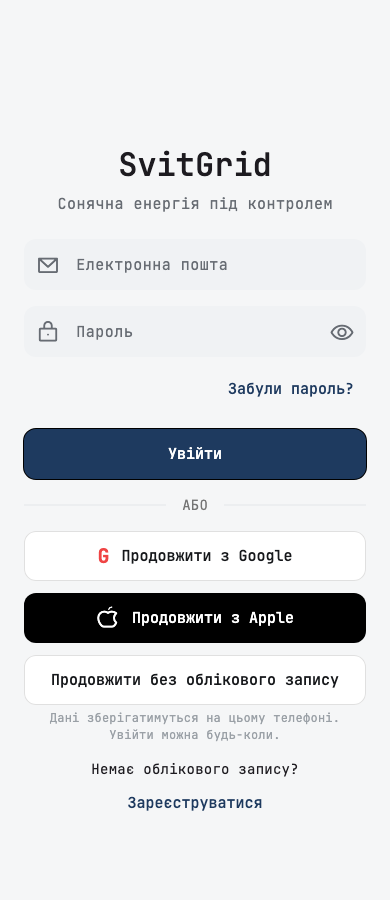
An account is optional. Continue without an account on the sign-in screen opens the app as a guest, and the station you set up stays on your phone.
A guest starts from two doors: connect your own station, or join one that your family or installer already set up.
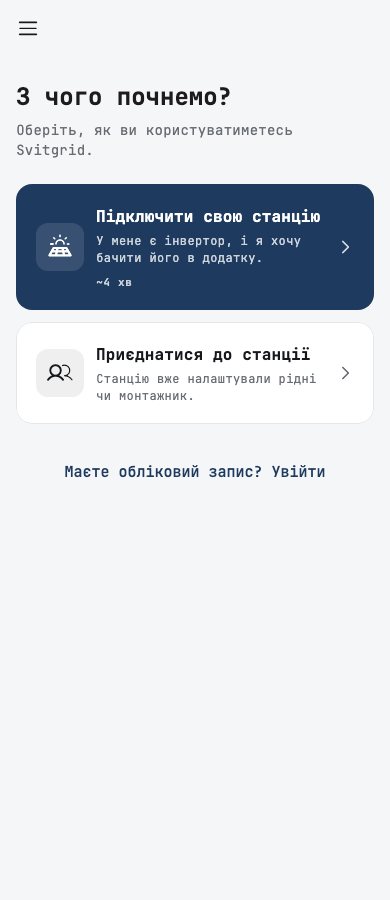
When you sign in later, the app offers to add the station to your account. Its history stays on the phone unless you choose to upload it.
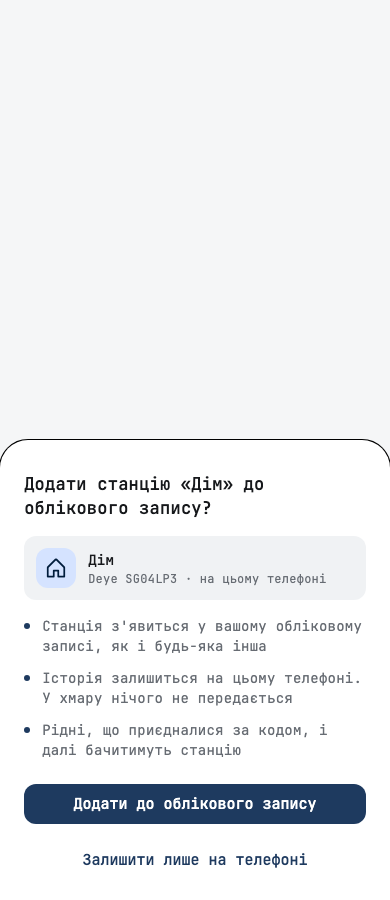
Data that stays on your phone
A station read by your phone can keep everything on that phone, free of charge. Setup asks where the data lives: in the Svitgrid cloud, or on this phone.
The app says plainly what stays and what works differently without the cloud. You can also copy the data to the Svitgrid cloud at any time, and switch that off again.
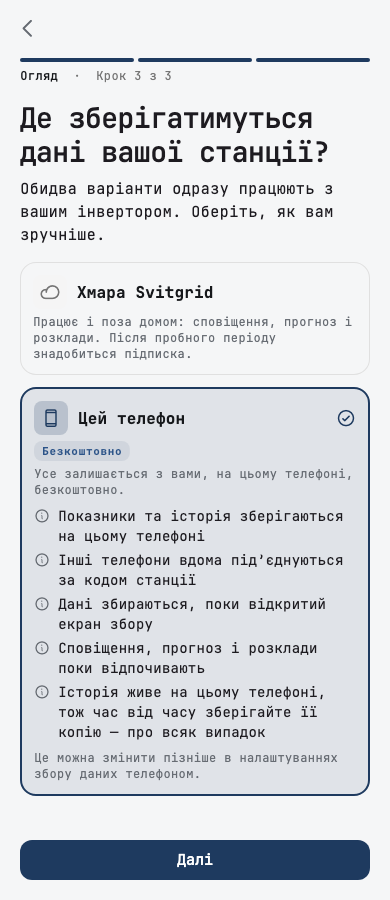
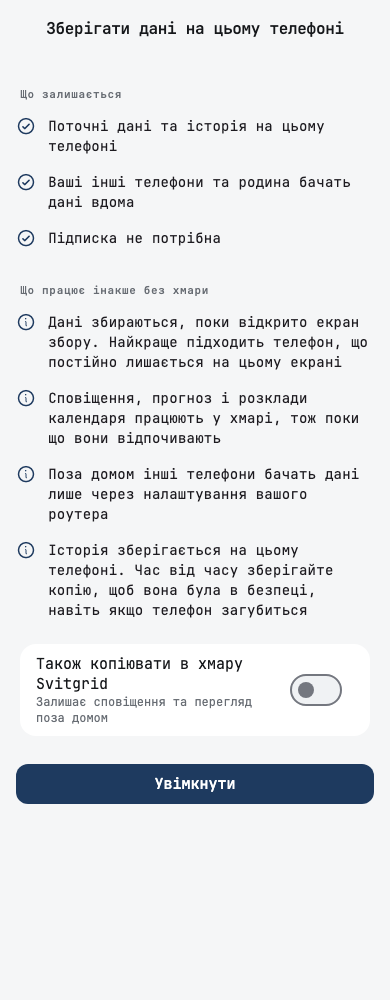
Other phones at home connect to the station with a QR code or a short code, with no account. The harvest screen shows that readings are being saved, and one slider sets how often the phone reads the inverter.
A station kept on the phone has its own settings: its name, its data collection, its battery packs and its inverter address. A copy of its history can be saved to a file, and the station can be deleted there.
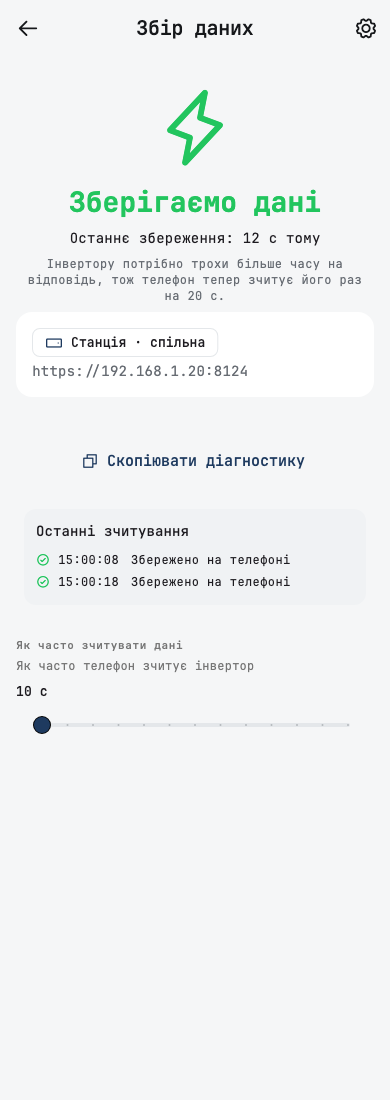
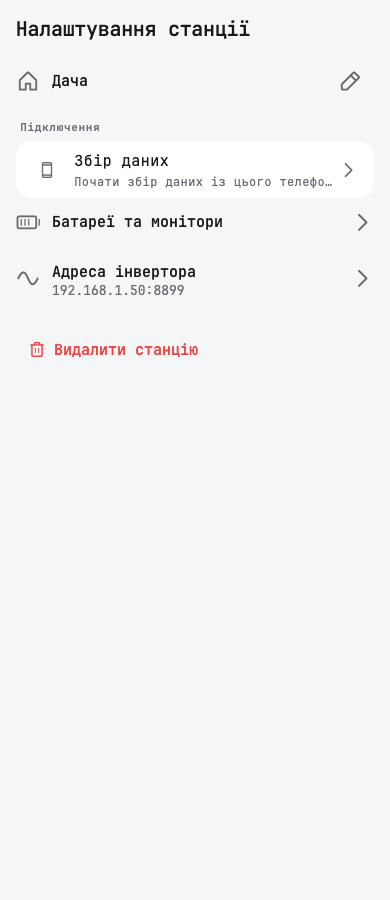
- Mobile harvester settings have their own screen, reached from the station tab.
- The phone reads the inverter at the interval you set, from every 10 seconds to every 5 minutes.
- A station kept on the phone opens with no account and no internet, and shows its last values while it is out of reach.
- A reinstalled iPhone keeps its phone stations.
- Battery packs of a phone station are managed on the phone.
- After you subscribe, the app offers to upload the last 7 days of the phone's history to the cloud.
A new start for an account with no station
An account with no station opens on Where shall we start? with the same two doors. An invitation that is waiting for you is shown first.
To join a station, you give its owner your address, or scan the QR code on the owner's phone.
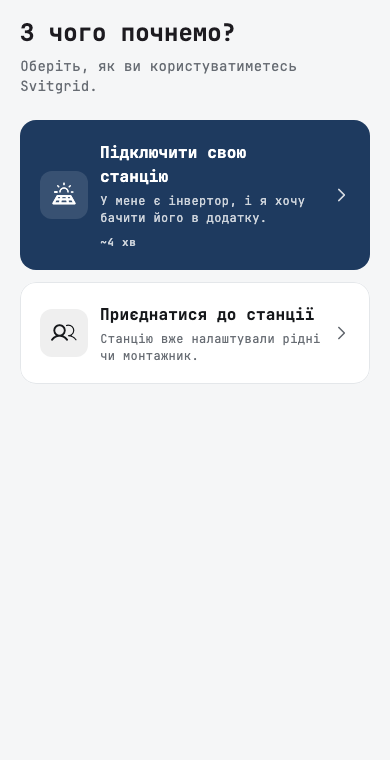
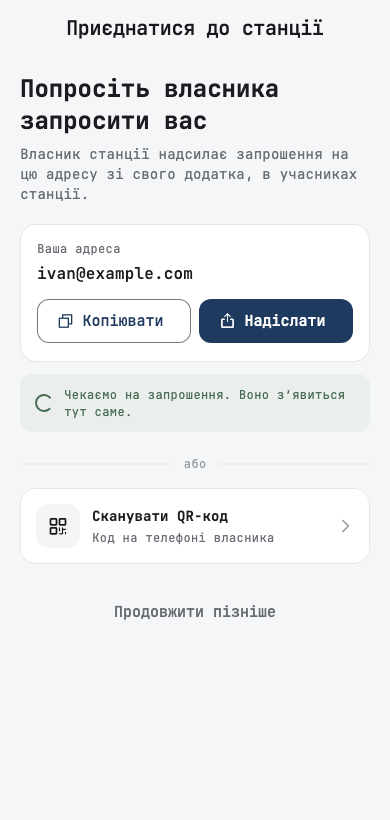
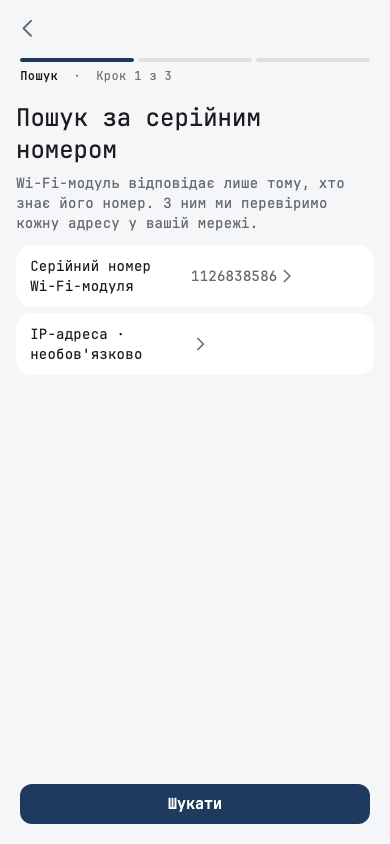
When the search finds no inverter, setup can look for a Solarman Wi-Fi stick by its serial number.
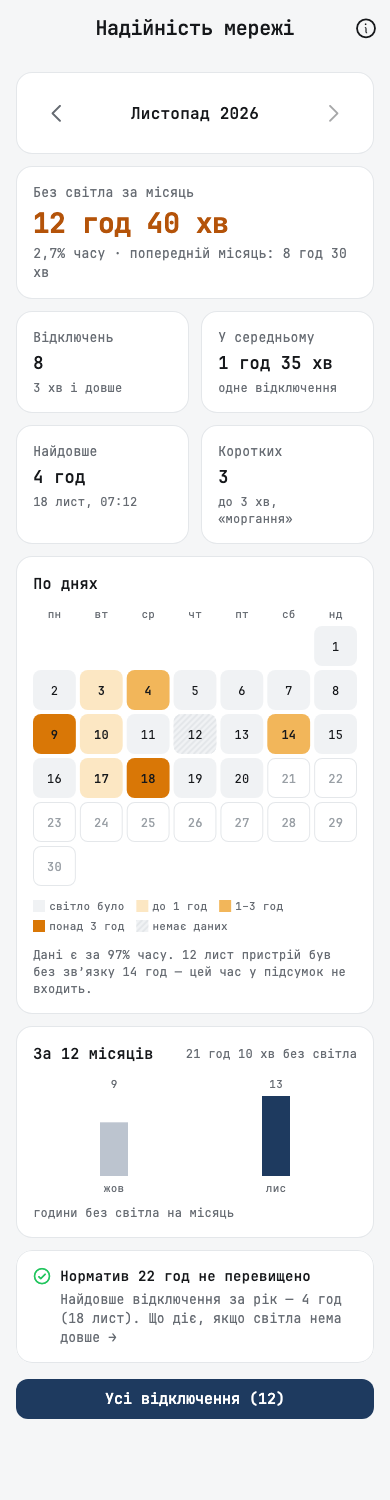
How reliable your grid is
Reports has a Grid tab. It shows how long you were without power this month, how many outages there were, the longest one, a calendar of days and the last 12 months. It is measured by your own inverter, and it is available with any subscription plan.
Every outage is in a log, with its start, its end and its length.
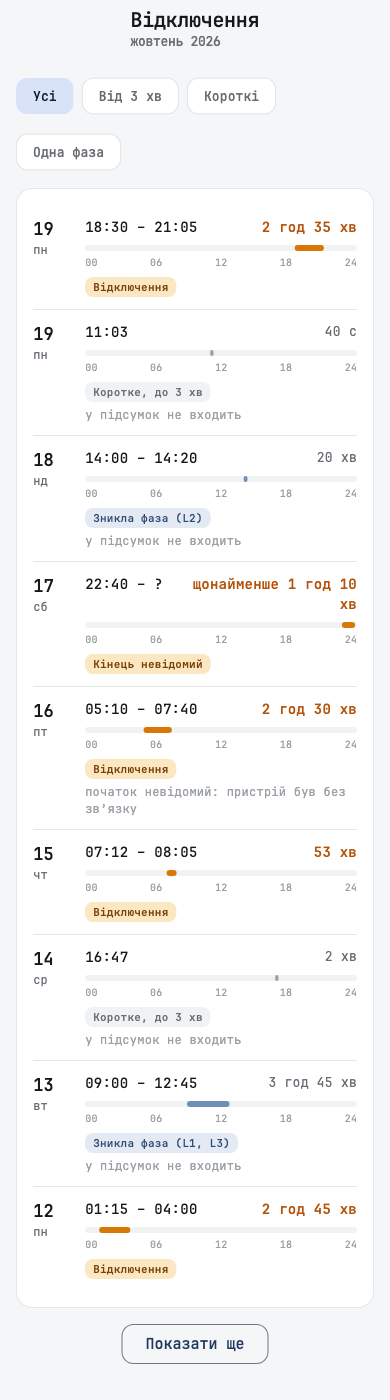
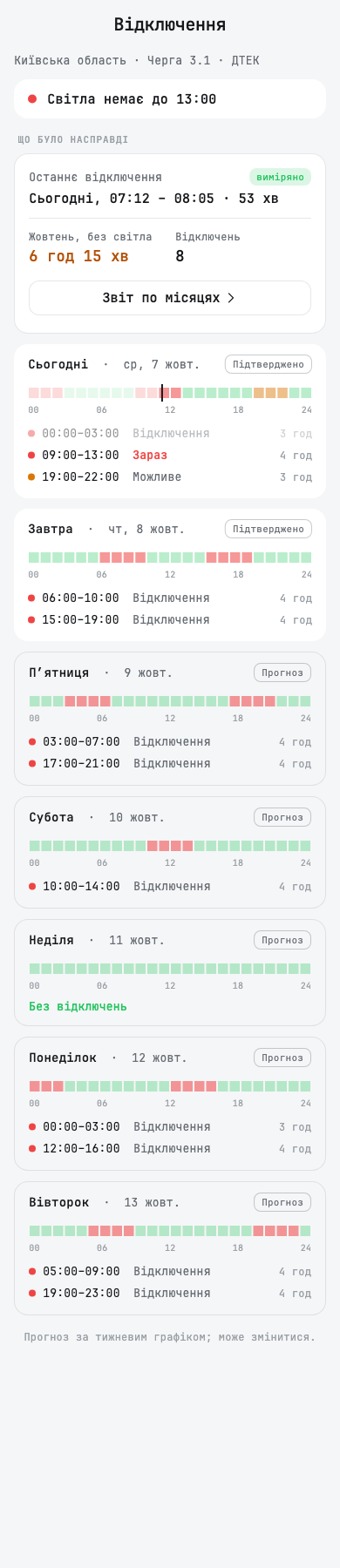
A tap on the outage banner on the dashboard opens an outage screen. It shows the published schedule for today, tomorrow and the days after, and what actually happened at your home.
- The grid card on the flow chart shows today's and this month's outages.
- A Scheduled outages switch in notification settings turns the warning before a planned outage on or off for you alone.
- The outage notification estimates the time left from every battery pack in the household, at the household's own rate of use.
- The outage banner alerts once per outage, and no "outage in 1 hour" notification arrives while the power is already off.
- How we count explains the figures, including how a voltage relay in front of the inverter affects them.
- Outage schedules for Odesa oblast are read from DTEK's own page, and Poltava oblast schedules are read again.
- Pull to refresh fetches the region's outage schedule again.
Smart devices: where the energy goes
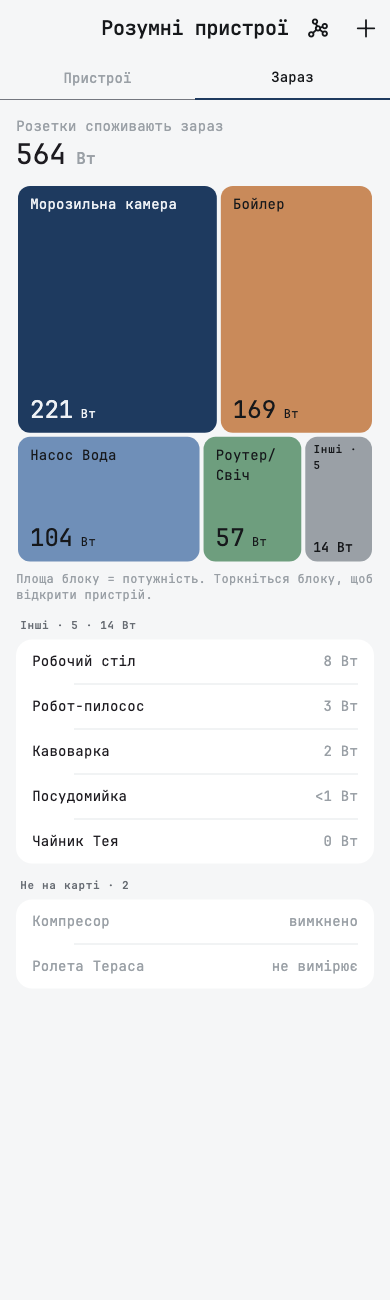
The smart devices screen has a Now tab. It draws your sockets as a map sized by what each one draws at this moment.
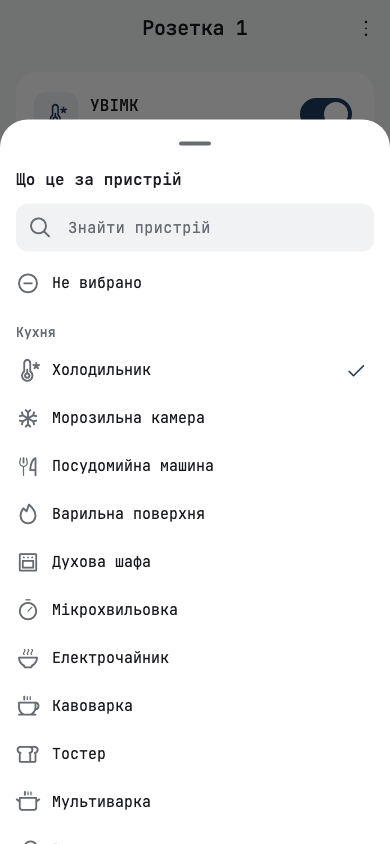
You can say what each socket powers: a fridge, a boiler, a washing machine, a robot vacuum and many more.
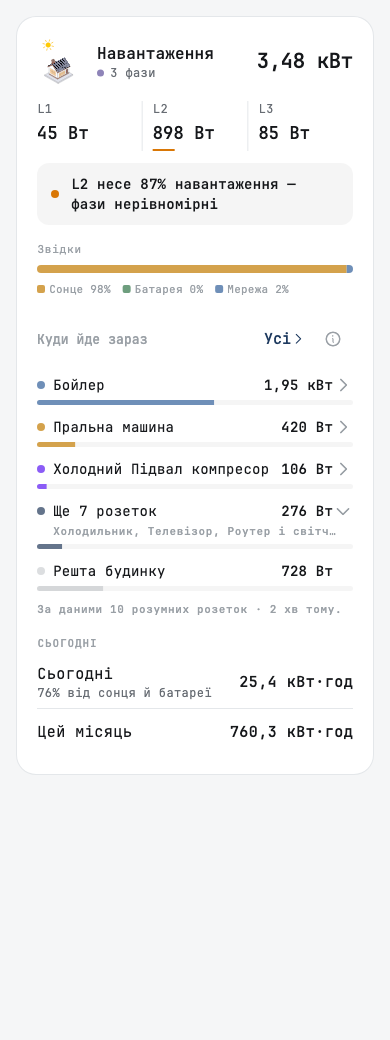
The load card on the flow chart lists where the power goes right now. Sockets drawing under 20 W fold into one line, and All opens the full list.
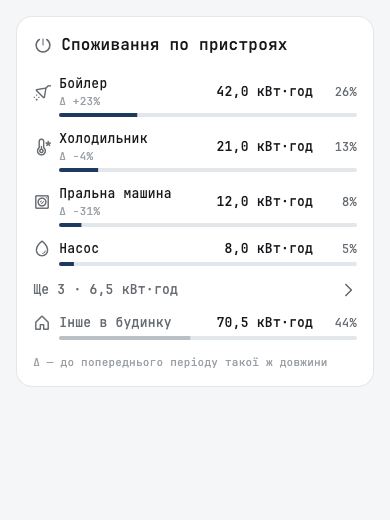
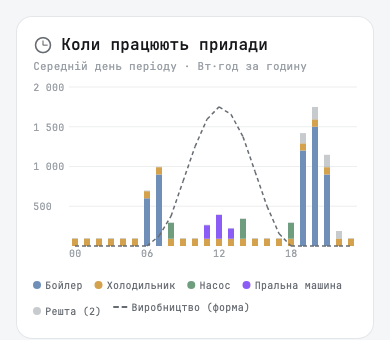
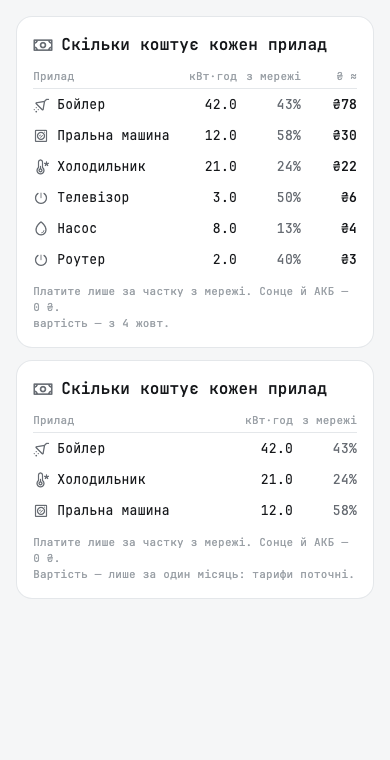
Reports show energy per device: a ranking for the period, what powered each device (sun, battery or grid), what each one cost, and the hours when they run. Pinch to zoom the device charts, and tap the legend to hide a device.
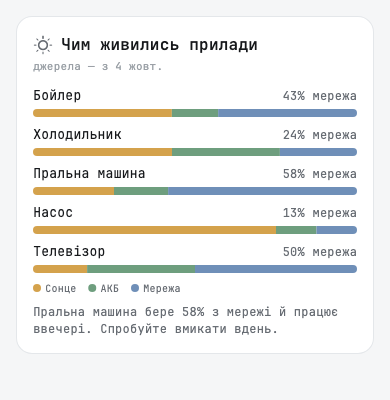
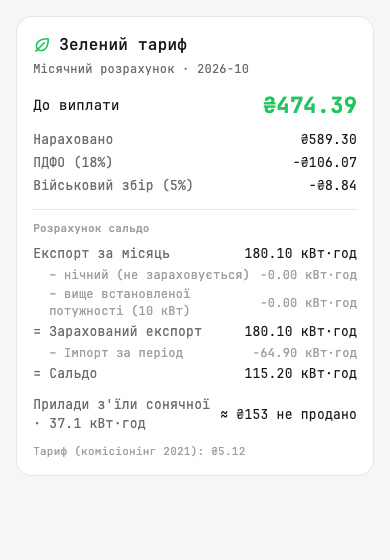
The green tariff card shows how much solar energy your devices used.
The Zigbee mesh map draws the real routes between devices and reads every router.
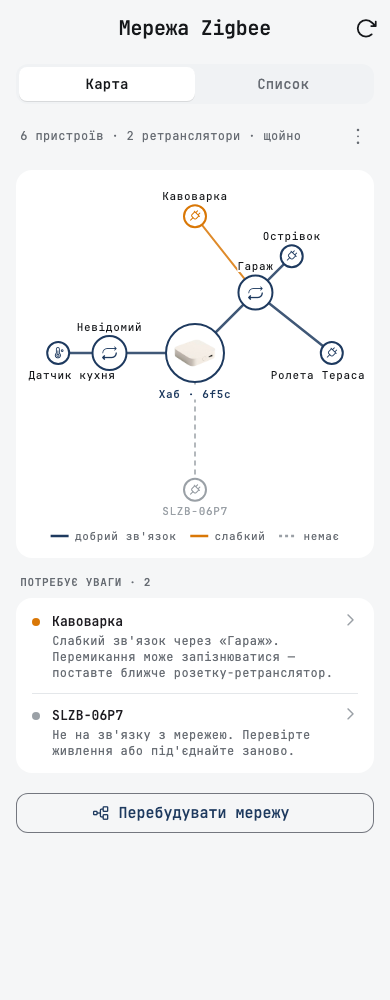
- Devices that joined a hub and were never added are listed with Add and Remove.
- A list row says when a socket is offline, and a fresh power reading brings it back online.
- A repeater or a sensor with nothing to switch shows no toggle.
- The mesh screen has Rebuild network, and a device that left the hub is drawn as out of reach.
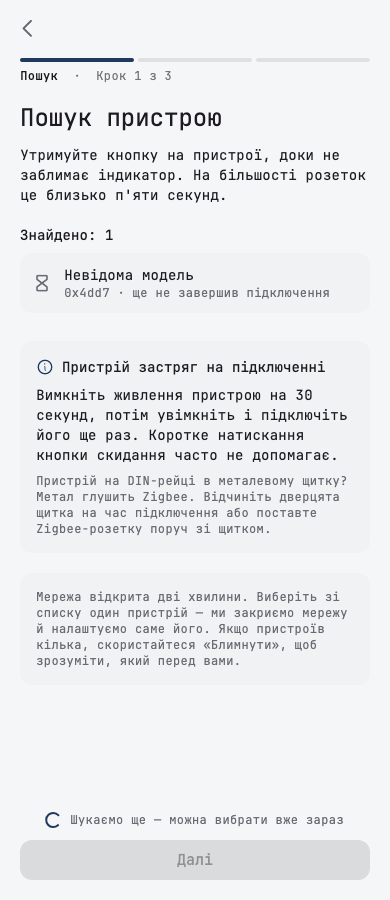
- A pairing that takes long is given time to finish, and a device that is slow to join gets advice on what helps.
- The smart devices charts show a tooltip under your finger.
- A new Zigbee switch is saved with its model and what it can do.
Rules and calendar events
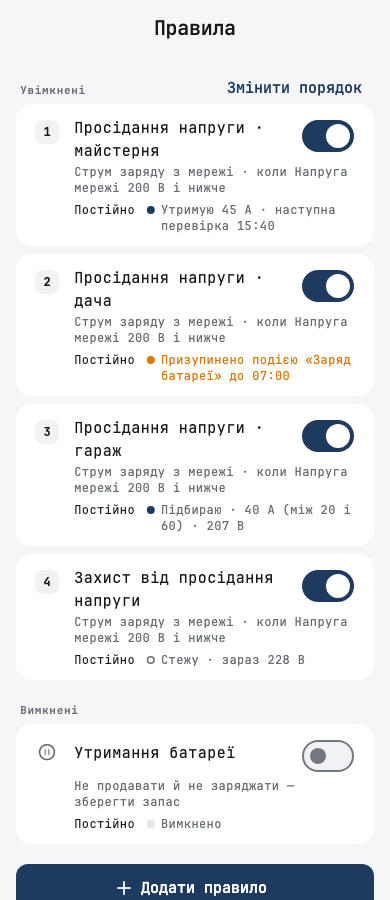
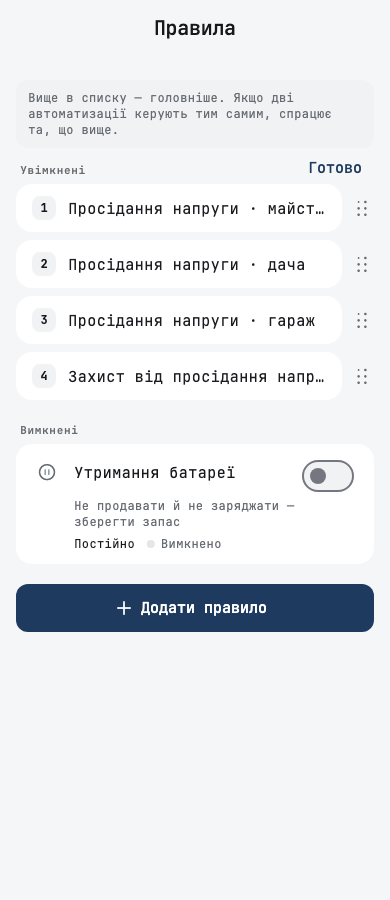
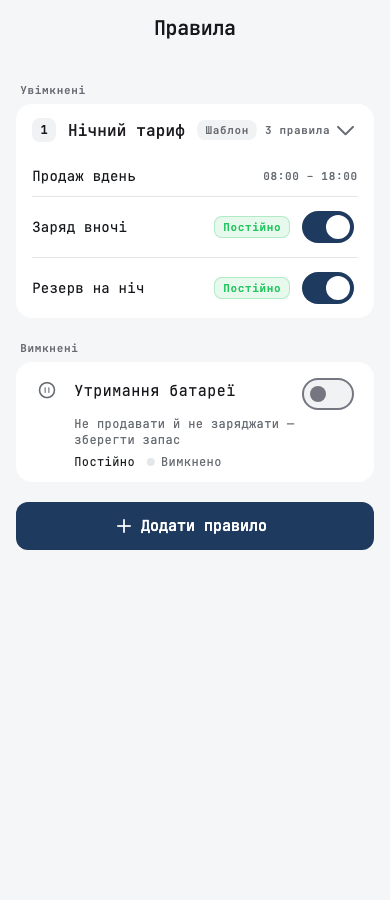
Rules are numbered in the order that decides between them. Change order opens a separate mode for dragging them.
Grouping rules into one
You can group several rules of your own into one, the way a template does. Long-press a rule, tick the others, tap Group, and name the group. A group is drawn as one card: it has one place in the order and one switch per rule. The ⋯ menu beside a rule renames the group or takes the rule out of it.
Charge current in an event
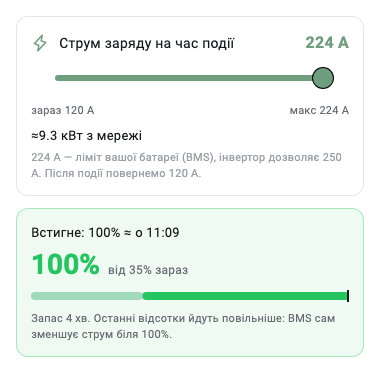
A battery charge event has a charge-current slider. It shows the charge level the battery reaches by the end of the window, and the same slider is offered by Charge now on the battery card.
Other changes
- A rule can react to a Zigbee sensor or socket: temperature, humidity, power, or on and off.
- A quick override on the battery card picks its length with a stepper, from 30 minutes to 8 hours.
- When a charge event skips because the forecast is good, the app names the inverter's own time-of-use slot that still charges from the grid.
- An event that missed its charge target says so, and says when the charge current was the limit.
- Before grid charging turns on for a Deye time-of-use inverter, the app lists the slots that will charge. It also says when the inverter's own Grid Charge setting is off.
- A professional event lists its conditions before its settings, like a rule.
- Rules are available for every inverter, and the list of actions shows only what your inverter can run.
- Two rules with conditions can change the same setting; their order decides between them.
- A refused save names the action the inverter cannot run.
- Every sheet in the rule editor has a close button.
- The action that switches the inverter's time-of-use timer is named TOU timer, and its description says where the slots come from.
- Lower consumption is no longer offered for a new event. Events you already have keep working.
The dashboard and widgets
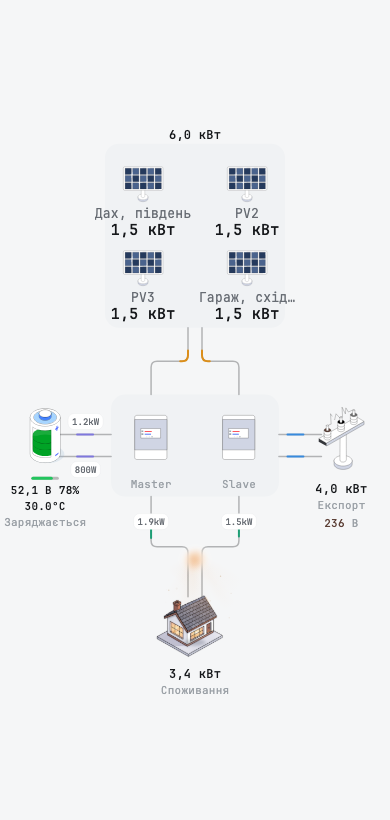
You can name each solar string, and the solar panes on the flow chart are larger and readable.
- The dashboard refreshes as often as your station uploads, from every 30 seconds to every 5 minutes.
- Every dashboard detail card has a close button.
- The grid card of a station with no meter offers All energy goes to the grid.
- The iOS widget lets you pick a station, so you can keep one widget per station. It follows the app's theme and text size, and needs iOS 17 or later.
- The Android widget is a stack of station cards that you swipe through.
Inverters and charging from the grid
- On a Deye inverter with a time-of-use table, the grid-charge switch drives the inverter's own Grid Charge setting together with the slots. A battery charge event turns it on for its window and puts it back afterwards. A board with older firmware keeps using the time-of-use switch.
- A battery charge event can raise the grid charge current for its window, and the inverter gets its own value back when the window ends.
- After a battery charge event, the time-of-use table returns exactly as it was.
- A completed battery maintenance cycle hands the time-of-use program back.
- A selling window that the inverter left is set again, and a sell power cap that failed to apply is retried while the event runs.
- The battery of a Sofar HYD 5-20KTL-3PH is treated as high-voltage.
- The Deye SG04LP1 is rated up to 6 kW, with a grid charge current of up to 150 A.
- A PI30 inverter (Edecoa) in line mode shows grid power that includes the whole load.
- A 12 V Anenji read through an EyBond collector shows its real battery voltage and solar power.
- An inverter with an energy scale correction has its daily battery counters corrected too.
- The app says sooner when a Solarman Wi-Fi logger is out of reach.
- An inverter added to a station that has a board is read by that board.
Your board
A board can be renamed from its page, so two hubs are told apart. A capability that was left off at setup, such as the inverter, batteries or the Zigbee hub, can be turned on later.
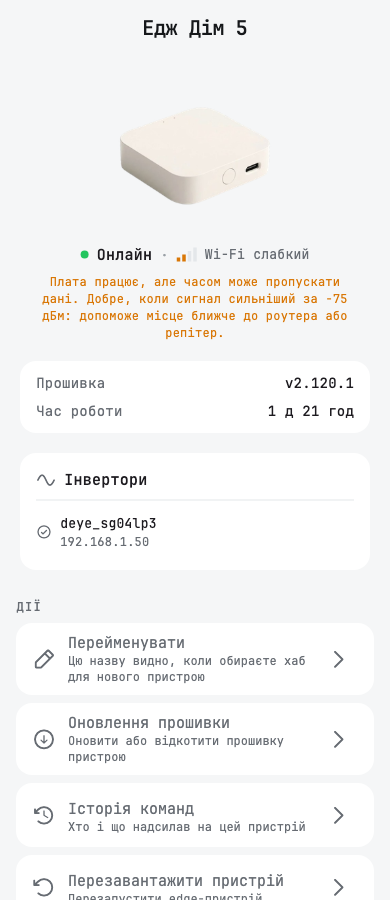
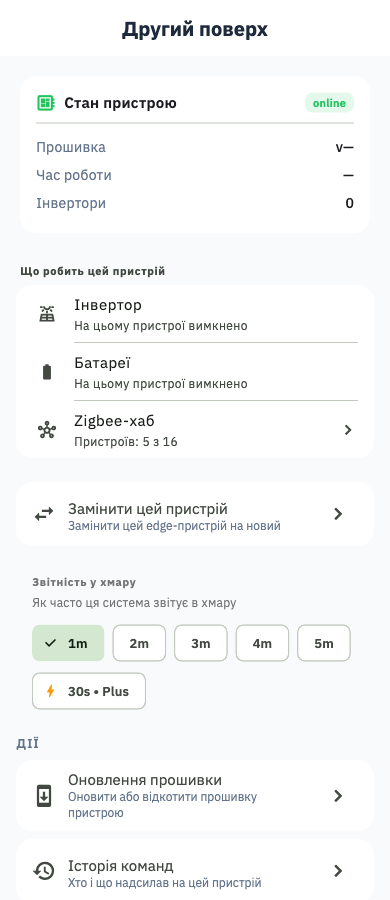
- The board page shows its microSD card: state, size and free space.
- A board with a serial port offers Read by cable for an inverter that is read through a Wi-Fi logger.
- A board that cannot read batteries is no longer offered them.
- A board set up again in the same household keeps its inverters.
- Board setup stops with a clear message when the board says it did not join the Wi-Fi.
- A failed board command in the activity feed names the board's reason.
- The battery search stops with a message when the hub's own search fails.
On svitgrid.app
- The flasher connects to the board first and then asks which serial port it has.
- The serial probe identifies an unknown inverter over a serial cable before setup.
- The log reader shows a board's log in the browser.
- The Svitgrid Gateway is ordered on a checkout page with a Nova Poshta branch picker and an order number.
- Edecoa is on the compatibility page, and Deye has its own pages in Ukrainian.
- The flashing guide in the documentation covers flashing only the Zigbee module.
Fixes and improvements
Dashboard and flow chart
- A parallel pair of inverters sums grid power, production and the day's totals across every unit.
- Grid flow under 20 W is shown while the battery is active, and an idle grid reads 0 W.
- The dashboard draws each inverter's configured solar strings.
- The line from the inverter to the house reaches the house and animates.
- A parallel pair draws no split at the current sensor without a load on the backup port, and a station proven to have no sensor draws none.
- A tapped inverter's card names its own model and phases.
- A dashboard that shows only some of the inverters says so, and a micro-inverter left out of it no longer reads OFF.
- A station with no data yet says so in place of a spinner.
- Today's import and export ignore readings from before the inverter's own midnight reset.
- Refreshes started together wake the board once.
Reports and forecast
- The CSV export covers the period you selected.
- Devices that used solar energy are priced at the net green tariff rate.
- Reports tabs fit a narrow phone.
- Analytics figures use your language's decimal separator.
- The hour-detail date follows the app language, its accuracy badge stays within 100%, and its rows fit.
- The cloudy-day insight judges yesterday, a complete day.
- A past day's day-ahead prices are kept only when the whole curve is known.
- The green tariff card's settings link opens the tariff screen.
Outages
- Unknown hours on the outage strip and the outage screen are drawn grey.
- A running outage counts on every grid screen.
- A month with little data reads as a lower bound.
Smart devices and Zigbee
- Zigbee setup writes the power-on behaviour to the right device.
- A device that is already registered no longer blocks saving.
- Removing a device removes the one you chose, even after its network address changed.
- Plugs the hub still hears no longer read as offline.
- A schedule stops retrying a smart device that its hub has reported out of reach for hours.
Account, access and organisations
- A notification tap opens the station's dashboard.
- Removing a member from a household revokes their signing keys.
- The two-factor row on the Account screen opens the security screen.
- The sign-up link on the sign-in screen wraps on a narrow phone.
- An organisation shows one row per station, and a station that is online never lands under Needs attention.
- Fleet maps draw OpenStreetMap tiles.
- Deleting a master inverter releases the inverters that followed it.
Setup
- A search for "sunsynk" finds Sunsynk for both phase counts.
- The battery step says how many monitors reported a capacity.
- The Add PV string button stays clear of the Android navigation bar.
- The Home Assistant screen's Connection card follows new readings.