
Connect your Svitgrid Edge
Got the box? Here's how to get it online — about 5 minutes, no tech skills needed.


Before you start
- Your Svitgrid Edge box and a USB-C power source (a phone charger works)
- Your phone, connected to your home Wi-Fi
- Your inverter powered on and on the same Wi-Fi
Set it up in 5 steps
1
Install the Svitgrid app
Free on iPhone and Android. Use the buttons above, or search "Svitgrid" in your store.
2
Create an account
Open the app, tap Create Account, confirm your email, and sign in. You can also sign in with Google or Apple.
3
Power on the box
Plug the Edge into USB-C power. After a few seconds its light starts a slow blink — that means it's ready to connect.
4
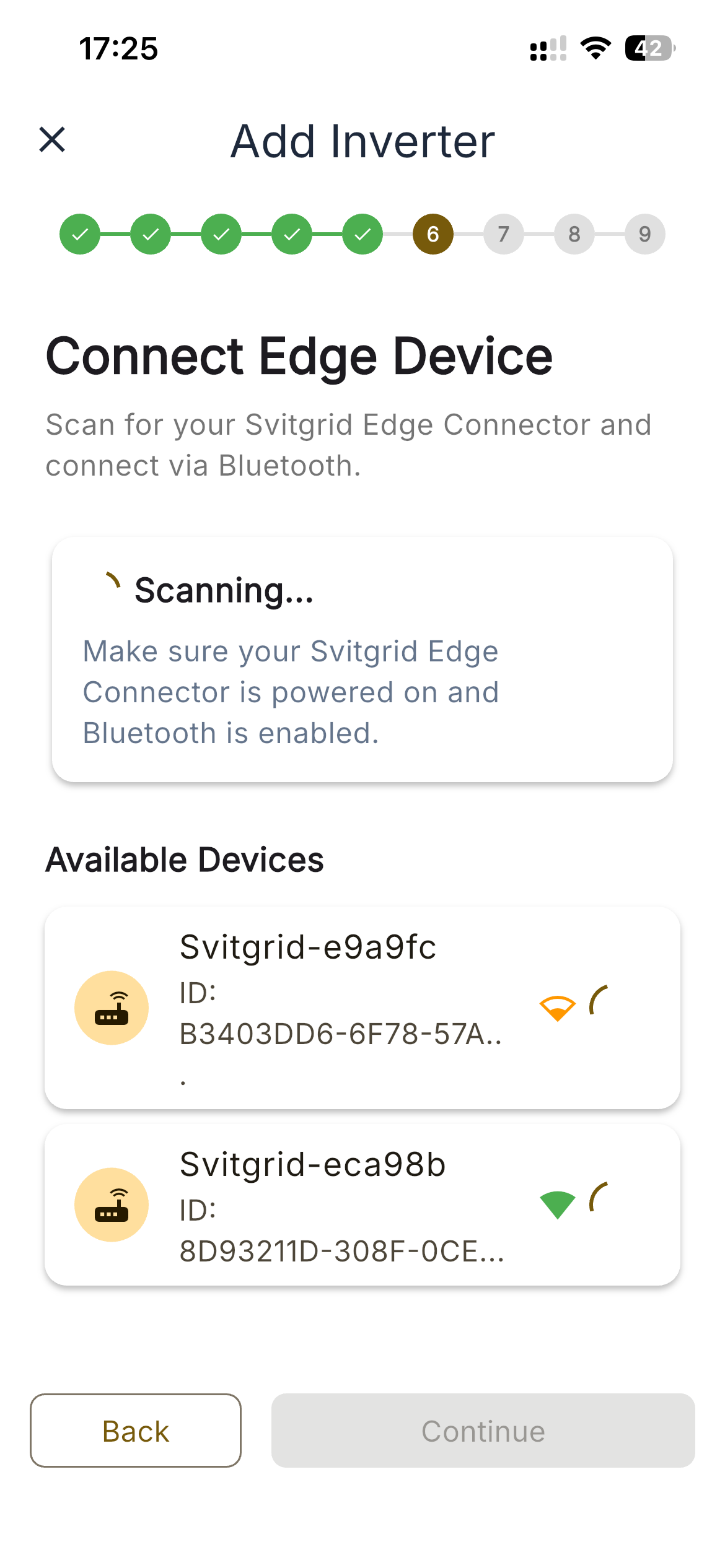
Find the box in the app
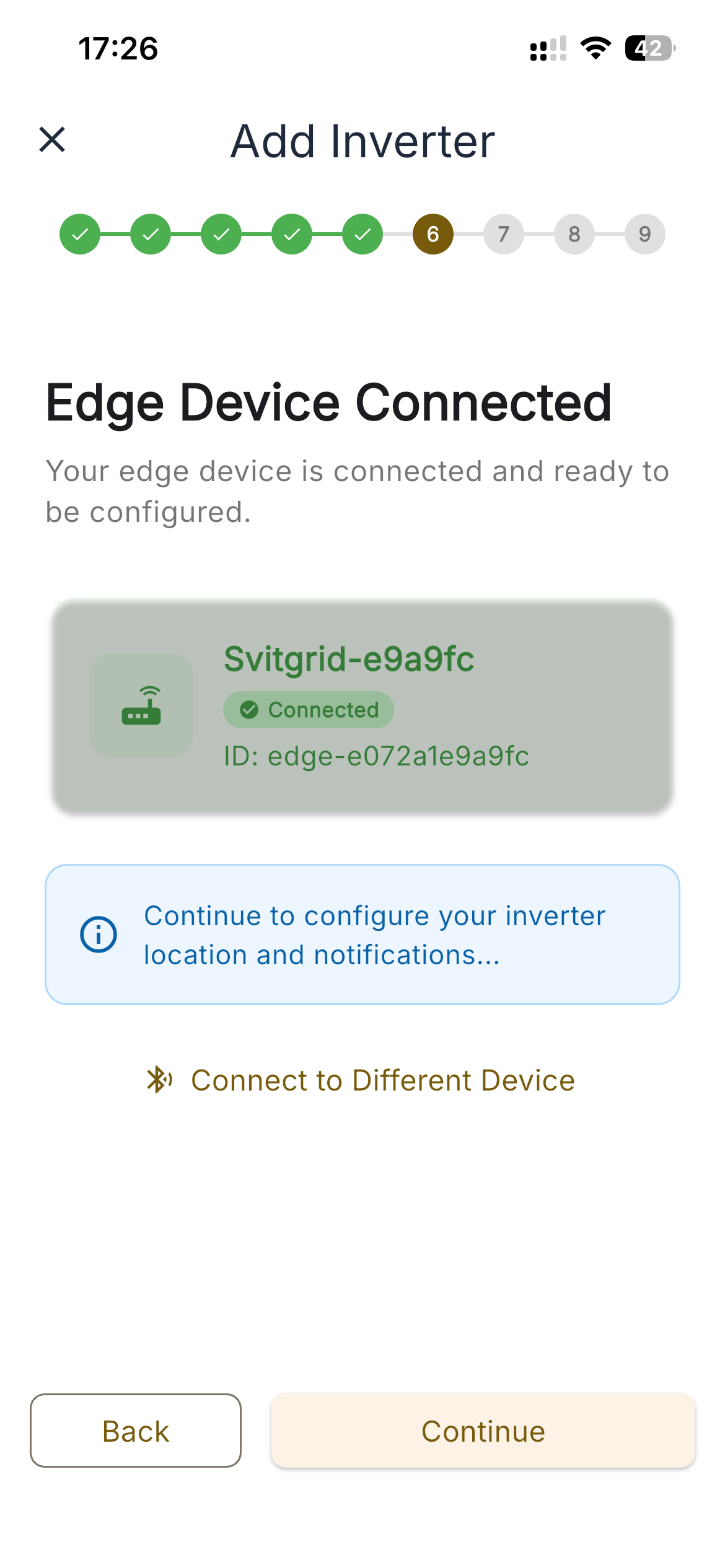
In onboarding, choose Edge Device mode (or open Settings → Edge Device). The app scans over Bluetooth and your box appears as "Svitgrid-xxxxxx". Tap it to connect.
5
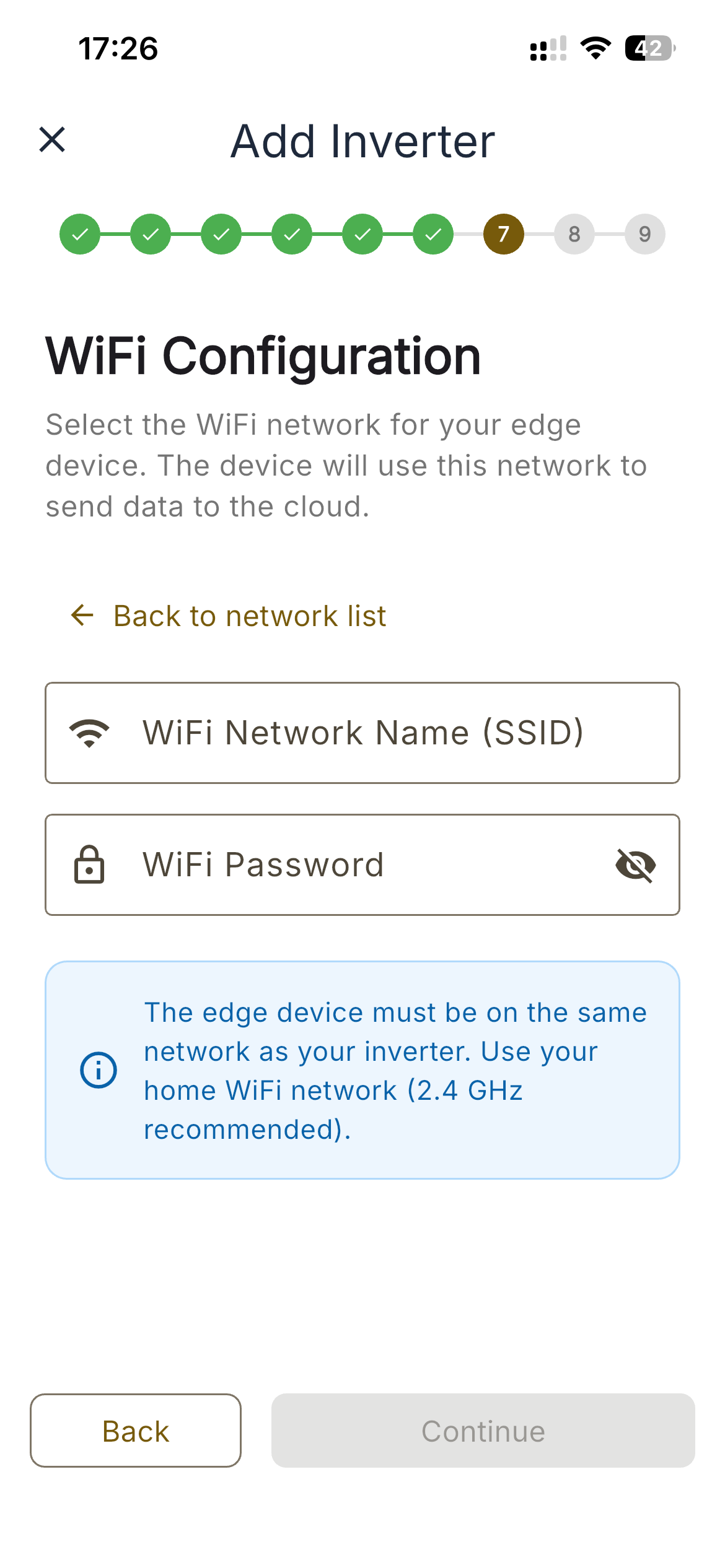
Choose your Wi-Fi
Pick your home network and enter the password. The box connects and the light turns solid — it's online and uploading readings. Done!
What the light means
| Light pattern | Meaning |
|---|---|
| Slow blink | Ready to connect (Bluetooth pairing mode) |
| Fast blink | Connecting to Wi-Fi |
| Solid on | Online and uploading readings |
| Double blink | Error — open the app for details |
Troubleshooting
| Problem | What to do |
|---|---|
| The box doesn't appear in the app | Make sure the light is slow-blinking (pairing mode), and that Bluetooth and Location are turned on for the app. Move closer to the box. |
| The light never blinks | Check the cable and power source — use a charger that supplies at least 5 V / 1 A. Try a different USB-C cable. |
| Wi-Fi won't connect (light keeps fast-blinking) | Re-check the password, and make sure the network is 2.4 GHz — the Edge connects to 2.4 GHz Wi-Fi. |
| Connected to the wrong network | Open Settings → Edge Device, tap the device, and re-run Wi-Fi setup. |
| Start over from scratch | In Settings → Edge Device, choose Factory reset to wipe the stored Wi-Fi, then pair again. |